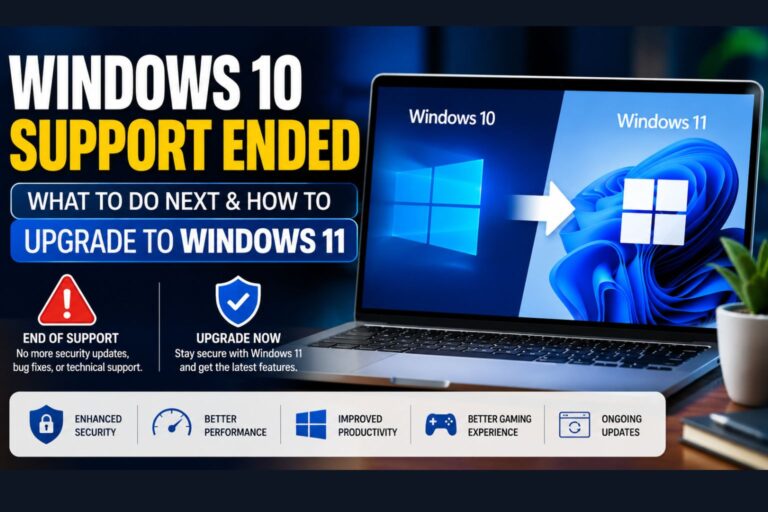
Windows 10 Support Ended: What to Do Next & How to Upgrade to Windows 11

windows 10 support ended

If you saw headlines saying Windows 10 support ended recently, you’re not imagining it. Millions of people across the US are wondering whether they can still safely use Windows 10 or if it is finally time to upgrade.

The positive part is that your computer won’t die on the spot. But the end of support indicates that Microsoft will stop its vital security updates, bug fixes, and technical support. That presents potential dangers as time goes on, particularly when you use your PC for banking, work, e-commerce, or saving personal data.

Having worked for years with users moving up from earlier versions of Windows, I am familiar with one ubiquitous error: because your computer turns on, all is well. In reality, it is actually security updates that are generally the most vital reason to keep your OS updated.

Short Answer: What is the end of Windows 10 support

End of support for Windows 10 means that Microsoft no longer provides regular security updates, bug fixes, and technical support. Your computer can continue to work, but it does become progressively insecure and increasingly incompatible with the latest software being developed for future generations. For eligible devices, Windows 11 is the more permanent long-term fix that we recommend upgrading to.

Key Takeaways

  • ✅ Windows 10 reached end of life on October 14, 2025 — security patches stopped on that date.
  • ⚠️ Continuing to use Windows 10 without updates puts personal data, business files, and networks at real risk.
  • 💻 Many PCs can upgrade to Windows 11 for free — but hardware requirements (especially TPM 2.0) block some older machines.
  • 💰 Microsoft offers Extended Security Updates (ESU) for Windows 10 at a cost—up to $61 per device for year 1 (as of Microsoft’s published pricing).
  • 🔄 Linux distributions like Ubuntu or Linux Mint are free, capable alternatives for older hardware.
  • 🖥️ Buying a new PC with Windows 11 pre-installed is often the most practical long-term solution.
  • 🔒 No antivirus software fully compensates for a missing OS security patch — the risk is structural, not cosmetic.
  • 📋 Businesses face compliance and liability exposure if regulated data sits on unsupported systems.

What Does “Windows 10 Support Ended” Mean? ⚙️

When you hear the phrase “Windows 10 end of support,” it sounds like your computer is just going to stop turning on. Thankfully, I can promise you that your screen will not randomly go black on October 15, 2025.

What it actually means is that Microsoft is completely abandoning the operating system. They are pulling all of their software engineers away from Windows 10 and moving them over to newer projects.

You will no longer receive those annoying but necessary “feature updates” that add new tools to your computer. More importantly, Microsoft will stop fixing bugs, glitches, and compatibility issues.

If a new piece of software or a new printer comes out in 2026, it might not work on your older PC. If you want to keep your hardware running smoothly, you should check out our guide on basic PC maintenance routines.

What Happens If You Continue Using Windows 10? ⚠️

windows 10 support ended
Windows 10 support ended

Technically, you can absolutely keep turning on your PC and browsing the internet after the deadline. However, as a tech expert, I strongly advise against doing this for long periods.

The biggest risk you face involves the complete stop of Windows 10 security updates. Hackers actively wait for operating systems to reach their end of life to exploit newly discovered vulnerabilities.

Without Microsoft patching these security holes, your personal data, banking info, and family photos are at serious risk. Ransomware attacks in the USA cost people billions of dollars every single year.

Right now, statistics show that nearly 60% of all desktop computers globally are still running Windows 10. That is millions of American users who are about to become massive targets for cybercriminals.

If you plan to stubbornly stick with the old OS, you must have an elite antivirus program. For extra protection tips, I highly recommend reading our thoughts on safeguarding your digital privacy.

Should You Upgrade to Windows 11? 💻

upgrade to windows 11
Upgrade to Windows 11

The short answer is a massive, echoing yes. If your computer hardware can handle it, you absolutely need to upgrade to Windows 11 as soon as possible.

I was skeptical when it first came out, but after using it daily for over two years, I genuinely love it. The interface is significantly cleaner, faster, and much more intuitive than its predecessor.

Windows 11 handles multiple monitors and background apps way better than older versions of Windows ever did. Plus, PC gamers get massive performance boosts thanks to features like Auto HDR and DirectStorage.

Don’t wait until the absolute last minute when everyone else is scrambling to update their machines. If you want to optimize your new setup, you can learn more about improving PC performance here.

How to Upgrade to Windows 11 (Step-by-Step Guide) 🚀

If you are feeling overwhelmed, take a deep breath. Learning how to upgrade Windows 10 to Windows 11 is actually much easier than it used to be in the old days.

I have put together this simple Windows 11 upgrade guide to get you up and running safely.

Step 1: Check Your PC Compatibility
Before doing anything, you need to know if your computer meets Microsoft’s strict hardware requirements. Go to the official Microsoft website and download the free “PC Health Check” app.

Step 2: Back Up Your Files
While this process usually keeps your files safe, I never take risks with my family photos or tax documents. Grab an external hard drive and back up your most important folders right now.

Step 3: Check Windows Update
Go to your Start Menu, click Settings, and open “Update & Security.” If your PC is ready, you will see a big, friendly banner inviting you to download Windows 11 for free.

Step 4: Purchase a License (If Needed)
If you are building a new PC or your current version isn’t genuine, you will need a real license key. Buying a physical USB drive makes doing a clean installation incredibly easy.

Check Windows 11 Pricing on Amazon

Step 5: Follow the Prompts
Click “Download and Install” and let your computer do all the heavy lifting. Your PC will restart several times during this process, so just grab a cup of coffee and wait.

Windows 10 vs Windows 11 Comparison Table 📊

To help you understand exactly what is changing, I built this quick Windows 10 vs Windows 11 comparison table. Here is a breakdown of the biggest differences you will notice right away.

Feature / Category Windows 10 Windows 11
Start Menu Location Bottom Left (Classic) Centered (Mac-style)
Android App Support Third-party emulators only Native support via Amazon Appstore
Gaming Performance Standard DirectX 12 Enhanced with Auto HDR & DirectStorage
Security Requirements Standard BIOS Strict TPM 2.0 & secure boot are required
Multitasking UI Basic window snapping Advanced “Snap Layouts” for multiple apps


Common Upgrade Problems and Solutions 🔧

During my time working in IT support, I have seen almost every installation error imaginable. The most common headache people face is the dreaded “This PC can’t run Windows 11” message.

Usually, this happens because of a setting called TPM 2.0 (Trusted Platform Module) being disabled in your computer’s BIOS. Almost all PCs built after 2018 have this chip, but motherboard manufacturers often ship them turned off by default.

To fix this, you have to restart your PC and repeatedly tap your BIOS key (usually F2 or Delete). From there, you simply find the security tab and enable “Intel PTT” or “AMD fTPM.”

Another common issue is that Secure Boot is not enabled on your motherboard. If you are struggling with motherboard settings, you can check out our hardware troubleshooting manual.

If your PC is older than 2017, it might not have the required hardware to run the new OS. In that case, you might need to read our guide on choosing budget-friendly tech upgrades to replace your rig.

Key Takeaways

  • ✅ Windows 10 reached end of life on October 14, 2025 — security patches stopped on that date.
  • ⚠️ Continuing to use Windows 10 without updates puts personal data, business files, and networks at real risk.
  • 💻 Many PCs can upgrade to Windows 11 for free — but hardware requirements (especially TPM 2.0) block some older machines.
  • 💰 Microsoft offers Extended Security Updates (ESU) for Windows 10 at a cost—up to $61 per device for year 1 (as of Microsoft’s published pricing).
  • 🔄 Linux distributions like Ubuntu or Linux Mint are free, capable alternatives for older hardware.
  • 🖥️ Buying a new PC with Windows 11 pre-installed is often the most practical long-term solution.
  • 🔒 No antivirus software fully compensates for a missing OS security patch — the risk is structural, not cosmetic.
  • 📋 Businesses face compliance and liability exposure if regulated data sits on unsupported systems.

Frequently Asked Questions

Will my computer stop working after Windows 10 support ends?
No, your computer will still turn on, and all your current software will still work just fine. However, you will no longer receive security updates, making your PC highly vulnerable to new viruses and malware.

Is the upgrade from Windows 10 to 11 totally free?
Yes! If you already have a genuine, activated copy of Windows 10, the upgrade is 100% free. You can simply download it through your standard Windows Update menu in your settings.

Will I lose all my files if I upgrade to the new OS?
If you choose the standard upgrade path through Windows Update, your files, photos, and apps will remain exactly where you left them. However, as an IT professional, I still strongly suggest backing up your data first, just in case.

Why does my computer say it is not compatible with Windows 11?
Microsoft implemented very strict hardware security requirements to combat modern cyber threats. Your PC likely lacks a TPM 2.0 chip, or your processor is older than Intel’s 8th generation or AMD’s Ryzen 2000 series.

Can I go back to Windows 10 if I hate the new update?
Yes, but you have to act fast! Microsoft gives you a strict 10-day window to easily “roll back” to Windows 10 through your system recovery settings without losing your data.

References

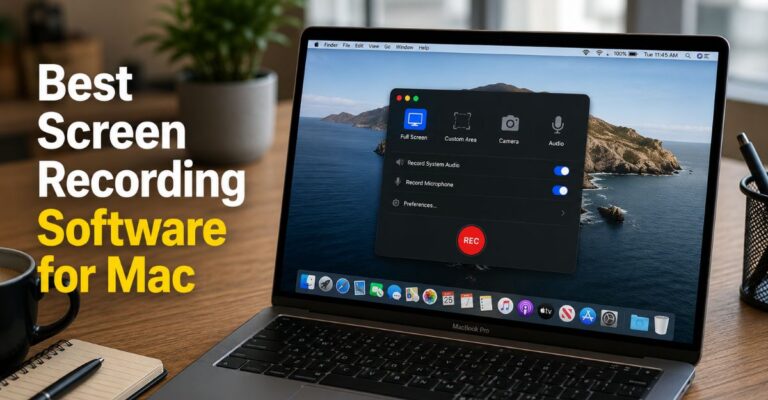
Best Screen Recording Software for Mac: Top Picks & Expert Guide for 2026

Best Screen Recording Software for Mac

Key Takeaways: 

The biggest takeaway is this: the best screen recording software for Mac isn’t the one with the most features; it’s the one that fits how you work.

Start by being honest about your needs. If you’re creating quick demos or sharing simple walkthroughs, a lightweight tool or even the built-in recorder might be enough. But if you’re producing tutorials, courses, or content regularly, you’ll need something more capable.

Another important point? Don’t underestimate audio. People will tolerate average visuals, but poor sound quality is hard to ignore. A good screen recorder should handle both video and audio smoothly.

Also, avoid overcomplicating things. It’s easy to get pulled into feature-heavy tools that slow you down. Instead, choose software that feels intuitive from the start.

At the end of the day, the best screen recording software for Mac should make your workflow easier, not harder. When it does, recording becomes less of a task and more of a natural part of how you communicate.

Visit Amazon: https://amzn.to/4sXLv00

Best Screen Recording Software for Mac: Why It’s Not as Simple as It Looks

At first glance, screen recording feels straightforward. Open the app, press record, and you’re done.

But once you watch the final result, things look different.

The video might feel slightly choppy. Your voice may sound uneven. Background noise creeps in. And if you try to fix it, you realize editing isn’t always simple or even available in basic tools.

That’s where frustration builds.

What started as a quick task turns into multiple retakes, adjusting settings, or trying different software altogether. This is usually the point where people start actively searching for the best screen recording software for Mac that actually works for them.

The truth is, basic tools are fine for occasional use. But they’re not built for consistency or quality. If you want recordings that feel clean and reliable, you need something that handles both visuals and audio properly without adding unnecessary complexity.

What Actually Matters in Screen Recording Software

Before we dive into the tools, get clear on what you actually need. Forget what sounds fancy—focus on what you’ll really use. I don’t want to spend an hour figuring out how to press the record button. Good software should feel intuitive from the first click.

1. Recording Quality

Blurry video or choppy playback can ruin even great content. Look for smooth frame rates and crisp resolution.

2. Audio Control

This is where many tools drop the ball. You want a clear mic input—and ideally, the ability to capture system audio too. Capabilities

Some apps just record and call it a day. Others let you trim, annotate, and polish your video without ever leaving the software.

3. Performance

Macs are fast, but clunky software can still slow you down or even

Best Screen Recording Software for Mac: What Actually Matters Before You Choose

mac screen recording software

The best screen recording software for Mac isn’t about picking the tool with the longest feature list. It’s about choosing something that actually fits how you work day to day.

Before you jump into comparing apps, it helps to pause and get clear on what really matters.

First, ease of use. You shouldn’t have to spend 20 minutes figuring out how to start recording. Good software feels natural from the first click. You open it, hit record, and it just works. That alone saves time and frustration.

Next comes recording quality. Even if your content is solid, blurry visuals or laggy playback can ruin the experience. The best screen recording software for Mac should give you smooth frame rates and sharp resolution without needing constant tweaks.

Audio is where things often fall apart. A lot of tools handle video well, but struggle with sound. You want a clean microphone input and, ideally, the ability to capture system audio too. If your audio isn’t clear, people will notice immediately.

Then there’s editing capability. Some apps stop at recording, while others let you trim, annotate, and clean up your video right inside the same tool. Having that option can make your workflow much smoother.

Finally, performance matters more than you think. Macs are powerful, but poorly optimized software can still slow things down or cause overheating.

Keep these points in mind, and choosing the best screen recording software for Mac becomes a lot easier and a

a lot more practical.

1. Built-In macOS Screen Recorder (QuickTime + Screenshot Tool)
screen recorder for mac

Best for: Quick, no-frills recordings

Let’s kick off with the tool you already own.

macOS includes a built-in screen recording feature through the Screenshot toolbar (Command + Shift + 5) and QuickTime Player.

It’s straightforward: click record, pick your screen or a section, and you’re done.

What Works Well

  • No installation needed
  • Clean, lightweight performance
  • Perfect for quick demos or casual use

Where It Falls Short

  • No advanced editing
  • Limited audio control
  • No overlays, annotations, or effects

Honestly, if you just need a quick capture, this works. But for tutorials, YouTube, or anything polished, you’ll outgrow it in no time.

2. OBS Studio

Best for: Advanced users and creators who want full control

OBS (Open Broadcaster Software) packs a punch. It’s seriously powerful—and totally free.

But here’s the thing: it won’t hold your hand.

What Makes It Stand Out

  • High-quality recording and streaming
  • Multiple scenes and sources
  • Custom layouts and overlays
  • Strong community support

The Reality Check

OBS can feel overwhelming at first. There’s a learning curve; no way around that.

If you’re willing to invest a bit of time, though, it becomes one of the most flexible tools you can use.

This is especially true if you’re recording gaming content, live streams, or anything that needs multiple inputs.

3. Screen Flow

Best for: Professionals who want everything in one place

Screen Flow is built for people who take screens. It’s more than a recorder—it’s a full production suite. a full production tool.

Why People Love It

  • Built-in video editor
  • Smooth, high-quality recording
  • Easy annotations and animations
  • Great for tutorials and courses

What You Should Know

It’s paid software, and it’s not cheap.

But if you make content often, it pays for itself fast in saved time and extra polish.

It’s satisfying to record, edit, and export all in one place. Camtasia

Best for: Beginners who want polished results without complexity

Camtasia hits a sweet spot in the middle. Easier to learn than OBS but still offers more depth than basic tools.

What Stands Out

  • Drag-and-drop editing
  • Pre-built effects and transitions
  • Clean interface
  • Good balance of power and simplicity

Where It Can Feel Limiting

  • Less flexible than OBS for advanced setups
  • The price might feel steep if you’re just an occasional user. If you’re new to screen recording but want your videos to look polished, Camtasia is a safe bet.

5. Clean Shot X

Best for: Everyday Mac users who want something fast and polished. Clean Shot X just gets what Mac users want.

It’s quick, minimal, and surprisingly powerful without ever feeling overwhelming.

Why It Works So Well

  • Smooth recording experience
  • Instant sharing options
  • Built-in annotations
  • Lightweight and responsive

What It’s Not

It’s not a full video editor like Screen Flow or Camtasia, but for quick tutorials, client walkthroughs, or sharing ideas, it’s a joy to use.

6. Loom

Best for: Communication and quick sharing. Loom has changed the way many people communicate at work.

Instead of typing out long explanations, you just record your screen, talk it through, and send a link.

Why It’s So Popular

  • Instant sharing
  • Simple interface
  • Great for remote teams
  • No heavy setup

The Trade-Off

It’s not built for polished content. Loom is all about speed and clarity, not fancy production quality.

Perfect for feedback, updates, or quick walkthroughs.

How to Choose the Right One (Without Overthinking): Here’s a quick way to narrow things down.

  • If you just need something quick → stick with the built-in tool
  • If you want full control and don’t mind learning → OBS
  • If you create professional content regularly → Screen Flow
  • If you want something easy but capable → Camtasia
  • If you value speed and simplicity → Clean Shot X
  • If you’re sharing ideas with a team → Loom

That’s all there is to it.

You don’t need the “best” tool. You don’t need the so-called best tool. You need the one that fits your workflow. Choosing Based on Features Alone

More features don’t always mean better results. Sometimes, they just slow you down. Forgive the imperfect video. They don’t forgive bad audio.

3. Overcomplicating the Setup

Start simple. You can always level up later.

4. Not Testing Before Committing

Most tools have free trials—take advantage of them. See what actually feels right for you.

A Quick Reality: There’s no such thing as perfect screen recording software. software.

Every option has trade-offs. What matters is how those trade-offs match your needs.

Some people swear by OBS. Others find it frustrating.

Some love Screen Flow’s polish. Others think it’s overkill.

The right choice is the one that feels natural when you use it—simple as that.

Conclusion

Finding the best screen recording software for Mac isn’t about chasing the most powerful tool. It’s about finding what fits your workflow. If you’re just starting, keep it simple. Use the built-in tool or try Loom or Clean Shot X.

If you’re making content regularly, investing in Screen Flow or Camtasia can make your life much easier. If you want full control and don’t mind learning, OBS is tough to beat. t.

At the end of the day, the best tool is the one that lets you focus on your message—not the software.

FAQs

1. What is the best free screen recording software for Mac?

OBS Studio is easily the strongest free option. It offers professional-level features, though it takes some time to learn.

2. Does Mac have a built-in screen recorder?

Yes, macOS includes a built-in tool accessible through the Screenshot toolbar or QuickTime Player. It’s simple and works well for basic needs.

3. Which screen recorder is best for YouTube videos?

ScreenFlow and Camtasia are both excellent choices. They combine recording and editing, making the whole process smoother.

4. Can I record system audio on a Mac?

Yes, but not all tools support it directly. Some require additional setup or plugins. OBS and Screen Flow handle this better than most.

5. What’s the easiest screen recording software for beginners?

Loom and Camtasia are both beginner-friendly. Loom is great for quick sharing, while Camtasia offers more editing features without being overwhelming.

About the Author

Hi, I’m Shahadat Hossain, the founder of Technoitem.com and a tech enthusiast passionate about reviewing gadgets and simplifying technology. I share honest reviews, buying guides, and practical tips to help readers make smarter tech decisions.

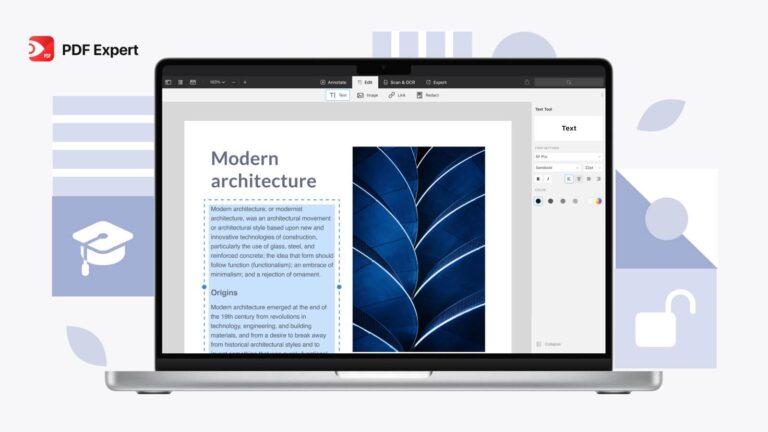
Best PDF Editor for Mac: A Practical Guide to Choosing the Right One

best PDF editor for Mac

Why This Even Matters (More Than You Think)

If you’ve ever struggled with editing PDFs on a Mac, you already know the frustration is real. What starts as a quick task can quickly turn into a time-consuming headache. That’s exactly why finding the best PDF editor for Mac matters more than most people expect.

The built-in Preview works fine for basic tasks like highlighting, signing, or adding notes. But the moment you try to edit text, rearrange layouts, or maintain formatting, its limitations become obvious. Files shift, fonts break, and suddenly your simple edit looks unprofessional.

best PDF editor for Mac

This is where a powerful solution like Adobe Acrobat Pro or PDF Expert makes a real difference. The best PDF editor for Mac doesn’t just let you edit text. It helps you preserve formatting, convert files accurately, merge documents, and even collaborate smoothly.

Choosing the best PDF editor for Mac saves you time and prevents unnecessary stress. Instead of fighting with broken layouts or messy conversions, you stay focused on your work. Whether you’re a student, professional, or business owner, having the right tool turns a frustrating task into a quick win.

So instead of settling for “good enough,” upgrade your workflow. The best PDF editor for Mac isn’t just another app. It’s a productivity tool that helps you work smarter, faster, and with confidence.

Visit Amazon:https://amzn.to/4sVzt7k 

What Makes a PDF Editor Actually Worth Using

When you’re choosing the best PDF editor for Mac, the real test is simple: does it make your work easier or harder? The right tool should feel natural from the first click, not like something you need to figure out.

Take Preview as an example. It’s quick and convenient, but once you move beyond basic tasks, it starts to feel limiting. That’s where tools like PDF Expert or Adobe Acrobat Pro step in and actually deliver a smoother experience.

The best PDF editor for Mac should let you jump in and start editing right away. Click on text, make changes, adjust images, and move elements without breaking the layout. No digging through menus, no second-guessing your actions. Just clean, direct control.

Reliable conversion is another must. When you export a PDF to Word or Excel, the formatting should stay intact. A strong editor protects your structure so you don’t waste time fixing spacing, fonts, or alignment afterward.

Security also needs to be simple. Adding a password, redacting content, or signing a document should take seconds. The best PDF editor for Mac handles these tasks quickly, so you can move on.

And speed matters more than people admit. A fast, responsive app keeps your workflow smooth and uninterrupted. If it lags, it slows everything down.

In the end, the best PDF editor for Mac is the one that removes friction. It helps you edit faster, convert accurately, and stay focused without distractions.

Different Types of PDF Editors (And Who They’re For)

For Everyday Users

If you mostly read, highlight, or sign documents now and then, you don’t need anything fancy. Simple tools or even built-in apps will do the job.

For Students and Researchers

You’ll want solid annotation tools, easy ways to organize, and probably cloud sync so your files are always within reach. Professionals and Businesses

This is where you need advanced features. Editing contracts, filling out forms, using OCR, and batch processing all call for a more powerful tool.

Top Features You Shouldn’t Ignore

Text and Image Editing

Being able to click and edit right inside a PDF is a game-changer. Suddenly, a static file becomes flexible.

OCR (Optical Character Recognition)

If you deal with scanned documents, OCR is a must. It converts images into editable text, saving you loads of time. tal Signatures

Whether you’re signing a contract or just giving a quick approval, digital signatures are now part of daily life.

Cloud Integration

Switching between devices is standard now. Your PDF editor should keep up.

Batch Processing

If you work with lots of files, handling them one at a time just isn’t practical. Batch tools make things much faster.

Free vs Paid PDF Editors: What’s the Real Difference?

Free Tools: Good for Basics

Free editors cover the basics: simple edits, notes, and quick signatures. If you don’t need much, they’re usually enough.

Paid Tools: Built for Real Work. When your tasks get more complex, free tools start to feel limiting. Paid options give you better accuracy, more control, and fewer roadblocks. ones.

It’s not just about price. It’s about how much your time is worth.

Common Mistakes People Make When Choosing a PDF Editor

Going for the Cheapest Option. It’s tempting, but cheap tools usually end up costing you more time in the long run. You’ll spend more time later.

Ignoring Compatibility

Some tools don’t work smoothly with every macOS version or file type.

Overlooking User Experience

A tool packed with features won’t help if it’s a pain to use.

How to Choose the Best PDF Editor for Your Needs

Step 1: Be Honest About What You Do

Are you editing once in a while, or is this something you do every day? Before You Commit

Most good tools have free trials. Take advantage of them.

Step 3: Think Long-Term

Switching tools over and over is way more frustrating than just picking the right one from the start.

How to Edit a PDF on Mac (Simple Walkthrough)

1. Open Your File

Use your—Open your PDF editor and load up your document. e Your Edits

Click on the text to edit, drop in images, or move pages around.

3. Save or Export

Pick your format and save your updated file. That’s it. Editing a PDF should always feel this easy.

Why Mac Users Expect More (And Should Get It)

Mac users expect a clean design and smooth performance. When a PDF editor feels clunky, you notice right away.

The best tools get that. They’re fast, easy to use, and powerful without being flashy.

A Quick Look at Popular Choices

Some tools keep things simple; others go for power. You’ll find options that are minimal and others loaded with features.

The key isn’t picking the most popular tool. It’s finding the one that fits how you work.

Final Thoughts That Actually Matter

Choosing the best PDF editor for Mac isn’t about the longest feature list. It’s about what actually makes your work easier.

If a tool saves you time, cuts down on frustration, and lets you focus on your work instead of the process, that’s the one to pick. What is the best PDF editor for Mac right now?

The best PDF editor depends on what you need. If you use it a lot, pick something with more features. For light tasks, a simple tool is enough.

2. Is Preview enough for editing PDFs on Mac?

Preview works well for basics, but it can’t handle advanced editing or conversions.

3. Are free PDF editors safe to use?

Most free editors are safe, but stick to trusted names and avoid anything sketchy.

4. Can I edit scanned PDFs on Mac?

Yes, but you’ll need an OCR tool to turn scanned text into something you can edit.

5. Do I need a paid PDF editor for Mac?

If you handle PDFs often, a paid tool will save you time and hassle.

Best and Free Antivirus Software (2026) | Top Picks for Ultimate Protection

Best and Free Antivirus Software protecting a computer from malware and online threats

Staying safe online isn’t optional anymore. It’s become second nature, like double-checking your door before leaving home. The good news is you don’t need to spend money to stay protected. The best and free antivirus software available in 2026 is more powerful than ever, offering solid protection without slowing you down.

If you’re searching for free antivirus software, it helps to focus on what actually matters. Real-time protection, regular updates, and strong malware detection should be non-negotiable. Many users assume free tools are limited, but that’s no longer true. Today’s best and free antivirus software can block viruses, phishing attempts, and even ransomware with impressive accuracy.

Another thing worth considering is performance. The best and free antivirus software should run quietly in the background without affecting your device’s speed. Tools like Bitdefender Free or Microsoft Defender are great examples of protection that feels almost invisible but works consistently.

Of course, your habits still matter. Even the best and free antivirus software can’t fully protect you if you’re downloading risky files or clicking unknown links. Pair good software with smart browsing, and you’re already ahead of most users.

At the end of the day, choosing the best and free antivirus software is about balance. You want something reliable, simple, and effective so you can focus on using your device without constantly worrying about threats.

Visit Amazon: https://amzn.to/3QnZij2

Why Best and Free Antivirus Software Still Matters in 2026

best and free antivirus software

It’s easy to assume built-in protections are enough. Sometimes they are. But threats have evolved, and they don’t always announce themselves.

Free antivirus tools today aren’t what they used to be. They’ve grown into reliable, feature-rich solutions that can block malware, phishing attempts, and even ransomware in real time.

And honestly, for most people, that’s more than enough.

Think about how much of your life lives on your device: emails, banking, photos, and saved passwords. Losing access to that or having it compromised isn’t just inconvenient. It can be stressful, even costly.

So yes, free protection matters. A lot.

What Makes the Best Free Antivirus Software Worth Using?

Not all antivirus tools are built the same. Some look great on the surface but quietly miss critical threats. Others do the job well, but slow your system down so much that you regret installing them.

Here’s what actually separates the good ones from the rest:

Real-Time Protection That Works

A decent antivirus shouldn’t just scan your system occasionally. It should actively monitor what’s happening and step in before something harmful takes hold.

Strong Malware Detection

Viruses are just one piece of the puzzle. You’re also dealing with spyware, trojans, ransomware, and phishing attacks. The best tools recognize and block all of them.

Lightweight Performance

Nobody wants their laptop to feel like it’s from 2008. A good antivirus runs quietly in the background without draining your system resources.

Simple, Clean Interface

You shouldn’t need a manual to understand your security software. Clear dashboards and straightforward controls make a big difference.

Frequent Updates

Threats change quickly. Your antivirus should update regularly without you having to think about it.

Best and Free Antivirus Software You Can Trust

Let’s get into the part you actually came for. These tools consistently perform well, offer solid protection, and don’t overwhelm you with unnecessary complexity.

1. Avast Free Antivirus

Avast has been around for years, and it shows. The interface feels polished and provides strong real-time protection.

You also get extras like network scanning and basic ransomware protection, which is a nice touch for a free tool.

That said, you might notice occasional prompts encouraging upgrades. They’re not aggressive, but they’re there.

2. AVG AntiVirus Free

AVG and Avast now share the same core engine, so their performance is quite similar.

AVG stands out for its clean design and straightforward experience. It’s a solid choice if you want something that just works without much tweaking.

3. Avira Free Security

Avira offers more than just antivirus protection. You get a limited VPN, performance optimization tools, and even a password manager.

It’s a bit more “all-in-one” compared to others, which can be great if you like having everything in one place.

4. Bitdefender Antivirus Free

If you prefer something that stays out of your way, Bitdefender is a strong contender.

It’s minimal, quiet, and very effective. You won’t see many flashy features, but the level of protection is excellent.

5. Microsoft Defender

If you’re using Windows, this is already on your system.

And surprisingly, it’s gotten really good. For many users, it provides enough protection without installing anything extra.

It integrates seamlessly with the system, which helps keep things smooth and fast.

Free vs Paid Antivirus: What’s the Real Difference?

Here’s where things get a bit nuanced.

Free antivirus software covers the basics very well. It protects against common threats, scans files, and monitors suspicious activity.

But paid versions usually go further.

What You Get for Free

  • Core malware protection
  • Real-time scanning
  • Basic threat removal

What Paid Versions Add

  • Advanced ransomware protection
  • Firewall controls
  • Identity theft protection
  • Secure browsing tools
  • Customer support

So, do you need to pay?

Honestly, it depends on how you use your device. If you’re careful online and stick to trusted websites, free software is often enough. But if you handle sensitive data or want extra peace of mind, upgrading might make sense.

How to Choose the Right Antivirus for Your Needs

Picking the right tool isn’t just about downloading the most popular option.

It’s about what fits your situation.

For Everyday Users

If you browse, stream, and check emails, tools like Bitdefender or Microsoft Defender are more than enough.

For Older or Slower PCs

Go for something lightweight. Bitdefender Free is a good example. It won’t slow things down.

For Extra Features

Avira is worth a look if you want extras like a VPN or system cleanup tools.

For Simplicity

AVG keeps things clean and easy to navigate. No confusion, no clutter.

How to Download and Install Antivirus Safely

This part is often overlooked, but it matters.

Downloading antivirus software from the wrong source can actually expose you to the very threats you’re trying to avoid.

Stick to Official Websites

Always download directly from the company’s official site. Avoid third-party download platforms.

Watch for Fake Versions

If a download page looks off or asks for unusual permissions, trust your instincts and leave.

Follow Installation Steps Carefully

Most antivirus tools guide you through the setup process. Take a moment to read each step instead of clicking “Next” blindly.

Tips to Get the Most Out of Free Antivirus Software

Installing antivirus software is a great start, but it’s not a magic shield.

You still play a role in your own security.

Keep Everything Updated

Your antivirus, your operating system, your browser. Updates patch vulnerabilities that attackers rely on.

Avoid Suspicious Links

If something looks too good to be true, it probably is. Phishing attacks often rely on curiosity or urgency.

Use Strong Passwords

A good antivirus won’t help much if your accounts are easy to break into.

Don’t Run Multiple Antivirus Programs

It might seem like extra protection, but it usually causes conflicts and slows your system down.

Common Mistakes People Make

A lot of issues come down to simple habits.

Ignoring Warnings

If your antivirus flags something, don’t just dismiss it. Take a second to understand what’s happening.

Skipping Scans

Even with real-time protection, occasional full scans help catch anything that slipped through.

Downloading Cracked Software

This is a big one. Pirated software often comes bundled with malware.

It’s just not worth the risk.

Best and Free Antivirus Software: Final Thoughts

Finding the best and free antivirus software isn’t about chasing the most features. It’s about choosing something reliable, easy to use, and suited to how you actually use your device.

For most people, free tools do the job well. They protect against real threats, run quietly in the background, and don’t complicate things.

The key is consistency. Keep your software updated, stay mindful of what you click, and treat your digital space with the same care you would your physical one.

Frequently Asked Questions (FAQs)

1. Is free antivirus software really safe to use?

Yes, as long as you download it from official sources. Many free antivirus programs offer strong protection and are trusted by millions of users worldwide.

2. Which is the best and free antivirus software for Windows?

Microsoft Defender is a great built-in option. Bitdefender and Avast are also strong choices if you want additional features.

3. Can free antivirus software protect against ransomware?

Some free tools offer basic ransomware protection, but advanced protection is usually part of paid plans. Still, many free options do a decent job for everyday use.

4. Will antivirus software slow down my computer?

Good antivirus software is designed to run efficiently. Lightweight options like Bitdefender Free have minimal impact on performance.

5. Do I need an antivirus if I use safe websites only?

Even careful users can encounter threats through ads, downloads, or email attachments. Antivirus software adds an extra layer of protection that’s worth having.

Bitdefender VPN Review: Is It Worth Your Money in 2026?

bitdefender vpn review

I used to think my antivirus was enough. I’d connect to public Wi-Fi at coffee shops or airports without worrying about security. Then I noticed Bitdefender VPN was included with my antivirus package. At first, I assumed it was just an extra feature, not something I actually needed. But curiosity led me to test it—and that’s how this Bitdefender VPN review began.

In this Bitdefender VPN review 2026, I focused on real-world usage. I wanted to see how it performs in terms of speed, privacy, and overall reliability. Setting it up was quick, and within minutes, I was browsing through a secure connection. The interface is simple, which makes it beginner-friendly, especially if you’re new to VPNs.

Visit Amazon:https://amzn.to/4eqs5gO

One thing I noticed right away was the decent connection speed. While testing for this Bitdefender VPN speed test, streaming and browsing felt smooth with minimal lag. It also uses strong encryption, which is essential if you care about online privacy and data protection.

Another important part of this Bitdefender VPN review is pricing and value. Compared to some premium VPNs, it’s reasonably priced, especially if bundled with antivirus software. But if you’re wondering, “Is Bitdefender VPN good?” the answer depends on your needs. It’s great for basic security and safe browsing, though advanced users might want more features.

Overall, this Bitdefender VPN review shows it’s a solid choice for everyday protection, especially for users who want simple and reliable online security.

What Is Bitdefender VPN Review and Who Is It For?

Bitdefender VPN is Bitdefender’s take on a virtual private network, designed to extend the same security approach they’re known for in antivirus software. In this Bitdefender VPN review, it’s clear that the focus is on simplicity and everyday protection rather than complex customization.

At its core, Bitdefender VPN is built for people who just want to stay safe online without dealing with technical settings. This Bitdefender VPN review shows it’s ideal if you often use public Wi-Fi, want basic privacy, or occasionally access content from other regions without much setup.

From what I’ve seen in this Bitdefender VPN review, it suits beginners and casual users best. You open the app, connect, and you’re protected. There’s no need to adjust advanced configurations or understand complicated features.

That said, if you’re someone who likes full control and deeper customization, it might feel a bit limited. But as this Bitdefender VPN review suggests, most users will find that the ease of use and straightforward protection outweigh the lack of advanced options.

Key Features That Actually Matter

Clean, No-Nonsense Interface

The first thing I noticed: setup is fast. Open the app, tap connect, and you’re covered. No confusion. No wasted time.

No overwhelming dashboards. No technical clutter.

Automatic Wi-Fi Protection

I didn’t think much about automatic Wi-Fi protection until I connected at a hotel. Bitdefender VPN kicked in right away—no extra steps. My data stayed protected without me even thinking about it.

Decent Streaming Support

I tested it with Netflix. Sometimes it worked; sometimes I had to switch servers. For casual streaming, it’s good enough. Lit tunneling is there, but it is basic. I could pick which apps used the VPN. It worked for my daily stuff. The advanced option is the most advanced. there.

Performance: Fast speed matters. Especially if you’re streaming or making video calls.

Bitdefender VPN uses Hotspot Shield’s network. In my tests, speeds were solid for streaming, browsing, and calls. No major slowdowns.

Compared to the fastest VPNs, I did notice some slowdown on distant servers. Locally, it stayed smooth.

  • Local servers: smooth and stable
  • International servers: slightly inconsistent
  • Gaming: usable, but not ideal for competitive play

For daily use, it gets the job done—even if it’s not the fastest out there.

Security and Privacy: Strong Basics, Some Trade-Offs

Encryption and Protocols

Bitdefender VPN uses AES-256 encryption. That’s the standard. It runs on the Catapult Hydra protocol, which balances speed and security.

Logging Policy

Here’s where you need to pay attention.

Bitdefender says it doesn’t log your browsing. But since it uses third-party servers, you’re trusting more than just Bitdefender. If you want total transparency, consider privacy-first VPNs.

Kill Switch

The kill switch is there. If your connection drops, your data stays protected. That’s essential.

Server Network: Good coverage, but not huge. For most people, it’s enough.

That’s enough for most users, especially if your goal is

  • Accessing region-locked content
  • Protecting your connection while traveling
  • Basic anonymity

If you want dozens of specialized servers, you might find Bitdefender’s list a bit short.

Pricing and Plans: Simple but Slightly Confusing

There are two main versions:

Free Version

  • 200MB per day
  • Limited server access
  • Good for testing, not much else

Premium Version

  • Unlimited data
  • Full server access
  • Available as a standalone or bundled with Bitdefender security products

The price is fair, especially if you already use Bitdefender antivirus. If you want a standalone VPN, there are other strong options at similar prices.

Getting Bitdefender VSetup is genuinely simple. In, and tap connect. You’re protected in seconds.

No complicated config. No complicated setup. No tech headaches. Windows

  • macOS
  • Android
  • iOS

Even if you’ve never used a VPN, you’ll get the hang of it fast. The Honest Breakdown

Pros and Cons: A Balanced Perspective

Pros

  • Extremely easy to use
  • Reliable performance for everyday tasks
  • Trusted brand in cybersecurity
  • Seamless integration with Bitdefender products

Cons

  • Limited advanced features
  • Smaller server network
  • Not ideal for heavy streaming or torrenting
  • Less control for power users
This is a tool built for simplicity, not for chasing every advanced feature.

Comparison with Alternatives: How It Stacks Up

To really understand Bitdefender VPN, it helps to compare it with other popular options in this Bitdefender VPN review.

NordVPN offers a much larger server network, faster speeds, and advanced features. In this Bitdefender VPN review, it’s clear that Bitdefender focuses more on ease of use and smooth integration. For control and performance, NordVPN leads, but if you want simplicity, Bitdefender is the more approachable choice.

ExpressVPN is known for its reliability and global performance. It performs consistently across different use cases, including streaming and gaming. As highlighted in this Bitdefender VPN review, Bitdefender trades some consistency for affordability and simplicity, making it better suited for casual users.

Overall, this Bitdefender VPN review shows that while competitors offer more power and flexibility, Bitdefender stands out for its ease of use and beginner-friendly design.

What Works Well

  • Extremely easy to use
  • Reliable for everyday browsing
  • Strong encryption and basic security features
  • Seamless integration with Bitdefender products

Where It Falls Short

  • Limited advanced features
  • Smaller server network than some of the big names’ away servers.
  • Privacy transparency could be better than that of heavyweights like NordVPN or ExpressVPN. Put Bitdefender VPN next to heavyweights like NordVPN or ExpressVPN, and a few differences stand out.
  • Those services offer more control, more servers, and often better speeds. Integration.

The choice depends on your priorities.

If you want lots of power and customization, look elsewhere. If you want a VPN that just works, Bitdefender is a solid pick. Should You Use Bitdefender VPN?

Bitdefender VPN is built for a certain type of user. want to spend time tweaking settings. Someone who values convenience over customization. Someone who just wants to feel a bit safer online without overthinking. If you’re after a VPN packed with advanced features and maximum privacy, you might want to keep looking. But if you want something clean, reliable, and easy to use, Bitdefender VPN delivers what it promises. Daily VPN delivers exactly what it promises.

Frequently Asked Questions (FAQs)

1. Is Bitdefender VPN safe to use?

Yes, it uses strong encryption and includes essential features like a kill switch. It’s safe for general use, though privacy-focused users may want more transparency.

2. Can Bitdefender VPN unblock Netflix?

Sometimes, yes. It works in certain regions, but it’s not as consistent as top-tier VPNs.

3. Is the free version enough?

Not really. The 200MB daily limit runs out quickly. It’s fine for testing, but not practical for regular use.

4. Does Bitdefender VPN slow down internet speed?

Like all VPNs, it can slightly reduce speed. Local servers perform well, but distant connections may feel slower.

5. Is it better than other VPNs?

It depends on what you need. For simplicity and ease of use, it’s great. For advanced features and maximum privacy, other VPNs may be a better fit.

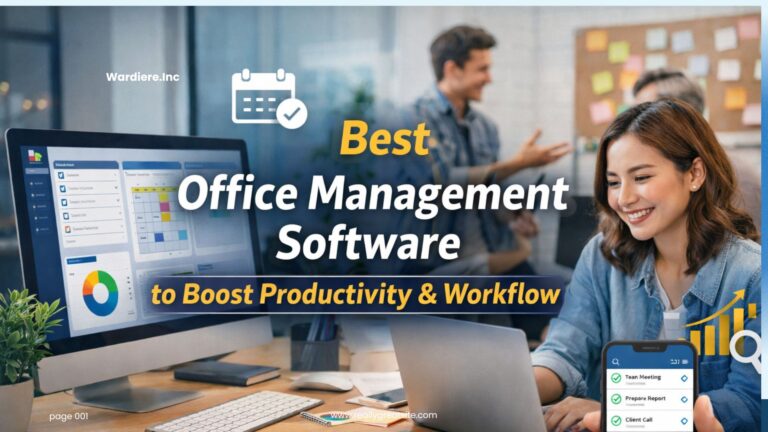
Office Management Software: Transform Your Workplace, Boost Productivity, and Take Control of Daily Operations

office management software

Managing an office now goes way beyond keeping things tidy. You need to stay ahead, keep your team in sync, and make sure nothing falls through the cracks. That’s why office management software often becomes the backbone of a smooth-running workplace.

If you’ve ever felt like tasks are all over the place, communication is messy, or you waste time on things that should be simple, you’re not alone. The right tools don’t just patch up those issues—they actually change how your team works for the better.

What Is Office Management Software and Why Does It Matter?

Office Management Software pulls your daily operations into one spot. No more juggling emails, spreadsheets, sticky notes, and a bunch of apps—everything lives in one connected system.

Think of it as your office’s control center.

With Office Management Software, you can manage tasks, store documents, communicate with your team, track progress, and even automate repetitive work. Most importantly, you get clarity. You see what’s happening, who’s doing what, and where things might be getting stuck.

And in a world where time and attention are pulled in every direction, that kind of clarity matters more than ever.

How Office Management Software Actually Works in Real Life

Let’s make this practical.

Imagine starting your day and, instead of digging through emails, you open one dashboard. With Office Management Software, your tasks are right there. Deadlines are clear. Messages are organized. Files are exactly where you expect them.

No guessing. No chasing people for updates.

Office management software connects the pieces of your workflow so everything moves together, not against itself. When someone updates a task, the team sees it. When a file changes, everyone gets the latest version. When a meeting is set, calendars update automatically.

It’s less about adding; it’s not about adding another tool. It’s about removing friction from your day. Actually Make a Difference

Task and Project Management That Keeps Things Moving

You assign tasks, set deadlines, and track progress without micromanaging. Everyone knows what they’re responsible for, so there’s less confusion and fewer follow-up messages.

Tools like Asana are especially good at making workflows visible, so nothing gets lost in the noise.

Document Management That Ends the “Where’s That File?” Problem

We’ve all been there. We’ve all wasted time searching for a file that should be easy to find. Software stores everything in one place, often with version control. That means no more duplicate files or outdated documents floating around.

Platforms like Google Workspace make collaboration on documents feel almost effortless.

Communication That Feels Less Chaotic

Instead of endless email threads, teams talk in real time. Messages stay linked to tasks or projects, so you never lose context.

This cuts down on misunderstandings and speeds up decisions—something most teams struggle with more than they realize.

Smart Scheduling That Saves Time

Calendars sync on their own. Meetings are easier to set up. Conflicts get solved before they even start.

When scheduling is simple, people spend less time coordinating and more time actually working.

Automation That Handles the Repetitive Stuff

Here’s where things get interesting.

Office management software can automate routine tasks like approvals, reminders, and status updates. It’s not flashy, but it quietly saves you hours every week.

Over time, those saved hours really add up.

Different Types of Office Management Software You Should Know

All-in-One Platforms for Complete Control

These tools combine everything—communication, documents, tasks, and more. For example, Microsoft 365 offers a full ecosystem that many businesses rely on daily.

Specialized Tools for Specific Needs

Some teams want tools that go deep into one area, such as project tracking or customer management.

Trello is a great example of a simple, visual approach to managing work.

Cloud-Based Solutions for Flexibility

Most modern tools are cloud-based, so you can access them from anywhere. This is especially helpful for remote or hybrid teams.

On-Premise Systems for Greater Control

Some organizations prefer to keep things close to home. Instead of relying on cloud platforms, they host their office management software on their own internal servers.

It’s not always the easiest route, but it offers a level of control that cloud systems can’t fully match. You decide how data is stored, how it’s accessed, and how it’s protected. For industries where privacy, compliance, or strict regulations matter, that control isn’t just nice to have; it’s essential.

Of course, it comes with responsibility. Maintenance, updates, and security all fall on your team. But for many businesses, that trade-off feels worth it.

The Real Benefits You’ll Notice Over Time

You Get Your Time Back

At first, the changes might feel small. A task gets completed a little faster. A file is easier to find. A meeting takes less effort to organize.

But over time, those small wins start to stack up.

When your systems are organized, and a lot of the routine work runs automatically, you’re no longer stuck managing chaos. You’re actually moving things forward. And that shift from “keeping up” to “getting ahead” makes a bigger difference than most people expect.

Teams Start Communicating Better

Not perfectly, of course. Every team has its quirks.

But when everything lives in one place, communication naturally improves. People don’t have to chase updates or guess what’s going on. The information is right there, clear and accessible.

And that alone reduces a lot of the everyday friction. Fewer misunderstandings. Fewer repeated questions. Just smoother, more straightforward collaboration.

Work Becomes More Transparent

Everyone can see what’s happening. This builds accountability without adding pressure.

Growth Feels More Manageable

As your business grows, things get more complex. Good software helps you handle that without feeling overwhelmed.

Challenges You Should Be Aware Of (Before You Jump In)

There’s always a learning curve.

Even the best tools take some getting used to. Some team members will adapt quickly; others might resist at first.

Costs Can Add Up

Subscription models are convenient, but over time, they can add up. Make sure you pick tools that actually add value.

Integration Isn’t Always Seamless

Not every tool plays nicely with others. Check compatibility early to avoid headaches down the road.

Security Matters More Than Ever

With everything stored digitally, protecting your data is critical. Choose software that takes security seriously.

How to Choose the Right Office Management Software Without Regret

Start With Your Actual Needs, Not Trends

It’s easy to get distracted by what’s popular. Instead, focus on your workflow. Where are the bottlenecks? What’s slowing your team down?

Keep It Simple

If a tool is too complex, people won’t use it. Ease of use matters more than having every possible feature.

Test Before You Commit

Most platforms offer free trials. Take advantage of them. Let your team explore and give honest feedback.

Think Long-Term

Pick something that can grow with you. Switching systems later is possible, but it’s rarely easy.

Practical Tips for a Smooth Implementation

Don’t Roll Everything Out at Once

Start small. Start small. Focus on one or two key features, then build from there. our Team in a Way That Feels Natural

Skip long, overwhelming sessions. Show people how the tool helps them in their daily work.

Listen to Feedback Early

Your team will spot things you miss. Pay attention and adjust as needed.

Stay patient.

Adoption takes time. What feels awkward at first usually becomes second nature after a few weeks.

Where Office Management Software Is Heading Next

Smarter Automation With AI

Tools are getting smarter. They don’t just follow instructions—they suggest improvements.

Better Support for Remote Work

Work isn’t tied to a physical office anymore, and software is catching up. t.

Deeper Integrations

Instead of jumping between tools, everything connects more smoothly.

Stronger Focus on Security

As threats change, so do the systems built to protect your data.

Conclusion

Office management software isn’t just about organizing work. It’s about building a smoother, more focused way to get things done. You choose the right system and use it thoughtfully, and you start to notice small changes. Tasks move faster. Communication feels clearer. Stress levels drop just a bit.

Over time, those small changes add up to something bigger—a workplace that actually works the way it should.

Frequently Asked Questions (FAQs)

1. What is the main purpose of office management software?

It helps organize daily operations by bringing tasks, communication, documents, and workflows into one system, making everything easier to manage.

2. Is office management software suitable for small businesses?

Yes, and in many cases, small businesses benefit the most because it helps them stay organized without needing large teams.

3. How long does it take to implement new software?

It depends on the complexity, but most teams start seeing results within a few weeks if they adopt it gradually.

4. Can office management software improve team productivity?

Absolutely. By reducing confusion and saving time on routine tasks, teams can focus more on meaningful work.

5. What should I look for before choosing a tool?

Focus on ease of use, essential features, integration options, and whether it fits your team’s actual workflow, not just what looks impressive on paper.