

Best for: Quick, no-frills recordings
Let’s kick off with the tool you already own.
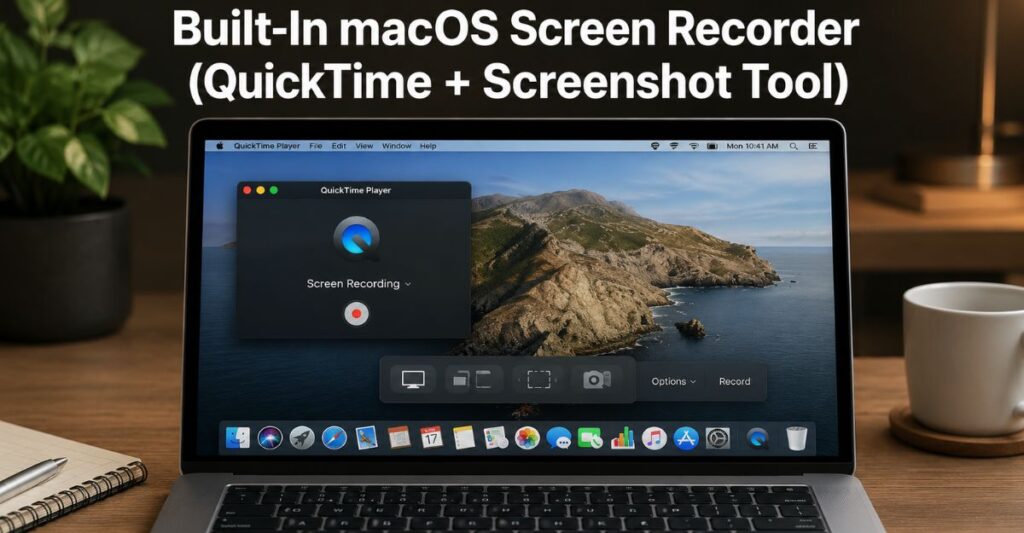
macOS includes a built-in screen recording feature through the Screenshot toolbar (Command + Shift + 5) and QuickTime Player.
It’s straightforward: click record, pick your screen or a section, and you’re done.
What Works Well
- No installation needed
- Clean, lightweight performance
- Perfect for quick demos or casual use
Where It Falls Short
- No advanced editing
- Limited audio control
- No overlays, annotations, or effects
Honestly, if you just need a quick capture, this works. But for tutorials, YouTube, or anything polished, you’ll outgrow it in no time.
2. OBS Studio
Best for: Advanced users and creators who want full control
OBS (Open Broadcaster Software) packs a punch. It’s seriously powerful—and totally free.
But here’s the thing: it won’t hold your hand.
What Makes It Stand Out
- High-quality recording and streaming
- Multiple scenes and sources
- Custom layouts and overlays
- Strong community support
The Reality Check
OBS can feel overwhelming at first. There’s a learning curve; no way around that.
If you’re willing to invest a bit of time, though, it becomes one of the most flexible tools you can use.
This is especially true if you’re recording gaming content, live streams, or anything that needs multiple inputs.
3. Screen Flow
Best for: Professionals who want everything in one place
Screen Flow is built for people who take screens. It’s more than a recorder—it’s a full production suite. a full production tool.
Why People Love It
- Built-in video editor
- Smooth, high-quality recording
- Easy annotations and animations
- Great for tutorials and courses
What You Should Know
It’s paid software, and it’s not cheap.
But if you make content often, it pays for itself fast in saved time and extra polish.
It’s satisfying to record, edit, and export all in one place. Camtasia
Best for: Beginners who want polished results without complexity
Camtasia hits a sweet spot in the middle. Easier to learn than OBS but still offers more depth than basic tools.
What Stands Out
- Drag-and-drop editing
- Pre-built effects and transitions
- Clean interface
- Good balance of power and simplicity
Where It Can Feel Limiting
- Less flexible than OBS for advanced setups
- The price might feel steep if you’re just an occasional user. If you’re new to screen recording but want your videos to look polished, Camtasia is a safe bet.
5. Clean Shot X
Best for: Everyday Mac users who want something fast and polished. Clean Shot X just gets what Mac users want.
It’s quick, minimal, and surprisingly powerful without ever feeling overwhelming.
Why It Works So Well
- Smooth recording experience
- Instant sharing options
- Built-in annotations
- Lightweight and responsive
What It’s Not
It’s not a full video editor like Screen Flow or Camtasia, but for quick tutorials, client walkthroughs, or sharing ideas, it’s a joy to use.
6. Loom
Best for: Communication and quick sharing. Loom has changed the way many people communicate at work.
Instead of typing out long explanations, you just record your screen, talk it through, and send a link.
Why It’s So Popular
- Instant sharing
- Simple interface
- Great for remote teams
- No heavy setup
The Trade-Off
It’s not built for polished content. Loom is all about speed and clarity, not fancy production quality.
Perfect for feedback, updates, or quick walkthroughs.
How to Choose the Right One (Without Overthinking): Here’s a quick way to narrow things down.
- If you just need something quick → stick with the built-in tool
- If you want full control and don’t mind learning → OBS
- If you create professional content regularly → Screen Flow
- If you want something easy but capable → Camtasia
- If you value speed and simplicity → Clean Shot X
- If you’re sharing ideas with a team → Loom
That’s all there is to it.
You don’t need the “best” tool. You don’t need the so-called best tool. You need the one that fits your workflow. Choosing Based on Features Alone
More features don’t always mean better results. Sometimes, they just slow you down. Forgive the imperfect video. They don’t forgive bad audio.
3. Overcomplicating the Setup
Start simple. You can always level up later.
4. Not Testing Before Committing
Most tools have free trials—take advantage of them. See what actually feels right for you.
A Quick Reality: There’s no such thing as perfect screen recording software. software.
Every option has trade-offs. What matters is how those trade-offs match your needs.
Some people swear by OBS. Others find it frustrating.
Some love Screen Flow’s polish. Others think it’s overkill.
The right choice is the one that feels natural when you use it—simple as that.
Conclusion
Finding the best screen recording software for Mac isn’t about chasing the most powerful tool. It’s about finding what fits your workflow. If you’re just starting, keep it simple. Use the built-in tool or try Loom or Clean Shot X.
If you’re making content regularly, investing in Screen Flow or Camtasia can make your life much easier. If you want full control and don’t mind learning, OBS is tough to beat. t.
At the end of the day, the best tool is the one that lets you focus on your message—not the software.
FAQs
1. What is the best free screen recording software for Mac?
OBS Studio is easily the strongest free option. It offers professional-level features, though it takes some time to learn.
2. Does Mac have a built-in screen recorder?
Yes, macOS includes a built-in tool accessible through the Screenshot toolbar or QuickTime Player. It’s simple and works well for basic needs.
3. Which screen recorder is best for YouTube videos?
ScreenFlow and Camtasia are both excellent choices. They combine recording and editing, making the whole process smoother.
4. Can I record system audio on a Mac?
Yes, but not all tools support it directly. Some require additional setup or plugins. OBS and Screen Flow handle this better than most.
5. What’s the easiest screen recording software for beginners?
Loom and Camtasia are both beginner-friendly. Loom is great for quick sharing, while Camtasia offers more editing features without being overwhelming.
About the Author
Hi, I’m Shahadat Hossain, the founder of Technoitem.com and a tech enthusiast passionate about reviewing gadgets and simplifying technology. I share honest reviews, buying guides, and practical tips to help readers make smarter tech decisions.