
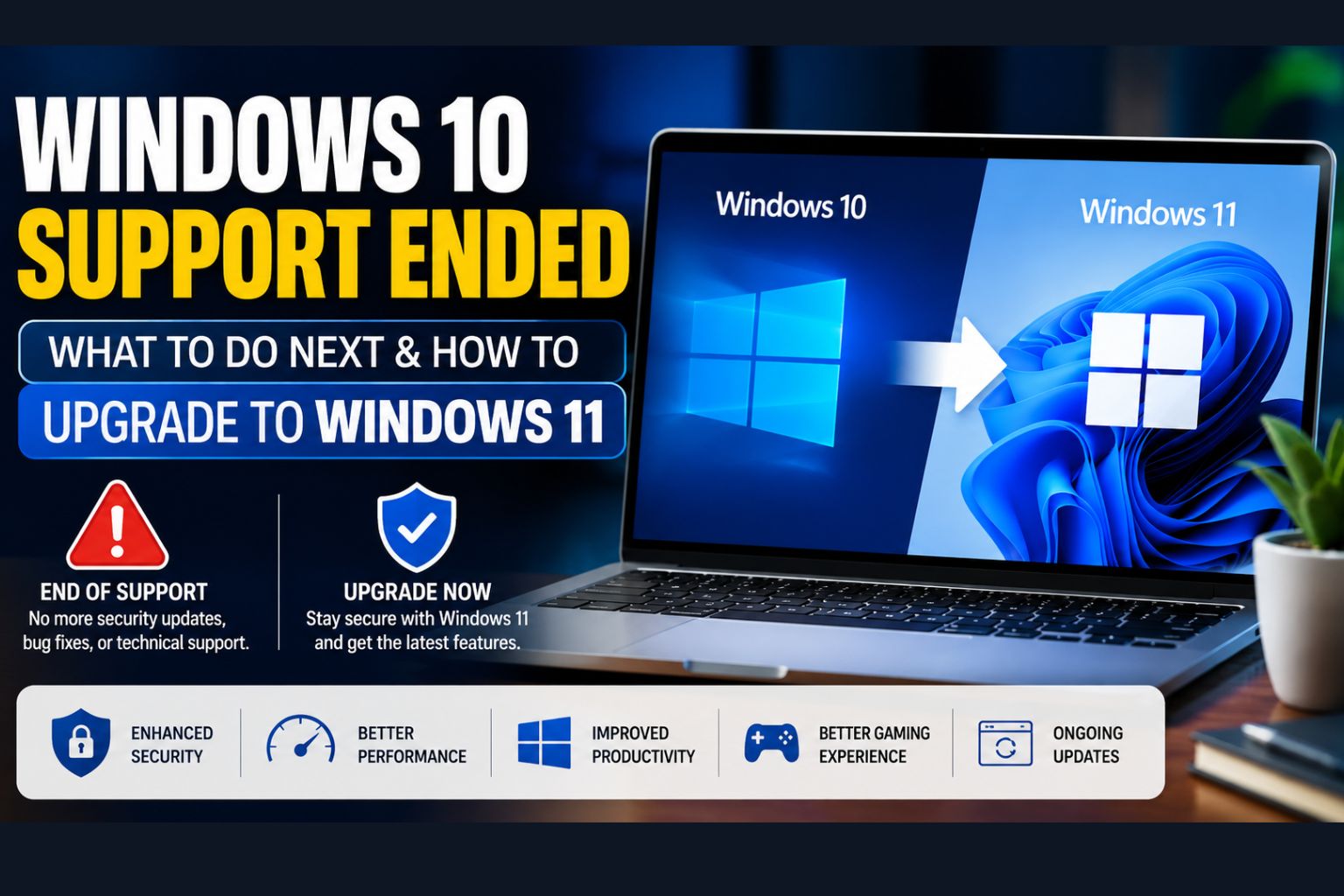
If you saw headlines saying Windows 10 support ended recently, you’re not imagining it. Millions of people across the US are wondering whether they can still safely use Windows 10 or if it is finally time to upgrade.
The positive part is that your computer won’t die on the spot. But the end of support indicates that Microsoft will stop its vital security updates, bug fixes, and technical support. That presents potential dangers as time goes on, particularly when you use your PC for banking, work, e-commerce, or saving personal data.
Having worked for years with users moving up from earlier versions of Windows, I am familiar with one ubiquitous error: because your computer turns on, all is well. In reality, it is actually security updates that are generally the most vital reason to keep your OS updated.
Short Answer: What is the end of Windows 10 support
End of support for Windows 10 means that Microsoft no longer provides regular security updates, bug fixes, and technical support. Your computer can continue to work, but it does become progressively insecure and increasingly incompatible with the latest software being developed for future generations. For eligible devices, Windows 11 is the more permanent long-term fix that we recommend upgrading to.
Key Takeaways
- ✅ Windows 10 reached end of life on October 14, 2025 — security patches stopped on that date.
- ⚠️ Continuing to use Windows 10 without updates puts personal data, business files, and networks at real risk.
- 💻 Many PCs can upgrade to Windows 11 for free — but hardware requirements (especially TPM 2.0) block some older machines.
- 💰 Microsoft offers Extended Security Updates (ESU) for Windows 10 at a cost—up to $61 per device for year 1 (as of Microsoft’s published pricing).
- 🔄 Linux distributions like Ubuntu or Linux Mint are free, capable alternatives for older hardware.
- 🖥️ Buying a new PC with Windows 11 pre-installed is often the most practical long-term solution.
- 🔒 No antivirus software fully compensates for a missing OS security patch — the risk is structural, not cosmetic.
- 📋 Businesses face compliance and liability exposure if regulated data sits on unsupported systems.
What Does “Windows 10 Support Ended” Mean? ⚙️
When you hear the phrase “Windows 10 end of support,” it sounds like your computer is just going to stop turning on. Thankfully, I can promise you that your screen will not randomly go black on October 15, 2025.
What it actually means is that Microsoft is completely abandoning the operating system. They are pulling all of their software engineers away from Windows 10 and moving them over to newer projects.
You will no longer receive those annoying but necessary “feature updates” that add new tools to your computer. More importantly, Microsoft will stop fixing bugs, glitches, and compatibility issues.
If a new piece of software or a new printer comes out in 2026, it might not work on your older PC. If you want to keep your hardware running smoothly, you should check out our guide on basic PC maintenance routines.
What Happens If You Continue Using Windows 10? ⚠️
Technically, you can absolutely keep turning on your PC and browsing the internet after the deadline. However, as a tech expert, I strongly advise against doing this for long periods.
The biggest risk you face involves the complete stop of Windows 10 security updates. Hackers actively wait for operating systems to reach their end of life to exploit newly discovered vulnerabilities.
Without Microsoft patching these security holes, your personal data, banking info, and family photos are at serious risk. Ransomware attacks in the USA cost people billions of dollars every single year.
Right now, statistics show that nearly 60% of all desktop computers globally are still running Windows 10. That is millions of American users who are about to become massive targets for cybercriminals.
If you plan to stubbornly stick with the old OS, you must have an elite antivirus program. For extra protection tips, I highly recommend reading our thoughts on safeguarding your digital privacy.
Should You Upgrade to Windows 11? 💻
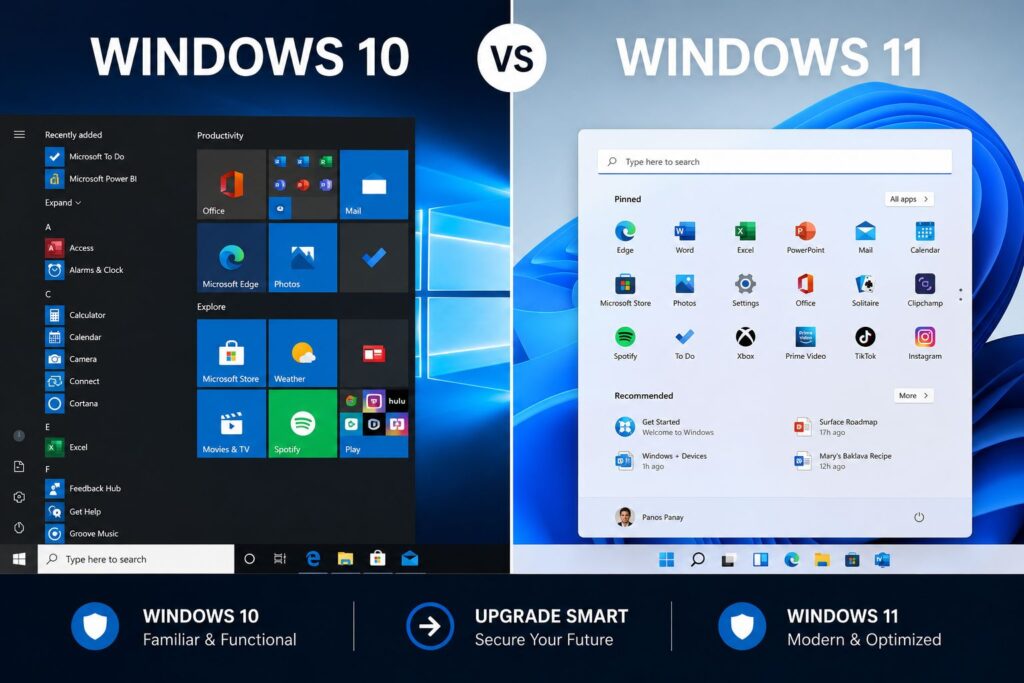
The short answer is a massive, echoing yes. If your computer hardware can handle it, you absolutely need to upgrade to Windows 11 as soon as possible.
I was skeptical when it first came out, but after using it daily for over two years, I genuinely love it. The interface is significantly cleaner, faster, and much more intuitive than its predecessor.
Windows 11 handles multiple monitors and background apps way better than older versions of Windows ever did. Plus, PC gamers get massive performance boosts thanks to features like Auto HDR and DirectStorage.
Don’t wait until the absolute last minute when everyone else is scrambling to update their machines. If you want to optimize your new setup, you can learn more about improving PC performance here.
How to Upgrade to Windows 11 (Step-by-Step Guide) 🚀
If you are feeling overwhelmed, take a deep breath. Learning how to upgrade Windows 10 to Windows 11 is actually much easier than it used to be in the old days.
I have put together this simple Windows 11 upgrade guide to get you up and running safely.
Step 1: Check Your PC Compatibility
Before doing anything, you need to know if your computer meets Microsoft’s strict hardware requirements. Go to the official Microsoft website and download the free “PC Health Check” app.
Step 2: Back Up Your Files
While this process usually keeps your files safe, I never take risks with my family photos or tax documents. Grab an external hard drive and back up your most important folders right now.
Step 3: Check Windows Update
Go to your Start Menu, click Settings, and open “Update & Security.” If your PC is ready, you will see a big, friendly banner inviting you to download Windows 11 for free.
Step 4: Purchase a License (If Needed)
If you are building a new PC or your current version isn’t genuine, you will need a real license key. Buying a physical USB drive makes doing a clean installation incredibly easy.
Check Windows 11 Pricing on Amazon
Step 5: Follow the Prompts
Click “Download and Install” and let your computer do all the heavy lifting. Your PC will restart several times during this process, so just grab a cup of coffee and wait.
Windows 10 vs Windows 11 Comparison Table 📊
To help you understand exactly what is changing, I built this quick Windows 10 vs Windows 11 comparison table. Here is a breakdown of the biggest differences you will notice right away.
| Feature / Category | Windows 10 | Windows 11 |
| Start Menu Location | Bottom Left (Classic) | Centered (Mac-style) |
| Android App Support | Third-party emulators only | Native support via Amazon Appstore |
| Gaming Performance | Standard DirectX 12 | Enhanced with Auto HDR & DirectStorage |
| Security Requirements | Standard BIOS | Strict TPM 2.0 & secure boot are required |
| Multitasking UI | Basic window snapping | Advanced “Snap Layouts” for multiple apps |
Common Upgrade Problems and Solutions 🔧
During my time working in IT support, I have seen almost every installation error imaginable. The most common headache people face is the dreaded “This PC can’t run Windows 11” message.
Usually, this happens because of a setting called TPM 2.0 (Trusted Platform Module) being disabled in your computer’s BIOS. Almost all PCs built after 2018 have this chip, but motherboard manufacturers often ship them turned off by default.
To fix this, you have to restart your PC and repeatedly tap your BIOS key (usually F2 or Delete). From there, you simply find the security tab and enable “Intel PTT” or “AMD fTPM.”
Another common issue is that Secure Boot is not enabled on your motherboard. If you are struggling with motherboard settings, you can check out our hardware troubleshooting manual.
If your PC is older than 2017, it might not have the required hardware to run the new OS. In that case, you might need to read our guide on choosing budget-friendly tech upgrades to replace your rig.
Key Takeaways
- ✅ Windows 10 reached end of life on October 14, 2025 — security patches stopped on that date.
- ⚠️ Continuing to use Windows 10 without updates puts personal data, business files, and networks at real risk.
- 💻 Many PCs can upgrade to Windows 11 for free — but hardware requirements (especially TPM 2.0) block some older machines.
- 💰 Microsoft offers Extended Security Updates (ESU) for Windows 10 at a cost—up to $61 per device for year 1 (as of Microsoft’s published pricing).
- 🔄 Linux distributions like Ubuntu or Linux Mint are free, capable alternatives for older hardware.
- 🖥️ Buying a new PC with Windows 11 pre-installed is often the most practical long-term solution.
- 🔒 No antivirus software fully compensates for a missing OS security patch — the risk is structural, not cosmetic.
- 📋 Businesses face compliance and liability exposure if regulated data sits on unsupported systems.
Frequently Asked Questions
Will my computer stop working after Windows 10 support ends?
No, your computer will still turn on, and all your current software will still work just fine. However, you will no longer receive security updates, making your PC highly vulnerable to new viruses and malware.
Is the upgrade from Windows 10 to 11 totally free?
Yes! If you already have a genuine, activated copy of Windows 10, the upgrade is 100% free. You can simply download it through your standard Windows Update menu in your settings.
Will I lose all my files if I upgrade to the new OS?
If you choose the standard upgrade path through Windows Update, your files, photos, and apps will remain exactly where you left them. However, as an IT professional, I still strongly suggest backing up your data first, just in case.
Why does my computer say it is not compatible with Windows 11?
Microsoft implemented very strict hardware security requirements to combat modern cyber threats. Your PC likely lacks a TPM 2.0 chip, or your processor is older than Intel’s 8th generation or AMD’s Ryzen 2000 series.
Can I go back to Windows 10 if I hate the new update?
Yes, but you have to act fast! Microsoft gives you a strict 10-day window to easily “roll back” to Windows 10 through your system recovery settings without losing your data.
References
- Microsoft. (2023). Windows 10 End of Support FAQ. https://support.microsoft.com/en-us/windows/windows-10-support-ending-on-o
- Microsoft. (2024). Windows 11 minimum system requirements. https://www.microsoft.com/en-us/windows/windows-11-specifications
- Microsoft. (2024). Extended Security Updates for Windows 10. https://support.microsoft.com/en-us/topic/windows-10-extended-security-updates