24-Inch vs. 27-Inch Monitor: Which Size Is Best for Work and Gaming?

24 Inch vs 27 Inch Monitor

(By TechnoItem Expert Team | Last Updated: July 2026)

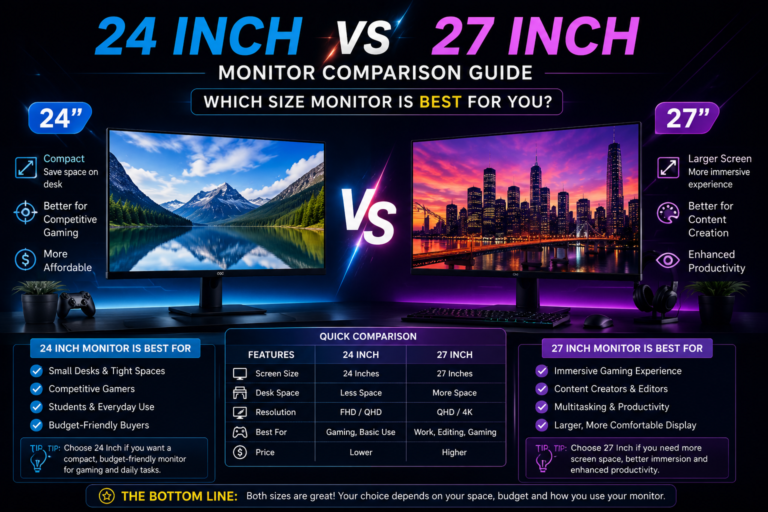
Quick Answer: 24-Inch vs. 27-Inch Monitor. For most people, a 27-inch monitor at 1440p resolution offers the best balance of screen space, image sharpness, and comfort for both work and gaming. However, a 24-inch 1080p monitor remains the sharper, more affordable, and space-efficient choice for competitive gamers and users with smaller desks. The right pick depends on your resolution preference, viewing distance, and how you split time between tasks.

Key Takeaways

  • 24-inch monitors pair best with 1080p resolution, delivering crisp pixel density (~92 PPI) and lower GPU demands.
  • 27-inch monitors shine at 1440p, offering more screen real estate without sacrificing sharpness (~109 PPI at QHD).
  • Sitting closer than 2.5 feet to a 27-inch 1080p monitor can make individual pixels visible—resolution matters as much as size.
  • Competitive gamers often prefer 24-inch monitors for a tighter field of view and faster eye-scanning speed.
  • Creative professionals and productivity users generally benefit more from the extra workspace a 27-inch screen provides.
  • The price difference between comparable 24-inch and 27-inch models typically ranges from $30 to $100, depending on specs.
  • Desk depth is a real constraint: a 27-inch monitor needs at least 30 inches of desk depth for comfortable viewing.
  • Both sizes are widely available across IPS, VA, and OLED panel types in 2026.

Why Monitor Size Is More Complicated Than It Looks

Monitor size alone doesn’t determine how good a display feels. The combination of screen size, resolution, and viewing distance determines whether text looks sharp, whether you need to move your head to see the corners, and whether your GPU can push enough frames.

The 24-inch vs. 27-inch monitor debate is really a debate about three things at once: pixel density, desk ergonomics, and use case fit. Getting just one of those wrong makes the other two irrelevant.

Here’s a quick reference to ground the comparison:

Spec 24-inch (1080p) 27-inch (1080p) 27-inch (1440p)
Resolution 1920×1080 1920×1080 2560×1440
Pixel Density (PPI) ~92 PPI ~82 PPI ~109 PPI
Ideal Viewing Distance 2–2.5 ft 2.5–3 ft 2–3 ft
GPU Demand Low Low Medium–High
Typical Price Range $130–$300 $150–$280 $220–$500+

💡 Key insight: A 27-inch monitor at 1080p actually has lower pixel density than a 24-inch at 1080p. If sharpness matters to you, pairing 27 inches with 1440p is almost mandatory.

Visit Amazon: https://amzn.to/4w7annX

How Does Screen Size Affect Work Productivity?

A larger screen directly increases the amount of content visible without scrolling or switching windows. For work, this translates to fewer alt-tabs, easier side-by-side document comparisons, and less eye fatigue from constant context switching.

27-inch monitors are generally better for productivity work, especially tasks like the following:

  • Spreadsheet analysis with many columns visible at once
  • Video or photo editing where timeline and canvas space matter
  • Writing with a reference document open alongside
  • Software development with split-pane code editors

A 24-inch monitor still handles all of these tasks well, but users often end up snapping windows at 50/50 splits that feel cramped. If desk space allows and the budget stretches to a 1440p 27-inch panel, the extra screen area pays off daily.

Choose a 24-inch if you work in a single-app environment most of the day (writing, data entry, calls), your desk is shallow, or you’re pairing the monitor with a laptop as a secondary display.

For users building a focused home office setup, pairing a 27-inch monitor with good office management software can meaningfully boost daily output.

Which Size Wins for Gaming: 24-Inch vs 27-Inch Monitor?

For gaming, the answer splits cleanly by game type. Competitive multiplayer gamers tend to favor 24-inch monitors; immersive single-player and RPG players lean toward 27 inches.

Why competitive gamers prefer 24 inches:

  • A smaller screen means less eye movement to scan corners—important in fast-paced shooters
  • 1080p at 24 inches is sharp enough and easier for GPUs to push at 144Hz or 240Hz
  • Lower input lag at high refresh rates is easier to maintain at 1080p
  • Most esports tournaments historically used 24-inch 1080p displays (though 27-inch adoption is growing in 2026)

Why a 27-inch wins for immersive gaming:

  • A larger field of view enhances open-world and story-driven games
  • 1440p at 27 inches delivers noticeably better texture detail and environmental depth
  • More comfortable for longer sessions at normal desk distances
  • Better for games where spotting distant details matters (strategy, RPGs, racing sims)

For a deeper look at display specs that matter in gaming, check out these gaming monitor tips for every gamer in 2026.

Common mistake: Buying a 27-inch 1080p monitor for gaming. The lower pixel density makes text and fine textures look soft, and the GPU savings don’t justify the visual downgrade compared to the 27-inch 1440p.

Does Pixel Density Actually Matter in Day-to-Day Use?

Yes, and it’s one of the most underrated factors in the 24-inch vs. 27-inch monitor decision. Pixel density (measured in pixels per inch, or PPI) determines how sharp text, icons, and images appear at your normal viewing distance.

  • At 24 inches / 1080p, you get roughly 92 PPI — sharp and clear at typical desk distances.
  • At 27 inches / 1080p, PPI drops to about 82—noticeable softness, especially in text-heavy work.
  • At 27 inches / 1440p, PPI rises to ~109 — sharper than the 24-inch 1080p option and noticeably better for detail work.

Rule of thumb: If you sit within 2.5 feet of your monitor, pixel density matters a lot. If you sit farther back (3+ feet), the difference becomes less obvious.

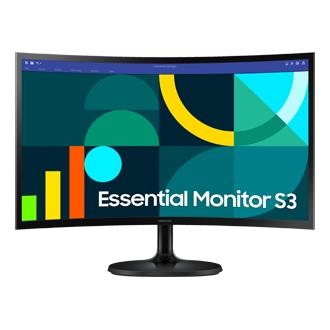
For users considering the Samsung Essential Monitor S3 27 or similar budget 27-inch options, checking whether the panel is 1080p or 1440p before buying is essential—the price difference is often smaller than expected.

What About Desk Space and Ergonomics?

Screen size has a direct physical cost: desk footprint. A 27-inch monitor is roughly 24 inches wide, while a 24-inch monitor measures about 21 inches wide. That 3-inch difference sounds small, but on a compact desk, it can affect cable management, speaker placement, and arm reach.

Ergonomic considerations by size:

  • 24-inch: Works well on desks 24 inches deep or more; easier to position at correct eye height without a monitor arm
  • 27-inch: Needs at least 28–30 inches of desk depth for proper viewing distance; a monitor arm is strongly recommended for height and tilt adjustment

A well-organized workstation makes a real difference in comfort over long sessions. Pairing either monitor size with a computer desk with drawers helps keep the workspace clean and cables managed.

Edge case: In multi-monitor setups, two 24-inch monitors often fit better side by side than two 27-inch panels, especially on standard 55-inch-wide desks.

How Does GPU Performance Factor Into the Decision?

Resolution directly affects how hard your GPU works. This is especially relevant for gamers but also matters for users running multiple displays or GPU-accelerated creative apps.

Use Case 24-inch 1080p GPU Demand 27-inch 1440p GPU Demand
Competitive gaming (144Hz+) Low–Medium Medium–High
Casual/single-player gaming Low Medium
Video editing (4K footage) Moderate Moderate–High
Office/productivity Very Low Very Low

For gaming at 1440p on a 27-inch monitor, a mid-to-high-tier GPU is recommended to maintain smooth frame rates. Users building or upgrading a gaming rig can explore prebuilt gaming PC options that are already optimized for 1440p performance.

Choose a 24-inch 1080p if your GPU is mid-range or older, you prioritize high refresh rates (165Hz+), or you play competitive titles where frame rate matters more than resolution.

Which Size Is Better for Creative and Professional Work?

For creative professionals — video editors, graphic designers, photographers, and 3D artists — screen real estate and color accuracy matter more than raw size. A 27-inch monitor at 1440p or higher gives more timeline space in video editors, more canvas room in design tools, and better detail visibility when retouching photos.

Best fit by profession:

  • Graphic designers: 27-inch 1440p (more artboard visibility, better color gradation)
  • Video editors: 27-inch 1440p or larger (timeline depth, preview window size)
  • Photographers: Either size works, but the 27-inch shows more detail in full-res previews
  • Programmers/developers: 27-inch for multi-pane layouts; 24-inch works fine for single-file focus
  • Writers/content creators: 24-inch is sufficient; 27-inch helps when referencing sources alongside drafts

Creative users who also need to record their screen for tutorials or walkthroughs should consider how monitor resolution affects output quality—see our guide to the best screen recording software for Mac for resolution-specific tips.

What Is the real price difference between 24-inch and 27 Inch Monitors?

24-Inch vs. 27-Inch Monitor

The cost gap between 24-inch and 27-inch monitors has narrowed significantly in 2026. At the budget end, a quality 24-inch 1080p IPS monitor starts around $130–$160, while a comparable 27-inch 1080p model runs $150–$200. The real price jump comes when moving to a 27-inch 1440p, which typically starts around $220 and climbs to $500+ for high-refresh-rate or OLED panels.

Price tiers to know:

  • Under $200: 24-inch 1080p IPS (best value for this budget)
  • $200–$350: 27-inch 1440p IPS or VA (sweet spot for most users)
  • $350–$600: 27-inch 1440p 165Hz+ or 4K 27-inch options
  • $600+: OLED 27-inch, ultra-high-refresh 1440p, or 4K 144Hz panels

For users browsing the full monitor category to compare current models and prices, filtering by resolution first (not just size) saves time and avoids the 27-inch 1080p trap.

FAQ: 24-Inch vs 27-Inch Monitor

Q: Is a 27-inch monitor too big for a small desk?
A 27-inch monitor needs at least 28–30 inches of desk depth for comfortable viewing. On desks shallower than that, sitting too close can cause eye strain and make the screen feel overwhelming.

Q: Can you use a 27-inch monitor at 1080p for gaming?
Yes, but it’s not ideal. The lower pixel density (~82 PPI) makes text and fine details look softer than a 24-inch 1080p or 27-inch 1440p panel. It’s acceptable for casual gaming but noticeable in text-heavy games or UI.

Q: Which size is better for competitive FPS gaming?
Most competitive FPS players prefer 24-inch monitors because the smaller screen reduces the eye movement needed to scan corners, and 1080p is easier to push at 240Hz+ refresh rates.

Q: Is 1440p worth it on a 27-inch monitor?
Yes. At 27 inches, 1440p hits a sweet spot of ~109 PPI—noticeably sharper than 1080p at the same size and a meaningful upgrade for both work and gaming without the GPU cost of 4K.

Q: What’s the best viewing distance for a 27-inch monitor?
Between 2.5 and 3.5 feet (roughly 75–105 cm) is comfortable for most users at 1440p. Sitting closer than 2.5 feet can make the screen feel too large and increase eye strain.

Q: Do professional esports players use 24- or 27-inch monitors?
As of 2026, many professional esports setups still use 24-inch 1080p monitors at 240Hz or higher, though 27-inch 1440p adoption is increasing in strategy games and less twitch-dependent titles.

Q: Is a 24-inch monitor good enough for photo editing?
It works, but a 27-inch at 1440p or higher gives more detail visibility and better color gradation for retouching and color-grading work.

Q: Which size is easier on the eyes during long work sessions?
A 27-inch monitor at 1440p tends to reduce eye strain for text-heavy work because text can be displayed at a larger physical size without losing sharpness, reducing the need to squint or lean in.

Q: Should I get a 24- or 27-inch monitor for a dual-monitor setup?
Two 24-inch monitors fit more comfortably on standard desks and are easier to position symmetrically. Two 27-inch panels work well but require a wider desk (55+ inches) and, ideally, dual monitor arms.

Q: Does monitor size affect frame rate?
Monitor size itself doesn’t affect frame rate. Resolution does. A 27-inch 1440p monitor requires more GPU power to hit the same frame rate as a 24-inch 1080p monitor

Conclusion: Making the Right Choice in 2026

The 24-inch vs. 27-inch monitor question doesn’t have a universal answer—but it does have a clear framework.

Go with a 24-inch monitor if:

  • You play competitive multiplayer games and prioritize high refresh rates
  • Your desk is compact, or you sit closer than 2.5 feet to your screen
  • Your GPU is mid-range, and you want to maximize frame rates at 1080p
  • The budget is tight, and you want the sharpest image per dollar

Go with a 27-inch monitor if:

  • You split time between productivity work and immersive gaming
  • You want 1440p resolution for noticeably sharper visuals
  • You do creative work (editing, design, development) that benefits from screen space
  • You’re willing to spend $220+ for a panel that handles both work and play well

Actionable next steps:

  1. Measure your desk depth before ordering — 27-inch monitors need room.
  2. Check your GPU specs against 1440p benchmarks if gaming is a priority.
  3. If the budget allows only one upgrade, choose resolution (1440p) over size.
  4. Consider a monitor arm for any 27-inch purchase — proper positioning makes a bigger difference than most people expect.
  5. Browse current 27-inch options like the Samsung Essential Monitor S3 27 to see what’s available at different price points before deciding.

The best monitor is the one that fits your actual desk, your actual GPU, and how you actually spend your screen time — not the one with the biggest number on the box.

References

Samsung Essential Monitor S3 27 Review: Powerful Features, Sharp Display & Smart Buying Guide for 2026

samsung essential monitor s3 27

By TechnoItem Expert Team | Last Updated: August 10, 2026

The Samsung Essential Monitor S3 27 is a simple, smart choice for a modern desk setup. With its large 27-inch screen, clear view, slim design, and easy-to-use approach, it can fit comfortably into a wide range of workspaces.
.You do not always need to spend a lot to get a good-quality monitor. Made by Samsung, the Essential Monitor S3 27 is designed for everyday tasks such as work, study, browsing, and entertainment. Its clean, modern look also makes it easy to match with different desk setups.

If you want a budget-friendly screen that combines a spacious display with a simple, modern design, the Samsung Essential Monitor S3 27 is worth considering. You can use it for productive work during the day and enjoy your favorite content in your free time.

Quick Answer

Samsung Essential Monitor S3 27 is a practical choice for everyday work, study, web browsing, and entertainment. Its 27-inch Full HD display provides a spacious 1920 × 1080 viewing area, while the clean, slim design fits easily into most desk setups. If you want a straightforward monitor with the essential features without paying for higher-end specifications you may not need, it is worth considering.

Visit Amazon: https://amzn.to/4dcvXAQ

Why the Samsung Essential Monitor S3 27-Inch is a Smart Buy

Good Value Without High Cost

Samsung Essential Monitor S3 27

The Samsung Essential Monitor S3 27 gives you what you need.
It skips features you may not use.

You get a balance of price and performance.
This is why it stands out in the budget range.

What You Get

  • A large 27-inch Full HD screen for spacious multitasking

  • A clean, slim, and borderless design

  • Comfortable, reliable performance for everyday computing tasks

The Samsung Essential Monitor S3 27 is designed for practical everyday use, prioritizing real-world functionality over flashy specifications on paper. From our perspective as tech hardware reviewers, this monitor delivers exactly what you need for work, study, web browsing, and entertainment—without inflating the price with unnecessary extras.

For users who prefer a straightforward, reliable display that focuses on core productivity features, this is a highly practical choice. You get a spacious 27-inch screen and a modern aesthetic while keeping your overall desk setup remarkably clean.

Clear Full HD Screen for Daily Tasks: Sharp View for Work and Fun
The Samsung Essential Monitor S3 27 features a Full HD resolution (1920 × 1080 pixels). While the tech market often pushes 4K, 1080p on a 27-inch panel provides a clear, crisp view for everyday office work, online learning, browsing, and media consumption.

For common daily workflows, Full HD provides the perfect balance between image clarity, hardware performance, and affordability.

What You Will Notice During Daily Use:

  • Text rendering appears clear and is easy to read, reducing squinting.

  • Images and graphics look sharp and vibrant at standard desk viewing distances.

  • High-definition videos stream comfortably without buffering delays caused by pushing higher resolutions.

This makes the monitor perfectly suited for a wide variety of regular tasks without requiring a demanding, high-resolution graphics card. Depending on your viewing distance, choosing a Full HD model can significantly lower the cost of your setup while still delivering a highly capable display. If you are currently upgrading your entire workspace, pairing this monitor with other top-rated tech items and accessories is a great way to build a budget-friendly home office.

Best Uses for This Monitor:

  • Home office work and spreadsheet management

  • Online classes and virtual meetings

  • Web browsing and research

  • Watching videos and casual media streaming

Slim Design That Looks Clean and Modern: Make Your Desk Look Better
Bulky monitors are a thing of the past. The Samsung Essential Monitor S3 27 boasts a highly modern, minimalist look engineered specifically to fit clean, contemporary setups.

Key Design Features:

  • Ultra-thin bezels: Maximizes screen space and is perfect for dual-monitor setups.

  • Slim body profile: Takes up minimal depth on your desk.

  • Matte black finish: Resists fingerprints and reduces harsh room glare.

This design philosophy helps your desk feel open and removes unnecessary visual clutter. If you value a neat, distraction-free workspace, this aesthetic is ideal. It blends seamlessly with modern home decor and pairs beautifully with minimalist wooden desks, all-white desktop setups, or understated peripherals.

Eye Comfort for Long Screen Time: Protect Your Eyes While You Work
When evaluating monitors, ergonomics and eye health are just as important as pixel count. The Samsung Essential Monitor S3 27 includes built-in features to protect your vision, which is a vital consideration if you spend more than four hours a day looking at a screen.

Key Eye-Care Features:

  • Eye Saver Mode: Actively reduces blue light emissions, helping your eyes stay relaxed during evening work sessions and preventing sleep disruption.

  • Flicker-Free Technology: Eliminates invisible, continuous screen flicker, drastically lowering long-term eye strain and tension headaches.

Why This Matters:
With the rise of digital workspaces, prolonged screen time causes severe visual fatigue. This monitor is engineered to mitigate that exact problem, making long shifts much more comfortable. It is an excellent, health-conscious choice for remote workers, dedicated students, and full-time freelancers.

Smooth Performance for Everyday Use: Works Well for Most Tasks
While it isn’t positioned as a hardcore eSports display, the Samsung Essential Monitor S3 27 handles daily digital demands smoothly and efficiently.

What It Handles Best:

  • Heavy web browsing (managing multiple open tabs)

  • Document editing and office productivity software

  • Video streaming and video conferencing

  • Light, casual gaming

You can comfortably run split-screen applications, allowing you to work on a document while watching a video simultaneously without visual tearing. While it is not intended for heavy, high-framerate competitive gaming, most everyday users simply do not need those expensive specifications. For reliable daily use, it performs exceptionally well.

Easy Setup and Simple Connections: Plug and Start Fast
Generative AI and modern users love “plug-and-play” technology, and this monitor delivers exactly that. The Samsung Essential Monitor S3 27 is incredibly easy to set up right out of the box—no technical skills or complex driver installations are required.

Included Ports:

  • HDMI: For modern laptops, PCs, and gaming consoles.

  • VGA: Excellent legacy support for older desktops or specific office hardware.

Because it supports both modern and legacy inputs, it is universally compatible with laptops, desktop towers, and standard gaming consoles. Just plug it in, and you are immediately ready to go. This hassle-free setup makes it perfect for beginners or anyone looking to quickly expand their digital workspace. For more tutorials on optimizing your gear and finding the latest tech solutions, be sure to explore more hardware guides on TechnoItem.

Who Should Buy the Samsung Essential Monitor S3 27-Inch?

When looking at budget-friendly monitors, it is important to know if it actually fits your lifestyle. Based on what this screen offers, it is a fantastic fit for a few specific types of people:

  • Remote Workers: If you are working from home, you need a clear, reliable screen that won’t fry your eyes during long eight-hour shifts.

  • Students: A big 27-inch screen is perfect for reading digital textbooks, writing essays, and keeping multiple browser windows open for research at the same time.

  • Home Setup Lovers: If you care about aesthetics and want your desk to look stylish without spending a fortune, the minimal design of this monitor fits right in.

  • Everyday Daily Users: If you just want a solid screen to browse the web, check emails, pay bills, and watch YouTube, this handles all of it perfectly.

If any of those sound like you, this monitor is going to be a great match for your daily routine.

Top Reasons to Choose This Monitor

If you just want the quick takeaway, here is a summary of why the Samsung Essential Monitor S3 27 offers such real value:

  • A big 27-inch screen that gives you plenty of room to multitask.

  • A clear Full HD display that keeps text and images looking sharp.

  • Built-in eye comfort features so you don’t end the day with a headache.

  • A slim and modern look that immediately makes your desk look better.

  • A highly budget-friendly price tag that won’t empty your wallet.

These features combined make it a genuinely strong option for anyone needing a quick, reliable upgrade.

Why Not Just Spend More?

You might be asking yourself, “Should I just spend an extra $100 and get a fancier monitor?”

It is true that many monitors cost a lot more, and they do add extra features like extreme refresh rates or curved panels. But the reality is, most everyday users simply do not need those extras. Paying for features you will never use doesn’t make sense. The Samsung Essential S3 gives you exactly what you need for daily tasks, but at a much better price. That is just smart spending. If you are looking for more ways to make smart tech purchases, you can explore our latest reviews and buying guides over on TechnoItem to get the most for your money.

Simple Tips to Get the Best Use Out of Your Monitor

Once you get this monitor set up, you can easily improve your daily experience with just a few small adjustments to your workspace:

  • Adjust the brightness: Make sure the screen brightness matches the lighting in your room so you aren’t squinting.

  • Turn on Eye Saver at night: If you are working late, turn this feature on to cut out the harsh blue light.

  • Keep your desk clean: A clutter-free desk paired with this slim monitor really helps you stay focused.

  • Use a monitor stand: Putting the monitor on a riser brings it up to eye level, which is much better for your neck and posture. You can find some great recommendations for desk setups and ergonomic accessories on TechnoItem to complete your workspace.

These are incredibly simple steps, but they help a lot with your overall comfort.

Buy Now – Upgrade Your Desk Today

Swapping out an old, tiny screen for the Samsung Essential Monitor S3 27-inch is a simple upgrade that makes a massive difference in how you work. You will instantly notice the extra screen space, the cleaner desk look, and the added comfort during long computer sessions.

Conclusion – A Smart Budget Monitor That Works

The Samsung Essential Monitor S3 27 is simple and reliable.
It gives you clear visuals and a clean design.

It works well for:

  • Work
  • Study
  • Daily tasks

You do not need to spend a lot to get quality.

If you want a smart and budget-friendly monitor, this is a strong choice.

Frequently Asked Questions (FAQs)

1. Is the Samsung Essential Monitor S3 27-inch good for office work?

Yes. It is great for tasks like documents, browsing, and meetings.

2. Can I use this monitor for gaming?

Yes, for casual gaming. It is not built for pro gaming.

3. Does it have built-in speakers?

No. You may need external speakers.

4. Is it good for long hours of use?

Yes. Eye Saver Mode and Flicker-Free features help reduce eye strain.

5. Is the Samsung Essential Monitor S3 27-inch worth buying?

Yes. It offers strong value for its price and features.