Why This Even Matters (More Than You Think)
What Makes a PDF Editor Actually Worth Using
When you’re choosing the best PDF editor for Mac, the real test is simple: does it make your work easier or harder? The right tool should feel natural from the first click, not like something you need to figure out.
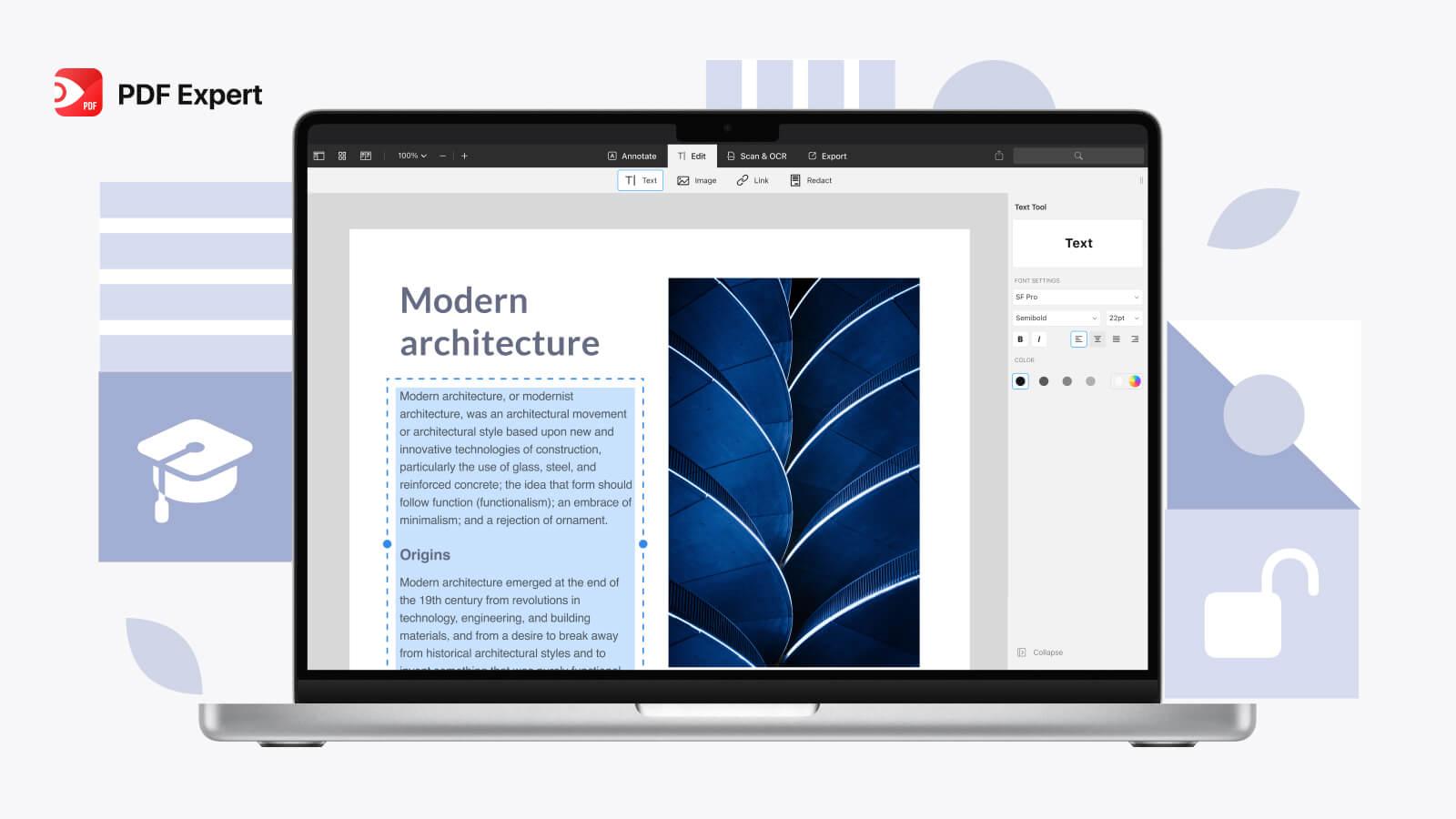
Take Preview as an example. It’s quick and convenient, but once you move beyond basic tasks, it starts to feel limiting. That’s where tools like PDF Expert or Adobe Acrobat Pro step in and actually deliver a smoother experience.
The best PDF editor for Mac should let you jump in and start editing right away. Click on text, make changes, adjust images, and move elements without breaking the layout. No digging through menus, no second-guessing your actions. Just clean, direct control.
Reliable conversion is another must. When you export a PDF to Word or Excel, the formatting should stay intact. A strong editor protects your structure so you don’t waste time fixing spacing, fonts, or alignment afterward.
Security also needs to be simple. Adding a password, redacting content, or signing a document should take seconds. The best PDF editor for Mac handles these tasks quickly, so you can move on.
And speed matters more than people admit. A fast, responsive app keeps your workflow smooth and uninterrupted. If it lags, it slows everything down.
In the end, the best PDF editor for Mac is the one that removes friction. It helps you edit faster, convert accurately, and stay focused without distractions.
Different Types of PDF Editors (And Who They’re For)
For Everyday Users
If you mostly read, highlight, or sign documents now and then, you don’t need anything fancy. Simple tools or even built-in apps will do the job.
For Students and Researchers
You’ll want solid annotation tools, easy ways to organize, and probably cloud sync so your files are always within reach. Professionals and Businesses
This is where you need advanced features. Editing contracts, filling out forms, using OCR, and batch processing all call for a more powerful tool.
Top Features You Shouldn’t Ignore
Text and Image Editing
Being able to click and edit right inside a PDF is a game-changer. Suddenly, a static file becomes flexible.
OCR (Optical Character Recognition)
If you deal with scanned documents, OCR is a must. It converts images into editable text, saving you loads of time. tal Signatures
Whether you’re signing a contract or just giving a quick approval, digital signatures are now part of daily life.
Cloud Integration
Switching between devices is standard now. Your PDF editor should keep up.
Batch Processing
If you work with lots of files, handling them one at a time just isn’t practical. Batch tools make things much faster.
Free vs Paid PDF Editors: What’s the Real Difference?
Free Tools: Good for Basics
Free editors cover the basics: simple edits, notes, and quick signatures. If you don’t need much, they’re usually enough.
Paid Tools: Built for Real Work. When your tasks get more complex, free tools start to feel limiting. Paid options give you better accuracy, more control, and fewer roadblocks. ones.
It’s not just about price. It’s about how much your time is worth.
Common Mistakes People Make When Choosing a PDF Editor
Going for the Cheapest Option. It’s tempting, but cheap tools usually end up costing you more time in the long run. You’ll spend more time later.
Ignoring Compatibility
Some tools don’t work smoothly with every macOS version or file type.
Overlooking User Experience
A tool packed with features won’t help if it’s a pain to use.
How to Choose the Best PDF Editor for Your Needs
Step 1: Be Honest About What You Do
Are you editing once in a while, or is this something you do every day? Before You Commit
Most good tools have free trials. Take advantage of them.
Step 3: Think Long-Term
Switching tools over and over is way more frustrating than just picking the right one from the start.
How to Edit a PDF on Mac (Simple Walkthrough)
1. Open Your File
Use your—Open your PDF editor and load up your document. e Your Edits
Click on the text to edit, drop in images, or move pages around.
3. Save or Export
Pick your format and save your updated file. That’s it. Editing a PDF should always feel this easy.
Why Mac Users Expect More (And Should Get It)
Mac users expect a clean design and smooth performance. When a PDF editor feels clunky, you notice right away.
The best tools get that. They’re fast, easy to use, and powerful without being flashy.
A Quick Look at Popular Choices
Some tools keep things simple; others go for power. You’ll find options that are minimal and others loaded with features.
The key isn’t picking the most popular tool. It’s finding the one that fits how you work.
Final Thoughts That Actually Matter
Choosing the best PDF editor for Mac isn’t about the longest feature list. It’s about what actually makes your work easier.
If a tool saves you time, cuts down on frustration, and lets you focus on your work instead of the process, that’s the one to pick. What is the best PDF editor for Mac right now?
The best PDF editor depends on what you need. If you use it a lot, pick something with more features. For light tasks, a simple tool is enough.
2. Is Preview enough for editing PDFs on Mac?
Preview works well for basics, but it can’t handle advanced editing or conversions.
3. Are free PDF editors safe to use?
Most free editors are safe, but stick to trusted names and avoid anything sketchy.
4. Can I edit scanned PDFs on Mac?
Yes, but you’ll need an OCR tool to turn scanned text into something you can edit.
5. Do I need a paid PDF editor for Mac?
If you handle PDFs often, a paid tool will save you time and hassle.