Last Updated:
September 13, 2026 By: TechnoItem Expert Team
If your games still look choppy during fast-paced fights, the problem usually isn’t your graphics card — it’s your screen. Budget gaming monitors with 144Hz have gotten so good in 2026 that you no longer need a premium price tag to get smooth, tear-free gameplay. 🎮 A few years ago, a fast panel like this would have cost you $300 or more. Today, solid 144Hz 1080p options start under $150, and even 1440p 144Hz-class monitors are creeping toward that range.
This guide breaks down what actually matters when shopping for a cheap 144Hz gaming monitor, walks through real picks worth considering, and explains the specs that brands love to throw around without explaining. No fluff, no inflated “best of” lists — just what you need to buy smart.
Budget Gaming Monitors 144Hz in Short
A good budget 144Hz gaming monitor delivers smooth, tear-free 1080p or 1440p gaming for well under $200. Look for an IPS panel, a genuine 1ms–4ms response time, FreeSync or G-Sync compatibility, and at least one DisplayPort input. Skip TN panels if color and viewing angles matter to you, and don’t chase 240Hz+ unless your GPU can actually push those frame rates.
Why 144Hz Matters for PC Gaming
A standard monitor refreshes the image 60 times per second. A 144Hz refresh rate monitor refreshes 144 times per second, which means the picture updates more than twice as often. In fast games, that translates directly into smoother motion and less blur when you’re tracking a moving target.
The jump from 60Hz to 144Hz is one of the most noticeable upgrades you can make to a PC gaming setup — often more noticeable than a GPU upgrade. Competitive players in shooters like Valorant, CS2, and Apex Legends lean on higher refresh rates because it’s genuinely easier to track enemy movement and land shots with less motion blur.
Refresh Rate vs. Response Time — They’re Not the Same Thing
Refresh rate and response time get mixed up constantly, but they measure different things. Refresh rate is how many times the screen redraws per second (144Hz = 144 times). Response time is how fast a pixel changes from one color to the next, usually measured in milliseconds.
You want both numbers working together. A 144Hz refresh rate paired with a slow response time can still produce ghosting trails behind fast-moving objects. That’s why budget monitor listings brag about “1ms” — though as independent testers have pointed out, an aggressive overdrive setting can technically hit 1ms on paper while still introducing visible inverse ghosting in real use, so response time claims are worth a grain of salt.
What to Look for in a Cheap 144Hz Gaming Monitor
Before comparing specific models, it helps to know which specs are worth prioritizing and which are mostly marketing noise.
- Panel type: IPS panel monitors offer better color accuracy and wider viewing angles; VA panel monitors offer deeper contrast but slightly slower pixel transitions; TN panels are the fastest and cheapest but wash out colors at an angle.
- Screen size and display resolution: 24-inch at Full HD (1080p) is the sweet spot for budget 144Hz gaming, since it keeps pixel density sharp without demanding a powerful GPU. 27-inch 1440p monitors are catching up in price but need more graphics horsepower to hit 144 frames per second.
- Adaptive sync: FreeSync and G-Sync compatibility prevent screen tearing by syncing the monitor’s refresh rate to your GPU’s frame output. Most budget monitors support FreeSync, and many are also certified G-Sync Compatible even with an AMD-branded label.
- Low input lag: This is separate from response time — it’s the delay between your mouse movement and the on-screen reaction. Look for monitors specifically tested for low input lag rather than trusting the spec sheet alone.
- Ports: Confirm the monitor includes DisplayPort, not just HDMI, since older HDMI versions can cap out well below 144Hz. Also check whether a DisplayPort cable actually ships in the box, since some budget models leave you buying one separately.
Best Budget Gaming Monitors 144Hz (2026 Picks)
The models below reflect current-generation budget 144Hz displays commonly recommended by hardware reviewers. Prices fluctuate often, so always check the live price before buying.
| Monitor | Size / Resolution | Panel | Response Time | Adaptive Sync | Best For |
| Dell SE2426HS | 24″ / 1080p | IPS | — | FreeSync | Tightest budget, general 144Hz gaming |
| AOC Q27G3XMN | 27″ / 1440p | VA | 1ms (MPRT) | FreeSync Premium | Sharper image, stronger contrast |
| AOC 24G2X | 24″ / 1080p | Fast IPS | 1ms | FreeSync | Color accuracy on a budget |
| Dell SE2426HGS | 24″ / 1080p | IPS | — | FreeSync | Overclockable toward 240Hz for esports |
| GIGABYTE M27Q3 | 27″ / 1440p | IPS | 1ms | FreeSync Premium | Stepping up to QHD without overspending |
| ASUS VA24EHE | 24″ / 1080p | VA | — | — | Absolute entry-level budget builds |
Dell SE2426HS is regularly flagged by reviewers as the pick when keeping the purchase as low as possible matters more than resolution. It’s a 24-inch IPS panel running at 144Hz with FreeSync and a height-adjustable stand, which is unusual at this price point. 🖥️
AOC Q27G3XMN is a common recommendation for buyers who want a sharper 27-inch 1440p image with stronger contrast and HDR potential than a basic 1080p monitor, while still landing in “cheap 144Hz gaming monitor” territory.
AOC 24G2X shows up often as a budget favorite for its fast IPS panel and FreeSync support, aimed at players who don’t want to give up color quality for speed.
Dell SE2426HGS targets competitive gamers with a factory overclock toward 240Hz at 1080p, which is worth considering if you play fast-paced shooters and have a GPU that can keep up.
GIGABYTE M27Q3 is a step toward 1440p gaming without jumping to a premium price, pairing a 170Hz refresh rate with FreeSync Premium and DisplayHDR 400.
ASUS VA24EHE sits at the very bottom of the budget range. It’s a 75Hz VA panel rather than a full 144Hz display, so it belongs on this list only as the absolute floor for buyers who need any upgrade over a 60Hz monitor and plan to move up to 144Hz later.
1080p vs. 1440p: Which Resolution Fits a Budget 144Hz Monitor?
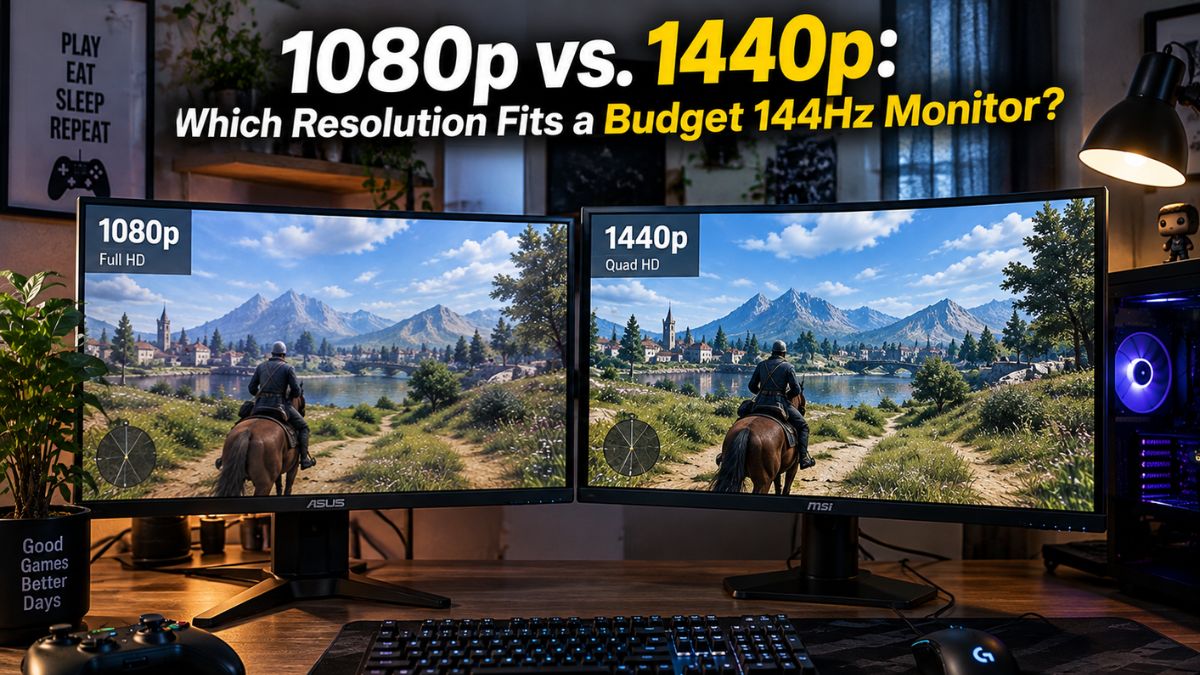
This is where a lot of buyers overthink it. If your GPU is mid-range or older, 1080p gaming at 144Hz is the more realistic target — it’s easier to sustain high frame rates, and image sharpness on a 24-inch screen still looks clean. Full HD at 24 inches works out to roughly 92 pixels per inch, which holds up fine at normal desk viewing distances.
If you’re running a stronger GPU, a 27-inch 1440p monitor gives you noticeably sharper detail (around 109 PPI) at a similar price to what 1440p cost a couple of years ago. The trade-off is that your graphics card needs to work harder to hit 144 frames per second at the higher resolution.
Pros and Cons of Budget 144Hz Gaming Monitors
Pros
- Smooth gameplay and reduced motion blur compared to 60Hz screens
- FreeSync/adaptive sync is now standard even at low prices
- IPS options are widely available, so you’re not stuck with washed-out TN colors
- Prices have dropped enough that 144Hz is realistic for almost any PC gaming budget
Cons
- Some budget models cut corners on stand adjustability or built-in speakers
- HDR support, when included, is usually a basic tier rather than true high-brightness HDR
- Hitting 144 fps consistently at 1440p may require a GPU upgrade
- “1ms response time” claims can vary from real-world motion clarity
Quick Buying Guide: How to Choose
- Set your resolution first. Match the monitor to your GPU, not the other way around — a 144Hz 1440p screen is wasted if your graphics card can only push 90 fps in modern titles.
- Confirm the ports before buying. Make sure DisplayPort is included and that a cable ships in the box, since HDMI 1.4 can’t reliably drive 144Hz at higher resolutions.
- Check adaptive sync compatibility with your GPU. FreeSync monitors generally work with NVIDIA cards too, but it’s worth confirming G-Sync Compatible certification if you want the smoothest handshake.
- Prioritize IPS unless contrast matters more to you. Choose IPS for color-accurate, wide-angle viewing; choose VA if you want deeper blacks and don’t mind slightly slower pixel response.
- Don’t overspend on a refresh rate you can’t use. 144Hz is the practical ceiling for most budget PC gaming setups — 240Hz only pays off with a GPU that can sustain those frame rates.
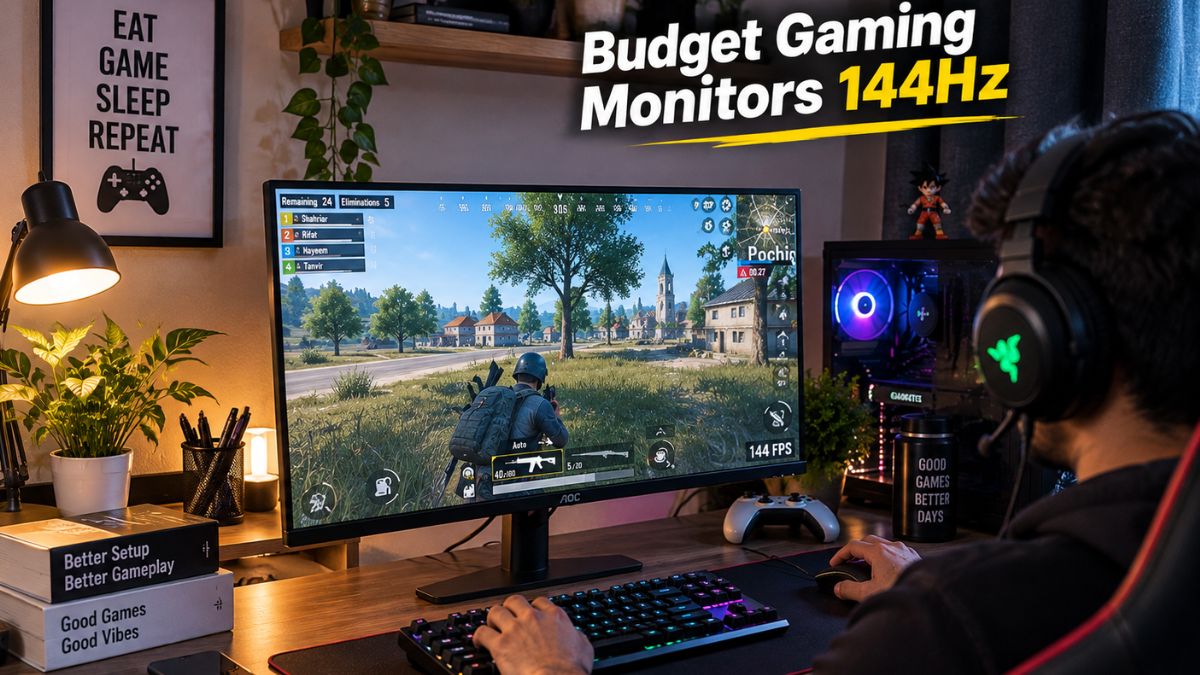
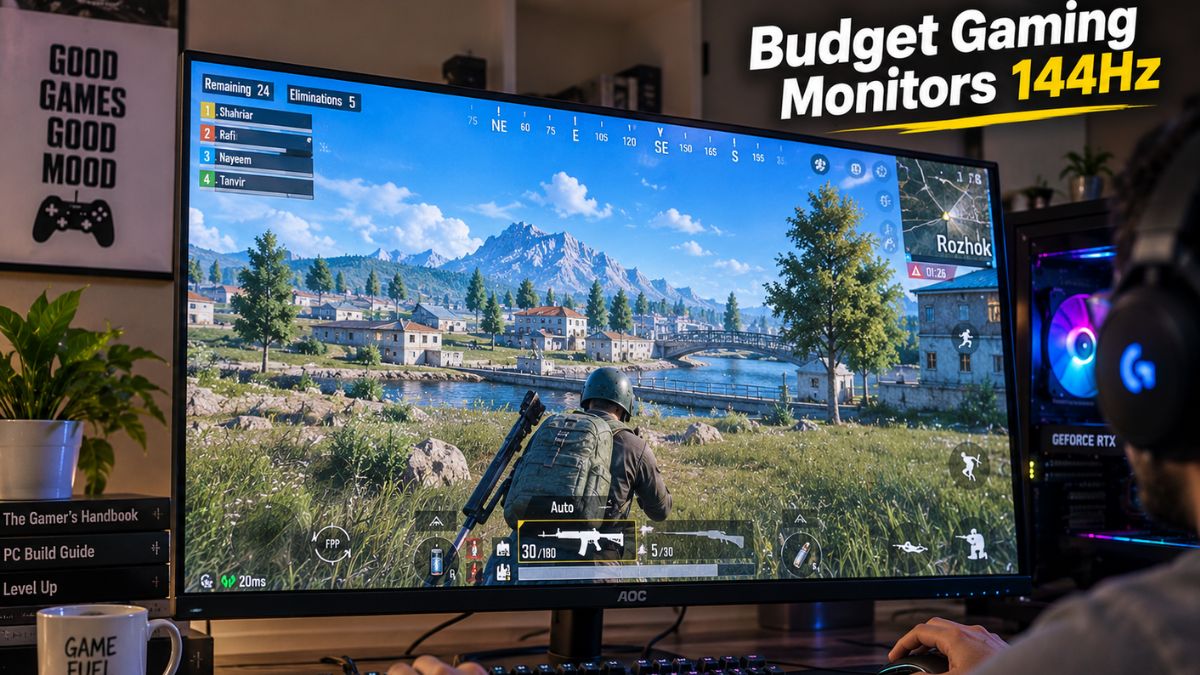
[IMAGE 1: Featured image — after the H1] Purpose: Show the article’s core subject at a glance. Prompt: A clean, well-lit desk setup photographed from a slight angle, featuring a 24-27 inch flat gaming monitor displaying a colorful in-game scene, a mechanical keyboard and mouse in soft focus in the foreground, neutral desk and wall background, natural window light, no visible brand logos. Alt text: Budget 144Hz gaming monitor on a desk setup for smooth PC gaming. Suggested filename: budget-144hz-gaming-monitor-setup.jpg
[IMAGE 2: After “Best Budget Gaming Monitors 144Hz (2026 Picks)”] Purpose: Visualize the comparison table for skimmers and social sharing. Prompt: A minimalist flat-lay style infographic mockup showing three generic monitor silhouettes side by side with simple icon labels for screen size, panel type, and refresh rate; clean modern tech-blog aesthetic, neutral color palette, no real brand names or logos. Alt text: Comparison of budget 144Hz gaming monitor specs. Suggested filename: 144hz-monitor-comparison-chart.jpg
[IMAGE 3: After “1080p vs. 1440p” section] Purpose: Help readers visualize the sharpness difference between resolutions. Prompt: Split-screen comparison illustration showing the same in-game scene rendered at two clarity levels, labeled simply “1080p” and “1440p,” clean sans-serif labels, dark UI-style background, no logos or text overlays beyond the two labels. Alt text: 1080p versus 1440p sharpness comparison on a gaming monitor. Suggested filename: 1080p-vs-1440p-gaming-monitor.jpg
Frequently Asked Questions
Is a 144Hz monitor good for gaming? Yes. A 144Hz monitor noticeably reduces motion blur and screen tearing compared to a standard 60Hz display, which makes fast-moving scenes easier to track. For both casual and competitive gaming, it’s one of the most impactful upgrades you can make to a setup.
Is 144Hz enough for competitive gaming? For the vast majority of players, yes. Professional and high-level competitive players sometimes push toward 240Hz or higher, but 144Hz already delivers a major improvement over 60Hz and remains the standard refresh rate for competitive PC gaming.
What should I look for in a budget 144Hz monitor? Focus on panel type (IPS for color, VA for contrast), a genuine low response time, FreeSync or G-Sync compatibility, and confirm it has a DisplayPort input. Avoid judging a monitor purely by its advertised response time.
How much should I spend on a 144Hz gaming monitor? Solid 1080p 144Hz monitors are available well under $150, while 1440p 144Hz-class models typically cost more. Spend based on your GPU’s ability to hit those frame rates rather than chasing the cheapest or most expensive option blindly.
Do I need FreeSync or G-Sync on a budget monitor? It’s strongly recommended. Adaptive sync prevents screen tearing by matching the monitor’s refresh rate to your GPU’s output, and most budget 144Hz monitors now include FreeSync at no extra cost, with many also working smoothly on NVIDIA cards.
Final Thoughts
Budget gaming monitors 144Hz models have reached a point where “cheap” no longer means “compromised.” Whether you land on a tight-budget 1080p IPS panel or stretch slightly for a 1440p option, the smoothness upgrade over a 60Hz screen is immediate and obvious the first time you play.
If you’re building out the rest of your setup, it’s worth pairing your new monitor with a capable gaming PC so the extra frames actually get used, and checking out our prebuilt gaming PC picks if you’d rather skip the parts-picking altogether. For a deeper dive into panel types, HDR, and sizing, our gaming monitor buying guide covers the fundamentals in more detail, and if your desk setup needs an upgrade to match, see our computer desk buying guide.