8GB RAM vs 16GB RAM Laptop Comparison: Best Choice for 2026

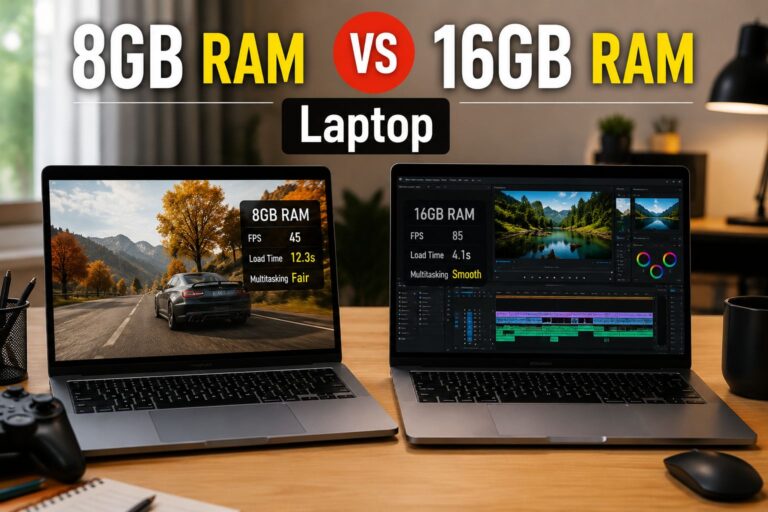
8GB RAM vs 16GB RAM Laptop

(By TechnoItem Expert Team | Last Updated: July 2026)

Quick Answer

8GB RAM vs. 16GB RAM Laptops. For most users in 2026, 16GB RAM is the better choice. Software has grown heavier, browsers consume more memory than ever, and even basic productivity tasks benefit from the extra headroom. That said, 8GB still works fine for light, focused use cases like simple web browsing, note-taking, or Chromebook-style tasks.

Key Takeaways

  • 16GB RAM is the new baseline for a well-rounded laptop in 2026, handling multitasking, video calls, and modern apps without slowdowns.
  • 8GB RAM remains viable for students, light office users, and anyone on a tight budget who sticks to one or two apps at a time.
  • RAM-intensive tasks like video editing, running virtual machines, or gaming strongly favor 16GB or more.
  • Modern operating systems (Windows 11, macOS Sequoia) consume 3–5 GB of RAM at idle, leaving less usable memory than the raw number suggests.
  • If the RAM is soldered (non-upgradeable), choosing 8GB now means living with that limit for the laptop’s entire lifespan.
  • The price difference between the 8GB and 16GB configurations has narrowed significantly in 2026, often just $50–$100.
  • Choose 8GB if budget is the top priority and tasks are genuinely light and limited.
  • Choose 16GB if multitasking, creative work, gaming, or future-proofing matters to you.

What Does RAM Actually Do in a Laptop?

RAM (Random Access Memory) is the short-term workspace your laptop uses to hold active data. The more RAM available, the more apps, browser tabs, and processes can run simultaneously without the system leaning on slower storage.

When RAM fills up, the operating system starts using the hard drive or SSD as overflow memory (called “paging” or “swap”). This is noticeably slower and causes the sluggishness many users blame on an “old” laptop.

Key point: RAM doesn’t make a single app run faster in isolation. It determines how many things can run smoothly at the same time.

Visit Amazon: https://amzn.to/4v2narz

How Much RAM Do Operating Systems Use in 2026?

Before comparing 8GB vs. 16GB, it helps to know how much memory the OS itself consumes.

Operating System Idle RAM Usage (approx.)
Windows 11 (2026 builds) 3.5 – 5 GB
macOS Sequoia 4 – 6 GB
ChromeOS 1.5 – 2.5 GB
Ubuntu Linux 1.5 – 3 GB

Note: These are general estimates based on typical system configurations. Actual usage varies by background processes and installed software.

On a Windows 11 laptop with 8GB RAM, the OS alone can consume more than half the available memory before a single app opens. That leaves roughly 3–4 GB for everything else, which fills up quickly with a browser, a video call, and a document open simultaneously.

8GB RAM vs 16GB RAM Laptop: Which One Is Better in 2026? (Performance Breakdown)

8GB RAM vs 16GB RAM Laptop

16GB RAM outperforms 8GB in nearly every real-world multitasking scenario in 2026. The gap has grown wider as apps, browsers, and operating systems have become more resource-hungry over time.

Where 8GB Holds Up

  • Basic web browsing (5–8 tabs in Chrome or Edge)
  • Word processing and spreadsheets (Google Docs, Microsoft Word)
  • Video streaming (Netflix, YouTube)
  • Light email and calendar use
  • ChromeOS devices, which manage memory more efficiently

Where 8GB Struggles

  • 20+ browser tabs open simultaneously
  • Video calls with screen sharing (Zoom, Teams, Google Meet)
  • Photo editing in Lightroom or Photoshop
  • Running two or more heavy apps at the same time
  • Any modern AAA game or graphically demanding software

Where 16GB Shines

  • Smooth multitasking across many open apps
  • Video editing in DaVinci Resolve or Premiere Pro (at 1080p)
  • Software development with IDEs, local servers, and browser previews open
  • Gaming at medium-to-high settings
  • AI-assisted tools built into modern productivity apps (which increasingly cache models locally)

💡 Pull quote: “In 2026, 8GB RAM is like a two-lane road. It works fine until traffic picks up—then everything slows down.”

Who Should Choose 8GB RAM?

8GB RAM is still a reasonable choice for a specific type of user. Choose 8GB if all of the following apply:

  • Budget is the primary concern, and the price difference matters
  • Daily tasks are limited to browsing, email, documents, and media playback
  • The laptop runs ChromeOS (which manages memory far more efficiently than Windows or macOS)
  • The device will be used for a short period (1–2 years) before upgrading
  • The RAM is upgradeable, so more can be added later if needed

A good example is a student using a Lenovo IdeaPad Chromebook with 8GB RAM for class notes, Google Docs, and video lectures. That’s a genuinely appropriate use case for 8GB in 2026.

Common mistake: Buying an 8GB Windows laptop expecting it to handle multitasking “just fine.” Windows 11’s memory overhead makes this a frustrating experience within months of purchase.

Who Should Choose 16GB RAM?

16GB RAM is the right choice for most laptop buyers in 2026. Choose 16GB if any of the following apply:

  • Multitasking is part of a typical workday (many tabs, multiple apps, video calls)
  • The laptop will be used for 3+ years
  • Work involves creative tasks: photo editing, video editing, design, or music production
  • Gaming is part of the plan, even casually
  • The RAM is soldered and cannot be upgraded later
  • Running Windows 11 or macOS as the primary OS

For those browsing the full laptop category for options, nearly every mid-range and above configuration in 2026 ships with 16GB as the standard spec.

Is 8GB RAM Ever Enough for Gaming in 2026?

8GB RAM vs 16GB RAM Laptop

No, 8GB RAM is not enough for a satisfying gaming experience on a Windows laptop in 2026. Most modern games recommend 16GB as a minimum, and with the OS running in the background, 8GB leaves almost no room.

Minimum RAM recommendations for gaming (2026 estimates):

  • Casual/indie games: 8GB (barely workable)
  • Mid-tier titles (e.g., open-world, shooters): 16GB recommended
  • AAA titles and competitive games: 16GB minimum, 32GB preferred

For those also considering a desktop setup, check out prebuilt gaming PC options where 16GB or 32GB is standard, and upgrading RAM is far easier.

Does RAM Speed and Type Matter as Much as Capacity?

Capacity matters more than speed for most users, but type matters for efficiency. In 2026, most laptops ship with either LPDDR5 or DDR5 memory. These are faster and more power-efficient than older DDR4 modules.

  • LPDDR5 (found in thin-and-light laptops): Lower power draw, often soldered
  • DDR5 (found in performance laptops): Faster, sometimes upgradeable

Edge case: On laptops with integrated graphics (like AMD Ryzen with Radeon or Intel Arc), RAM is shared between the CPU and GPU. Having 16GB here is even more important because the GPU carves out a portion of system RAM for itself.

8GB RAM vs 16GB RAM Laptop: Which One Is Better in 2026? (Price vs. Value)

The price gap between 8GB and 16GB laptop configurations has shrunk considerably. In 2026, the difference between an 8GB and a 16GB version of the same laptop model typically runs $50–$100.

Configuration Typical Price Range (2026) Best For
8GB RAM laptop $300 – $600 Light use, ChromeOS, students
16GB RAM laptop $500 – $900 Most users, professionals, and gamers
32GB RAM laptop $900 – $1,500+ Power users, video editors, developers

For a $75 price difference, upgrading from 8GB to 16GB is almost always worth it. The performance and longevity gains outweigh the upfront cost for most buyers.

Decision rule: If the 16GB model costs less than 20% more than the 8GB model, choose 16GB. The added lifespan alone justifies the cost.

If you’re also comparing laptops from specific brands, the Lenovo IdeaPad reviews and the Best Buy Lenovo laptop guide offer solid real-world comparisons across RAM tiers.

Can You Upgrade RAM Later?

It depends entirely on the laptop. Many modern thin-and-light laptops solder RAM directly to the motherboard, making upgrades impossible after purchase.

Before buying, check:

  1. Whether RAM is soldered or uses SO-DIMM slots
  2. The maximum supported RAM (some boards cap at 16GB, even with upgradeable slots)
  3. Whether the warranty covers RAM upgrades

If RAM is soldered: Always buy the highest RAM tier you can afford. There is no second chance.

If RAM uses SO-DIMM slots, starting with 8GB and upgrading later is a viable strategy, though it requires buying compatible modules and some technical comfort.

Conclusion: Which Should You Buy in 2026?

The answer is clear for most people: choose 16GB RAM. The cost difference is small, the performance difference is real, and the longevity advantage is significant. With operating systems and apps consuming more memory every year, 8GB is already showing its limits on Windows and macOS devices.

Actionable next steps:

  • If the budget is tight, look for 16GB configurations in the $500–$700 range before settling for 8GB. Sales and refurbished options often bring 16GB models into budget territory.
  • If buying a Chromebook, 8GB is genuinely fine, and the extra cost for 16GB may not be worth it on ChromeOS.
  • If the RAM is soldered: Never compromise. Buy 16GB minimum.
  • If gaming or creative work is planned: Start at 16GB and consider 32GB if the budget allows.
  • Before finalizing any purchase, confirm whether the RAM is upgradeable. That single fact changes the entire calculus.

For more buying guidance across different laptop brands and configurations, explore the full laptop buying resources or check out the HP Chromebook 14 review for a practical look at how 8GB performs in a real ChromeOS environment.

FAQ

Q: Is 8GB RAM enough for college in 2026?
A: For most college students using Google Docs, Zoom, and a browser, 8GB works but feels tight. 16GB is a better investment for a laptop that’ll last 4 years.

Q: Will 8GB RAM slow down a new laptop?
A: Not immediately, but on Windows 11 or macOS, 8GB fills up quickly during multitasking. Users often notice slowdowns within the first year of regular use.

Q: Is 16GB RAM overkill for everyday use?
A: No. In 2026, 16GB is the practical baseline for Windows and macOS laptops. It handles everyday tasks comfortably and leaves room for growth.

Q: How long will a 16GB RAM laptop last?
A: A 16GB laptop bought in 2026 should remain capable for 5–7 years for most productivity and creative tasks, assuming the processor and storage are also adequate.

Q: Does more RAM improve battery life?
A: Not directly. However, when RAM is insufficient and the system relies on swap memory (using the SSD), it can increase CPU and storage activity, which drains the battery faster.

Q: Is 32GB RAM worth it in 2026?
A: For video editors, software developers, and power users running virtual machines, yes. For general use, 16GB is sufficient, and 32GB is unnecessary.

Q: What’s better: upgrading RAM or buying a new laptop?
A: If the current laptop has upgradeable RAM slots and a capable processor, adding RAM is cost-effective. If RAM is soldered, a new laptop is the only option.

Q: Does RAM matter more than the processor?
A: Both matter, but they affect different things. The processor determines raw speed; RAM determines how many tasks run smoothly at once. For multitasking, RAM often has a bigger visible impact.

Q: Is 8GB RAM good for working from home in 2026?
A: Marginally. Video calls, shared screens, and collaboration tools like Slack or Teams consume significant RAM. 16GB handles a remote work setup far more comfortably.

Q: Can a laptop with 8GB RAM run Windows 11 well?
A: It runs, but not well under load. Windows 11 uses 3.5–5 GB at idle, leaving little room for apps. Performance degrades noticeably when multitasking.

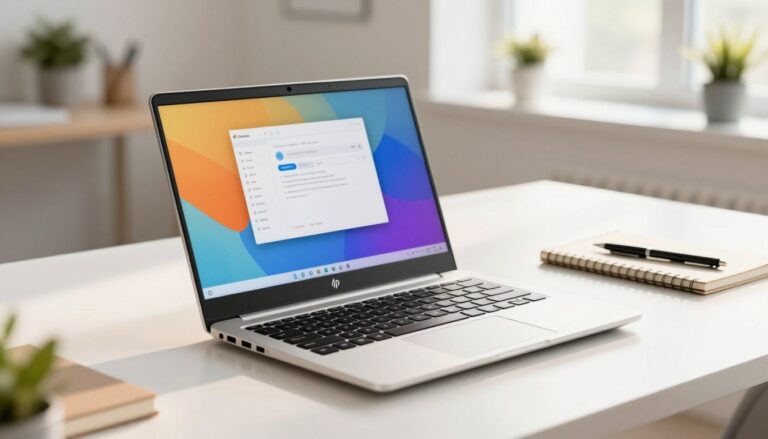
Discover the HP Chromebook 14: Powerful Performance, Portable Design

HP Chromebook 14

Last Updated: July 23, 2026

Looking for a simple, everyday companion? Discover the HP Chromebook 14: a powerful performance laptop designed to handle schoolwork, web browsing, video calls, and streaming with ease. It’s light enough to carry and built for basic daily tasks rather than heavy-duty gaming or editing.

What you get in this exact setup: a modest processor (Intel Celeron N4120), 4 GB RAM, 64 GB

eMMC storage, and a 14″ HD screen that’s easy on the eyes. Together, these parts make a handy

device for online classes, email, and streaming shows.

How Chromebooks differ: They run Chrome OS, which feels faster for web tasks and uses the cloud.

Storage more than traditional machines. That can be great if you live mostly online, but less ideal

If you need lots of local files or heavy apps.

You’ll likely ask about speed with many tabs, screen clarity, battery life, ports, and storage. 

Prices

And bundles change often, so check the latest price/details before buying. Specs can vary by retailer, so verify the listing you choose.

On this page, you can jump to sections on performance, display, battery, ports, and where to buy. Read the part that matches your main concern to get quick answers.

Check the current price and availability on Amazon 

here: Buy the HP Chromebook 14

  1.  

  2. Quick Verdict & Key Takeaways

    If you are in a rush and just want the bottom line, here is our quick summary of the HP Chromebook 14:

    • Best For: Students, freelance writers, and people who do 90% of their work inside a web browser (Google Docs, web-based email, and YouTube).
    • Who Should Skip It: Gamers, video editors, and anyone who specifically needs to install heavy Windows desktop apps (like the full Adobe Creative Cloud).
    • The Best Feature: The battery life is phenomenal. It easily lasted us all day on a single charge.
    • The Biggest Flaw: The screen on the base model (the TN panel version) has poor viewing angles. If you look at it from the side, the colors wash out.
    • Value: It remains one of the absolute best deals you can find for a 14-inch screen.

    Design and Build Quality: Not Your Average Plastic Block

    When you buy a laptop in this price range, you expect to compromise on build quality. Honestly, we were pleasantly surprised when we first unboxed the HP Chromebook 14.

    Yes, the chassis is made entirely of plastic. There is no premium aluminum here. However, HP gave it a textured matte finish that does an excellent job of hiding ugly fingerprint smudges.

    HP Chromebook 14

    How Heavy Is It?

    Weighing roughly 3.2 pounds (1.45 kg) and measuring about 0.7 inches thick, it is incredibly easy to carry. During our testing, we tossed it into a standard backpack and barely noticed the extra weight while walking around.

    The hinges are surprisingly stiff—in a good way. The screen doesn’t wobble uncontrollably when you are typing fast or using the laptop on your lap on the couch.

    If you are currently trying to figure out what laptop specs you actually need, you should read our comprehensive guide on choosing the right laptop for your specific budget. It will help you avoid overspending on features you don’t need.

    The Display and Audio: Good Enough for Netflix?

    Screen Resolution

    The HP Chromebook 14 comes in two main screen options: a standard HD (1366 x 768) and a Full HD (1920 x 1080) version.

    If you have a choice, pay the extra few dollars for the Full HD (1080p) version.

    During our video testing, watching 1080p YouTube videos and Netflix movies was an enjoyable experience on the upgraded screen. The text looks crisp, making it great for reading long articles. It also features an anti-glare coating. We took the laptop outside to a sunny patio, and while the screen isn’t incredibly bright (usually hovering around 220 to 250 nits), the matte screen prevented annoying mirror-like reflections.

    Audio Quality

    Budget laptops almost always have terrible speakers, and we have to be honest: the HP Chromebook 14 is just average in this department.

    The speakers (tuned by B&O on select models) fire upward. They get loud enough for Zoom calls and casual YouTube watching. However, there is zero bass. If you are going to listen to a Spotify playlist while you work, do yourself a favor and plug in some headphones or connect a Bluetooth speaker.

    Keyboard and Trackpad: A Typist’s Dream

    This is where the HP Chromebook 14 actually beats laptops that cost three times as much.

    Typing Experience

    As a team that writes tech reviews all day, we are incredibly picky about keyboards. The island-style keyboard on this Chromebook is fantastic. The keys have a slightly textured feel so your fingers don’t slip, and there is a satisfying “click” to each press.

    We took a typing test on this laptop and hit our normal 90 words-per-minute with

    Trackpad and Chrome OS Gestures

    The trackpad is wide, smooth, and very responsive. Because Chrome OS is built heavily around trackpad gestures, you need to know how to use them to get the most out of this laptop.

    Step-by-Step: Essential Chrome OS Gestures You Need to Try

    1. Right-Click: Lightly tap the trackpad with two fingers at the same time.
    2. Scroll Smoothly: Place two fingers on the trackpad and swipe up or down to read web pages.
    3. Switch Tabs Instantly: Place three fingers on the trackpad and swipe left or right. This lets you jump between open browser tabs without having to move your mouse to the top of the screen.
    4. View All Open Windows: Swipe up with three fingers to open the “Overview” mode.

    If you are new to this operating system, we highly recommend checking out our full tutorial on essential operating system optimization tricks to speed up your daily workflow.

  3. Zero issues. The keyboard deck has almost no “flex” or bending when you press down hard in the middle.

Performance: How Fast Is It Really?

Let’s talk about speed. The HP Chromebook 14 usually ships with an Intel Celeron or Intel Pentium processor, paired with 4GB or 8GB of RAM.

If this were a Windows laptop, those specs would be a nightmare. Windows has heavy background updates, antivirus scans, and bulky software that bogs down cheap processors.

But this is Chrome OS. Chrome OS is essentially just a web browser operating system. Because it is so lightweight, the HP Chromebook 14 runs incredibly smoothly.

Our Real-World Stress Test

We wanted to see exactly when the laptop would start to lag. We bought the 4GB RAM model and started opening tabs in Google Chrome.

  • Tabs 1-5: Flawless. We had Google Docs open, a YouTube video playing in the background, and a few Wikipedia pages.
  • Tabs 6-10: Still running smoothly. Switching between tabs was instant.
  • Tabs 11-15: This is where we noticed a slight delay. When we clicked back to the YouTube tab, it took a second to refresh the page.

The takeaway: If you are a normal user who keeps 5 to 10 tabs open at a time, the performance is perfectly fine. If you are a “tab hoarder” who keeps 30 tabs open, you will experience lag unless you buy the 8GB RAM version.

Storage and Ports

Most models come with 32GB or 64GB of eMMC storage. That sounds tiny, right? It is. But remember, Chromebooks are built to save everything to Google Drive in the cloud. You aren’t meant to save massive movie files locally. If you do find yourself running out of space, it is incredibly easy to safely expand your laptop’s local storage using the built-in MicroSD slot.

Thankfully, HP didn’t skimp on the ports. While Apple is forcing everyone to buy expensive dongles, the HP Chromebook 14 gives you everything you need built right in:

  • 2 x USB Type-C ports: These support fast charging and connecting to an external monitor.
  • 2 x regular USB Type-A ports: Perfect for plugging in an older wired mouse or a standard flash drive.
  • 1 x MicroSD card slot: If you need more storage space, you can buy a cheap MicroSD card and leave it in the slot permanently.
  • 1 x Headphone jack: For your wired headphones.

Fun Fact: HP put one USB-C port on the left side and one on the right. This means you can plug your charger into whichever side of the laptop is closest to your wall outlet. It’s a tiny detail, but we loved it.

returns

Battery Life: Leave Your Charger at Home

This is the main reason you should buy this laptop.

HP claims you can get up to 11.5 hours of battery life. Manufacturer claims are usually exaggerated, so we did our own test. We set the screen brightness to 70%, connected to Wi-Fi, and used it for a normal workday (writing articles, checking emails, and watching a 45-minute YouTube video on our lunch break).

The result? The laptop lasted an incredible 9 hours and 40 minutes before finally shutting down.

For students taking notes in class all day, or for anyone who just wants to use a laptop on the couch without a power cord dragging across the floor, this battery life is a massive win. To ensure your battery keeps holding this kind of charge years down the line, read our guide on how to properly maintain laptop battery health.

Experience this all-day battery life yourself. Check current pricing on Amazon: Buy the HP Chromebook 14

Comparison Table: HP Chromebook 14 vs The Competition

How does the HP Chromebook 14 compare to other popular budget laptops? Let’s look at the facts.

Feature HP Chromebook 14 Acer Chromebook 314 Lenovo IdeaPad 3 Chromebook
Screen Size 14-inch 14-inch 14-inch
Processor Base Intel Celeron Intel Celeron MediaTek / Intel Celeron
Keyboard Feel Excellent, very sturdy Good, but a bit mushy Very good, tactile
Battery Life ~9.5 to 10 Hours ~10 Hours ~9.5 Hours
USB-C Charging? Yes (Both sides) Yes Yes
Best Trait Best Overall Typing / Ports Cheapest Option Lightest Weight

Are you still confused about whether you should buy a Google-powered laptop or a traditional Windows machine? Check out our deep-dive comparison where we explain the exact differences between a Chromebook and a Windows laptop.

Pros and Cons

To be completely fair and unbiased, here is a quick summary of what we loved and what we hated during our time with the device.

What We Loved (Pros):

  • The Price: It is incredibly affordable, making it low-risk for students or kids.
  • The Keyboard: One of the most comfortable typing experiences in this price tier.
  • The Battery Life: Lasts almost 10 hours on a single charge.
  • Security: Because it runs Chrome OS, you don’t have to worry about traditional Windows viruses or malware.
  • Port Selection: Dual USB-C ports on opposite sides is brilliant.

What We Didn’t Like (Cons):

  • Base Screen Quality: The cheapest TN panel versions have bad viewing angles. (Again, try to buy the 1080p IPS version).
  • Audio: The speakers are loud but sound slightly tinny.
  • No Heavy Gaming: You cannot play PC games like Valorant or Cyberpunk 2077 on this.
  • Software Limitations: You cannot install Microsoft Windows .exe files or Mac .dmg files.

Buying Guide: Who Should Actually Buy the HP Chromebook 14?

Let’s make sure you don’t waste your money. Laptops aren’t “one size fits all.” Here is exactly who this device is built for.

1. The High School or College Student

If your daily routine involves typing essays, researching topics on Google, watching recorded lectures, and using Google Classroom, this laptop is practically built for you. It’s cheap enough that if you accidentally drop your backpack, you won’t be out $1,000, but it is reliable enough to get you through finals week. For more options like this, see our list of the best budget tech for students.

2. The Remote Office Worker

Do you use a web-based CRM? Do you manage your work through Google Docs, Slack, and Zoom? The HP Chromebook 14 handles all of these web apps effortlessly. It boots up in about 8 seconds, meaning you can open the lid and start working immediately. If you are currently setting up a work-from-home space on a tight budget, we highly recommend reading our home office tech recommendations to complete your setup.

Who Should Avoid This Laptop?

If you are a photographer who needs the full desktop version of Adobe Photoshop, a video editor rendering 4K video, or a gamer wanting to play the latest Steam releases locally, do not buy this laptop. Chrome OS is not designed for heavy, localized computing.

Frequently Asked Questions (FAQ)

We get a lot of questions from our readers about Chromebooks. Here are the direct answers to the most common things people ask before buying the HP Chromebook 14.

  1. Can the HP Chromebook 14 run Microsoft Word and Excel?
    Yes, but you have to use them a little differently. You cannot download the heavy desktop versions of Microsoft Office. However, you can use the web-based versions of Word, Excel, and PowerPoint for free via your browser. You can also download the Microsoft Office Android app directly from the Google Play Store on the laptop.
  2. Can I use the HP Chromebook 14 without Wi-Fi?
    Yes. A lot of people think Chromebooks turn into useless bricks without the internet. That isn’t true anymore. You can enable “Offline Mode” in Google Docs to type without Wi-Fi. You can also download movies on the Netflix Android app to watch on an airplane and play offline Android games.
  3. Does it have a touchscreen?
    It completely depends on the exact configuration you choose on Amazon. HP makes versions with standard screens and versions with touchscreens. If a touchscreen is important to you for scrolling or using Android apps, double-check the product description before you hit “buy.”
  4. Can I print from a Chromebook?
    Yes, as long as you have a modern Wi-Fi-enabled printer. Chrome OS easily connects to wireless printers on the same network. For older printers, you can use a direct USB connection using the built-in USB-A port.

Final Verdict: Should You Buy It?

The HP Chromebook 14 does exactly what it is supposed to do, and it does it very well. It doesn’t try to be a $2,000 MacBook Pro, and it doesn’t pretend it can edit Hollywood movies.

What it does offer is a fast, highly secure, virus-free web browsing experience. Between the fantastic, clicky keyboard and the battery that just refuses to die, it is one of the most practical budget laptops we have tested.

If you understand that this is meant for web browsing, writing, and watching videos, you are going to love this laptop.

Ready to upgrade your daily computing without breaking the bank?
👉 Click here to check the current price and buy the HP Chromebook 14 on Amazon!

Author: TechnoItem Expert Team