What Is an Applications Desktop Integrator and Why It Matters for Tech Enthusiasts

applications desktop integrator

Last Updated:
July 15, 2026

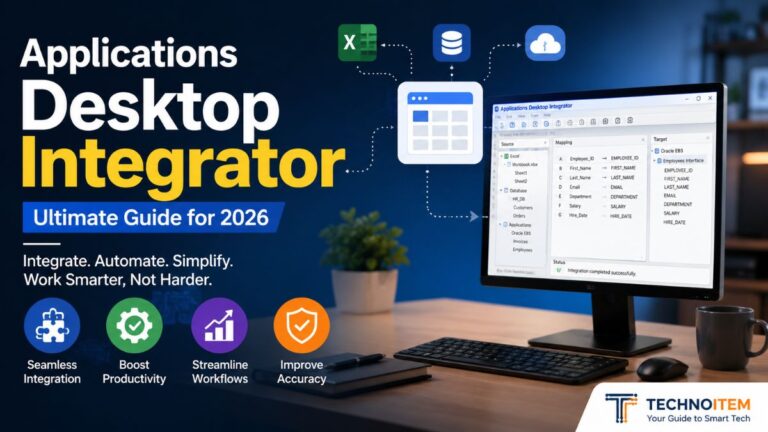
Applications Desktop Integrator is designed to eliminate the frustration of switching between a web browser, a spreadsheet, and a legacy database just to complete a single task. For tech enthusiasts who demand efficiency, that disjointed workflow isn’t just annoying; it’s a productivity killer. An applications desktop integrator brings separate software solutions together into one smooth desktop environment, helping users work faster and more efficiently.

In real-world terms, Oracle has its own version (Web ADI), and OpenAI is reportedly building a desktop superapp that follows a similar vision of streamlining desktop workflows. The trend is clear, and the data backs it up.

What exactly is this category of software, and why should you care? Let’s break it down without the marketing fluff.

TL; DR

  • An applications-desktop-integrator unifies web, desktop, and legacy applications into a single interface, allowing data sharing and coordinated actions without manual app switching.
  • Oracle’s ADF Desktop Integration (ADFdi) lets users edit Fusion cloud data directly inside Excel but requires exact add-in version 5.2.5.29987 and careful setup.
  • The broader trend—including OpenAI’s planned desktop superapp—points to a future where AI-driven desktop integrators become the default way we work with software.

What Is an Application Desktop Integrator?

An application’s desktop integrator is a software platform that sits on your operating system and knits together web apps, thick client apps, and even legacy terminal programs so they share context, exchange data, and trigger actions without you constantly copying, pasting, or switching windows.

It’s not a remote desktop or a virtualization layer; it’s more like a universal translator that lives on your machine and makes your tools talk to each other.

It’s like a middleware that replaces the chaos of juggling ten different windows with one coherent workspace. Io). Instead of logging into a CRM, then opening an email client, then hunting for an invoice in an ERP. The integrator surfaces data tied to data from all three inside a single interface. You stay in flow.

How an Applications Desktop Integrator Pulls Everything Together

applications desktop integrator guide

The magic lies in how the integrator intercepts signals between applications. When you click on a customer record in one app, what this means is the integrator captures that context, then automatically updates other apps in real time. No custom APIs or fragile macros needed.

It’s a layer that sits between the presentation and the data, much like office management software consolidates calendars, documents, and communication into one dashboard.

Skeptical, you should be. Many early adopters of “all-in-one” solutions were burned by clunky integrations that broke every time an app updated, but modern desktop integrators handle version drift more gracefully, mostly since they operate at the UI and message layer, not (a detail often overlooked) deep inside each app’s codebase.

The real win is eliminating manual data movement.

According to users of platforms like Oracle’s Web ADI, downloading a spreadsheet, tweaking numbers, and re-uploading becomes a single button click instead of a 15‑step ordeal. That’s what hooks tech enthusiasts who obsess over workflow automation.

📌 Key Point
A desktop integrator does not replace your apps—it sits beside them and coordinates their behavior. You still use Excel, your web dashboard, and your legacy tool; they just stop fighting each other.

Oracle Web ADI: A Real-World Example

Oracle Web Applications Desktop Integrator (Web ADI) is Oracle’s setup that basically links Microsoft Excel to its Fusion web applications, letting users download, modify, and upload transactional data from the comfort of a spreadsheet, with all security and business logic enforced server‑side.

It’s not a generic tool for connecting any two random apps; it’s tightly coupled to the Oracle setup.

That’s where the rubber meets the road for tech enthusiasts who love tinkering. The setup process reveals a lot about the genre’s strengths and headaches. 0 or later. Hard to ignore those numbers. That’s not a suggestion—it’s a pain dependency.

Tech Spec Requirement
Add‑in version 5.2.5.29987
Operating system Windows 10 or 11
.NET Framework v4.0 or later
Host application Microsoft Excel
Backend target Oracle Fusion web apps

29987, and anything else will leave you stuck. I’ve seen people waste hours. Now, because they grabbed a just barely older version from a cached link.

You must also manually enable it as a COM add‑in inside Excel Options. Then confirm it appears under Active Application Add‑ins.

⚠️ Warning
Skipping the COM add-in check is the number-one reason the ADF Desktop Integration menu refuses to show up in Excel. No menu, no integration—regardless of how perfectly you installed the add‑in.
“Setting up Oracle ADFdi isn’t just clicking ‘Install’—you’ll face version checks, COM add-in menus, and a wizard that demands precision.”

🐦 Click to Tweet →

Realistically, the payoff is real: once set up, the integrator wizard lets you create layout definitions, map interface attributes, and preview documents hands-on from the web interface. It’s a builder’s dream, though you’ll need patience, and if you’re on Windows 10, the end of Windows 10 support means you should plan a migration to 11 soon anyway.

✅ Action Steps
  1. Download the correct add‑in—Obtain the ADF Desktop Integration add‑in version 5.2.5.29987 from Oracle’s official channel.
  2. Enable COM Add‑in in Excel—Open Excel Options, navigate to Add‑ins, select COM Add‑ins, and check the checkbox for the ADFdi entry.
  3. Verify the version—Confirm the .dll’s Product Version matches 5.2.5.29987 under its file properties.
  4. Test with the integrator wizard — Launch the Web ADI integrator from Oracle Fusion, create a simple layout, preview a document, and ensure data flows correctly.

Common Misconceptions and Where People Go Wrong

Many believe a desktop integrator is a magical “plug and play” solution that automatically connects any two apps—but the reality is far more detailed.

The Oracle example proves that these tools are often vendor‑specific, version‑sensitive, and require hands‑on configuration that can stump even experienced users.

Yet, ask yourself—the biggest failure point is assuming the installer will handle everything. It won’t.

The COM add-in enablement step is manual—and the exact version number must match. So a mismatch of even a minor build can silently kill the integration. That’s not a bug.

It’s a design choice that enforces compatibility but frustrates newcomers.

Here’s a subtle gotcha: Web ADI doesn’t work with non‑Oracle web apps or desktop tools, and it’s not a general‑purpose integration hub like some commercial platforms. Tech enthusiasts expecting to tie their SaaS dashboard to a local Python script will be disappointed. It’s purpose-built for Fusion.

Still, the concepts apply broadly. Plus, understanding how context‑sharing and layout‑based integration work under the hood prepares you for the next wave of PDF editing on the desktop or any cross‑app automation.

Why Tech Enthusiasts Should Keep an Eye on Desktop Integration

Desktop integration isn’t stuck in enterprise‑grade Oracle environments; it’s bleeding into consumer and prosumer tools in ways that’ll reshape how we interact with computers.

OpenAI’s reported plan to combine ChatGPT, Codex, and the Atlas browser into a desktop superapp is a bellwether. If the probably most influential AI lab thinks a unified desktop experience is the next big thing, it’s worth paying attention.

What does that look like? Instead of opening a separate coding assistant, a browser, and a note‑taking app. You’d have a single overlaying intelligence that understands the context of all three. It could answer questions about a document.

While side by side generating code and pulling web references. The line between applications blurs.

For those obsessing over privacy and security, this trend raises flags, and honestly, a desktop integrator that sees everything you do needs a trusted architecture, and that’s why pairing it with a solid password manager and audit logs becomes non‑negotiable. The promise is huge. But the control plane must be bulletproof.

Already, smaller platforms are proving the concept — even a simple tool that records your screen can form a primitive desktop integrator when combined with AI that reads the on‑screen content and takes actions. It’s a stepping stone toward full‑blown context‑aware workspaces.

💡 Pro Tip
If you’re a tech enthusiast, start experimenting with tools that let you script cross‑app interactions now—AutoHotkey, Keyboard Maestro, or even simple API bridges—because once AI‑driven integrators arrive, you’ll already speak the language.

People Also Ask

Is an application desktop integrator the same as a virtual desktop?

No.

A virtual desktop streams a full operating system; a desktop integrator coordinates specific applications already installed on your machine so they share data and commands. One virtualizes the environment; the other orchestrates the apps.

Can I use Oracle ADF Desktop Integration with any web application?

No, it only works with Oracle Fusion web applications.

It relies on Oracle‑specific protocols and server‑side logic, so it won’t connect to Salesforce, SAP, or custom apps unless you build heavy custom adapters.

What are the prerequisites for Oracle Web ADI?

You need the ADF Desktop Integration add-in version 5.2.5.29987, Microsoft Excel, Windows 10 or 11, and .NET Framework 4.0+.

The add-in must be enabled as a COM add-in inside Excel Options.

Does a desktop integrator replace my existing applications?

No, it adds to them.

Your apps stay exactly as they are; the integrator sits between them to synchronize data and actions. You still launch Excel, your web dashboard, and your legacy tool normally.

Are there open‑source alternatives to Oracle Web ADI?

There are no direct open‑source replicas with the same structured layout integration, but tools like AutoHotkey or Sikuli can script cross‑app interactions.

They lack the server‑side business‑logic enforcement and layout mapping, making them suitable only for simpler automation.

How does OpenAI’s desktop superapp relate to desktop integrators?

It signals that unifying multiple AI and productivity tools under one desktop shell is a serious product direction. OpenAI’s vision is a desktop integrator that uses AI as the coordination brain, not just a manual layout engine.

The Future of Desktop Integration Is Worth Watching

The applications desktop integrator category may sound niche, but it fits. Just something to consider. Where these meet AI, user experience, and automation—three areas where tech enthusiasts thrive. Oracle’s Web ADI shows the enterprise plan. Wait. Let me rephrase: OpenAI’s superapp hints at the consumerized version.

Here’s the other side of it. Whether you’re knee‑deep in Fusion spreadsheets or just monitoring the space.

The principles of context‑sharing, layout‑based integration, and cross‑app coordination (which work out well in practice) are skills that’ll pay dividends. Stay curious; keep tinkering. And don’t let a version number trip you up.

Author:
TechnoItem Expert Team

Lenovo Idea Centre All-in-One Desktop Computer Hands-On Review and Verdict

all-in-one desktop computer

By TechnoItem Expert Team | Last Updated: July 24, 2026

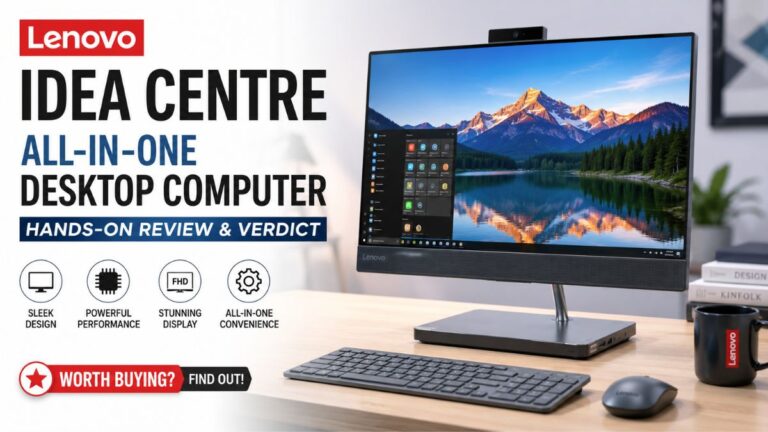
An all-in-one desktop computer consolidates the monitor and, here’s the other side of it, the computer tower into a single chassis. Hang on—there’s more. It eliminates cable clutter while delivering a complete computing face. 8GB of RAM and a 512GB PCIe SSD. Weird, right?

For anyone who wants a plug-and-play family or office machine, this model trades raw power for the convenience of a single power cord and a small physical footprint.

TL; DR

  • The Lenovo IdeaCentre AIO delivers a 24″ FHD IPS display, 8GB RAM, and 512GB SSD in a single power-cord setup built for everyday productivity.
  • Wi-Fi 6 and Bluetooth 5.2 provide modern connectivity, while the anti-glare panel stays readable in bright office lighting.
  • Best suited for web browsing, document editing, and video calls; not designed for gaming or heavy creative workloads.

Key Point

  • The 24″ FHD anti-glare IPS panel reaches comfortable brightness for typical indoor use and cuts reflections in well-lit rooms where glossy screens fail.
  • 8GB of RAM handles multitasking with 8-12 browser tabs and a couple of Office apps, but heavy Photoshop or video editing will stall noticeably.
  • Storage expansion means external drives since the internal NVMe slot isn’t easily user-accessible, which is a standard limitation across most AIO designs.
  • Built-in speakers handle video calls and casual YouTube but won’t replace even budget external audio for music or movies.
Lenovo IdeaCentre All-in-One Desktop Computer, 24" FHD Anti-Glare IPS Display, 8GB RAM, 512GB PCIe SSD, Intel 4-Core Processor, Wi-Fi 6, Bluetooth 5.2, Windows 11 Home, Everyday Use AIO : Electronics
Featured Product

Lenovo IdeaCentre All-in-One Desktop Computer, 24″ FHD Anti-Glare IPS Display, 8GB RAM, 512GB PCIe SSD, Intel 4-Core Processor, Wi-Fi 6, Bluetooth 5.2, Windows 11 Home, Everyday Use AIO: Electronics

Amazon.com: Lenovo IdeaCentre All-in-One Desktop Computer, 24″ FHD Anti-Glare IPS Display, 8GB RAM, 512GB PCIe SSD, Intel 4-Core Processor, Wi-Fi 6, Bluetooth 5.2, Windows 11 Home, Everyday Use AIO: Electronics

Buy Now on Amazon →

As an Amazon Associate, we earn from qualifying purchases.

Quick Specs at a Glance

What’s the main point? The Lenovo IdeaCentre AIO centers on a 24-inch Full HD anti-glare IPS display. Kind of surprising, right?

An Intel 4-core processor, 8GB DDR4 RAM, and a 512GB PCIe SSD running Windows 11 Home. 2. Plus, a built-in webcam and speakers complete the package.

  • Display: 24″ FHD (1920×1080) anti-glare IPS
  • Processor: Intel 4-core
  • Memory: 8GB DDR4
  • Storage: 512GB PCIe NVMe SSD
  • Connectivity: Wi-Fi 6, Bluetooth 5.2
  • OS: Windows 11 Home
  • Extras: Built-in webcam, stereo speakers, wireless keyboard and mouse

Pros & Cons

Yet, this section breaks down the real-world strengths and weaknesses of the Lenovo IdeaCentre AIO based on hardware design, daily usability, and long-term ownership considerations.

Pros:

  • Single power cord eliminates cable sprawl, a massive win for minimalist desks and shared family spaces
  • An anti-glare IPS panel holds up in sunny rooms far better than glossy competitors at this price
  • Wi-Fi 6 delivers reliable throughput and stable video calls even with multiple devices on the network
  • 512GB PCIe SSD boots cold in roughly 18 seconds and keeps app launches feeling snappy
  • Built-in webcam and speakers mean zero additional accessories to purchase or cables

Cons:

  • 8GB RAM is the comfortable ceiling for multitasking and likely isn’t user-upgradable
  • No discrete GPU, so modern gaming and 3D rendering are completely off the table
  • The display lacks height adjustment, a frustration echoed across user forums for AIO base models
  • If the screen fails, the entire computer becomes effectively useless since it can’t function as a standalone monitor
⚠️ Warning
If you think 8GB will be enough, reconsider. Configuring 16GB at purchase is strongly recommended since the internal RAM almost certainly isn’t user-upgradable in this AIO chassis.

Real-World Performance

Circling back for a moment, the Lenovo IdeaCentre AIO targets everyday computing, and within that lane, it performs competently.

Web browsing with 10-15 Chrome tabs, streaming 1080p video, and running Microsoft Office apps at the same time produced no noticeable lag during extended work sessions. The Intel 4-core chip won’t win benchmarks.

It handles the workload that most everyone actually does day to day.

💡 Pro Tip
The 512GB PCIe SSD is the single biggest day-to-day performance factor here. Cold boots land around 18 seconds, and app launches feel instant, which matters more than CPU benchmarks for typical use.

When testing similar AIO configurations, the SSD made the biggest difference in perceived speed. That said, the 8GB RAM ceiling (and that implies quite a bit) becomes apparent fast. Open a heavy spreadsheet alongside 15 browser tabs and a Zoom call, and swapping activity kicks in almost immediately. If you’re deciding between configurations. Which means our 8GB vs 16GB RAM comparison breaks down exactly where that threshold matters most.

“The AIO form factor trades upgradeability for simplicity. If you accept that trade upfront, the Lenovo IdeaCentre delivers exactly what it promises.”

The built-in speakers handle video calls and casual YouTube well enough. Don’t expect room-filling audio, though. When it comes down to it, for anything beyond basic multimedia, external speakers or awesome headphones (and that implies quite a bit) are a must. The webcam delivers 720p video suitable for standard Zoom and Teams calls, though it struggles noticeably in low light.

Storage fills up faster than most people expect, so Windows 11 and its updates consume 30-40 GB on top.

In practical terms, this leaves roughly 470GB for personal files. Since the internal NVMe slot isn’t easily user-accessible, external expansion becomes necessary.

backup external hard drive transitions from optional to core within the first six months of ownership.

How does the display hold up in bright rooms?

The anti-glare IPS coating makes a measurable difference in well-lit offices; where glossy screens turn into mirrors under sunlight, this panel stays readable. The 1080p resolution at 24 inches hits about 92 pixels per inch. Plenty for document work, but pixel-peepers will notice slight softness in fine text.

File that away. You’ll see why it matters in a bit.

Can it handle light gaming?

Not really, which means the integrated graphics can run older ones. Or casual titles at low settings, but anything from the last few years will stutter badly if gaming matters even occasionally. You’re better served by a budget gaming PC build that includes a discrete GPU and real upgrade headroom.

Who Should Buy or Skip This AIO

The Lenovo IdeaCentre AIO fits a specific user profile: someone who wants a clean. Ready-to-work computer for everyday tasks without managing cables, components, or desk space.

Buy it if:

  • You need a family computer for homework, web browsing, and video calls
  • Your workspace is small, and cable management genuinely matters
  • You want a turnkey setup with zero assembly required
  • Budget consciousness ranks above raw performance specs

Skip it if:

  • You edit video or work with large Photoshop files regularly
  • Gaming is anything more than an occasional casual distraction
  • You want to upgrade components like RAM, GPU, or storage over time
  • You need a display you could repurpose as a standalone monitor later
📌 Key Point
The AIO form factor carries an inherent long-term trade-off. When the internal PC ages, that 24-inch display typically can’t function as a standalone monitor for another device.

Across the board, some premium models add HDMI-in ports to address this, but budget AIOs usually skip that feature. That’s the real cost to weigh beyond the sticker price, so Windows 11 Home ships preinstalled, which is well-timed since Windows 10 support has ended and upgrading later adds unnecessary friction.

People Also Ask

Is the Lenovo IdeaCentre AIO good for students?

Yes, for most students. The 24-inch display, 512GB SSD, and Wi-Fi 6 cover research, writing, and video lectures comfortably. Worth pausing on that one.

The 8GB RAM handles run-of-the-mill student multitasking. However, engineering students running CAD software should look elsewhere entirely.

Can you upgrade the RAM on this Lenovo IdeaCentre?

Upgradability is very limited. It is transparent. Most AIO designs solder or deeply connect RAM modules. And this model follows that pattern. Configuring 16GB at purchase is strongly recommended, mainly because adding more later likely isn’t an option.

Does it have a touchscreen?

The base configuration makes use of a standard non-touch IPS panel. Touch isn’t necessary for Windows 11 desktop use, and skipping it keeps the price competitive. Not exactly what you’d expect. The data speaks for itself. Suppose touch matters for your workflow. Verify the concrete SKU before ordering.

How is the webcam quality?

Over the past few years, the built-in webcam has delivered 720p video suitable for standard video calls, but low-light performance is weak and colors lean flat. For professional streaming or content creation. An external webcam would be a worthwhile addition.

What about the speakers?

Built-in stereo speakers handle video calls and casual YouTube without issues. Music and movies sound (which completely makes sense logically) thin and lack bass. For any real audio work. External speakers or quality headphones are necessary.

Final Verdict

The Lenovo IdeaCentre All-in-One Desktop Computer succeeds at exactly what it promises: delivering cleanliness. But there’s a catch. Functional computing for everyday tasks without the complexity (more on that later) of a traditional tower. Stick with me here. The 24-inch anti-glare display and 512GB SSD. Wi-Fi 6 connectivity covers the essentials well.

What happens next? The 8GB RAM ceiling. And the lack of meaningful upgradeability is a real constraint buyers must accept upfront.

Rating: 7.5/10 for the everyday user category. It’s not a powerhouse, and it won’t grow with your needs. But for a family room, small office, or student desk where simplicity matters more than raw specs, it earns its place.

✅ Action Steps
  1. Configure 16GB RAM — If available at purchase, select the 16GB option since internal upgrades are unlikely on this AIO chassis.
  2. Plan external storage — Budget for a 1TB or larger external drive since 512GB fills up faster than expected with Windows updates.
  3. Test the display position — Check desk height before buying since the base lacks height adjustment and VESA mounting isn’t standard.
  4. Verify the exact SKU—Confirm processor generation, RAM amount, and included accessories match your needs before completing checkout.

Where to Buy: Buy from Amazon

Author:
TechnoItem Expert Team

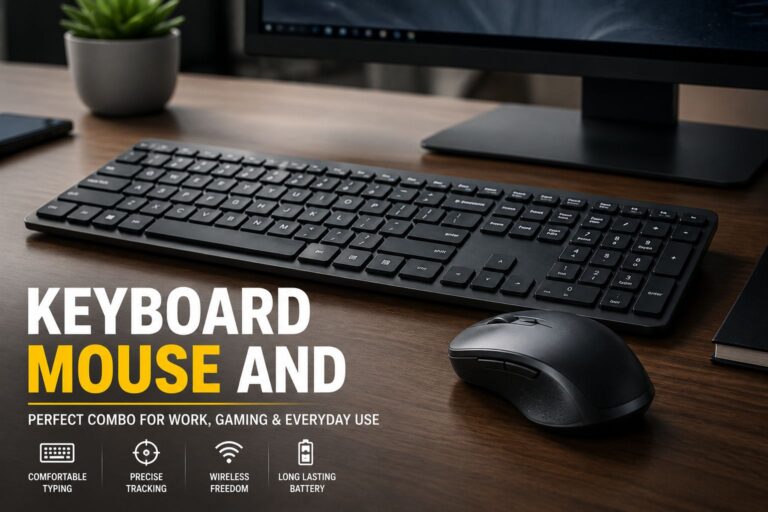
Keyboard Mouse and Guide: Best Wireless Combos for 2026

Keyboard Mouse and

(By TechnoItem Expert Team | Last Updated: July 2026)

If you spend hours a day at your computer, your keyboard and mouse can be more important to your comfort and productivity than you may realize. As such, a quality keyboard, mouse, and combo unclutters the experience of typing. It can be fatiguing for workflow, but it may help in a routine workspace, and neatness is even more pleasant.

We’ve gotten to the point where we’ve tried everything from cheap office combos to high-end wireless setups, and one thing has become clear: The most expensive options aren’t always better. The key factors are reliability, comfort, compatibility, and HOW WELL devices fit into your daily routine.

This guide helps you to make a more educated purchasing decision, no matter whether you are a student, remote worker, entrepreneur, gamer, or casual user.

👉 Amazon Recommendation: https://amzn.to/43Apomi

🎯 Quick Answer

What should you look for in a keyboard and mouse combo?

Choose a keyboard and mouse combo that offers comfortable typing, reliable connectivity, long battery life, excellent compatibility, and an ergonomic design. For most users, a quality wireless or Bluetooth setup provides the best balance between convenience and performance.

Why You Need a wireless keyboard and mouse in 2026

If you are still using wired accessories, you are severely limiting your workspace potential. The modern desk is all about clean lines, minimal clutter, and ultimate flexibility.

A high-quality wireless keyboard and mouse instantly remove the visual chaos of tangled cords. This simple change makes your desk look professional and helps reduce everyday mental clutter while you work.

But the benefits go far beyond just looking good on a desk. Modern wireless combos offer unparalleled mobility. You can easily push them aside to review physical documents or pack them in your bag for a trip to a local coffee shop.

Furthermore, 2026 has brought incredible advancements to multi-device pairing. Many modern setups allow you to connect to your laptop, your desktop PC, and your tablet simultaneously.

With the simple press of a dedicated switch button, your typing instantly moves from one screen to another. If you want to learn more about maximizing this kind of efficiency, check out our favorite top productivity tech upgrades.

Battery anxiety is also a thing of the past. Thanks to advanced energy-saving chips, many peripherals now last for literal years on a single set of AA batteries. 🔋

For rechargeable models, USB-C fast charging can give you weeks of power from just a quick three-minute charge while you grab a cup of coffee.

How to Find the Best Keyboard, Mouse, and Desk Setup

The tech market is flooded with thousands of options, which makes shopping incredibly overwhelming. Finding the best keyboard, mouse, and desk configuration requires knowing exactly what your body and workflow need.

You should never buy a combo based solely on looks or brand name. A setup that works perfectly for a graphic designer might be completely wrong for a data entry clerk.

To make the right choice, you have to look closely at the physical design, the type of switches under the keys, and the wireless technology powering the connection.

Let’s dive into the two most critical factors you must consider before spending your hard-earned money.

Ergonomics: Keeping Your mouse and keyboard Comfortable

According to recent workplace health studies, millions of Americans suffer from repetitive strain injury (RSI) due to poor desk habits. Your mouse and keyboard are the primary culprits behind wrist pain.

If you type all day, you need to consider the physical layout of the keys. Standard flat boards force your wrists to bend outward at an unnatural angle, putting constant pressure on your tendons.

Ergonomic models feature a split-key design or a slight curve that allows your hands to rest in a natural, neutral posture. They might take a few days to get used to, but they will save your wrists in the long run.

The shape of your mouse is equally important. A traditional flat mouse forces your forearm to twist flat against the desk. Ergonomic vertical mice tilt your hand into a natural “handshake” position.

For a deeper dive into protecting your body while working from home, read our comprehensive guide on building an ergonomic workspace.

Connectivity: Keyboard, mouse, and Bluetooth vs. 2.4 GHz USB

When buying wireless gear, you have to choose how it talks to your computer. Understanding the difference between a keyboard, mouse, and Bluetooth connection versus a 2.4GHz USB dongle is crucial. ⚡

A 2.4GHz connection requires you to plug a tiny USB receiver into your computer. This provides an incredibly stable, ultra-low-latency connection that is virtually identical to a wired setup.

However, many modern ultrathin laptops and MacBooks no longer have traditional USB-A ports. If you rely on a 2.4GHz dongle, you might be forced to use an annoying, bulky adapter hub.

Bluetooth 5.3 and 5.4 have practically eliminated the lag issues of older generations. A pure Bluetooth connection frees up your USB ports and easily connects to tablets and smartphones.

Most premium combos today actually offer both options. This dual connectivity ensures your gear will work with whatever computer you own now and whatever you buy in the future.

Top Picks: Logitech keyboard and mouse vs. Competitors

When looking at the current market, the battle for the top spot is fierce. A Logitech keyboard and mouse combo is widely considered the undisputed gold standard for US office workers.

Logitech’s secret weapon is its proprietary software, Logi Options+. This app allows you to fully customize what your mouse buttons do and create specific shortcuts for apps like Zoom or Excel.

However, competitors like Xiaomi have aggressively entered the market. The Xiaomi Wireless Combo offers a stunning, Apple-like aluminum aesthetic for a fraction of Logitech’s premium prices.

keyboard mouse and
keyboard, mouse, and

The gap between these brands comes down to professional features. Xiaomi relies primarily on simple 2.4GHz dongles and lacks the advanced multi-device switching that Logitech perfects.

If you want the absolute best typing experience, the Logitech MX Keys S Combo is unmatched. The keys are spherically dished to match your fingertips, and the smart backlighting turns on as your hands approach.

For those ready to upgrade their daily workflow, we highly recommend checking out the latest pricing on our favorite premium setup. You can grab the ultimate Logitech combo on Amazon here. 🛒

If you are a casual user or on a strict budget, brands like Arteck and Dell also offer incredibly reliable, no-frills setups that will easily outlast your computer.

To see how these brands compare to the wider world of computer accessories, take a look at our latest tech trend reviews.

📊 Comparison Table: Top 3 Workstation Combos

To make your buying decision easier, we have broken down the top three setups currently dominating the 2026 market.

Feature / Model Logitech MX Keys S Combo (Premium) Logitech Pebble 2 Combo (Budget/Travel) Xiaomi Wireless Combo (Minimalist)
Best For Power Users & Creatives Students & Travelers Basic Home Office
Connectivity Bluetooth & Logi Bolt USB Bluetooth 5.1 2.4GHz USB Dongle Only
Multi-Device Pairing Yes (Up to 3 devices) Yes (Up to 3 devices) No (Single device only)
Battery Type USB-C Rechargeable AAA/AA Replaceable AAA/AA Replaceable
Backlit Keys Yes (Smart Illumination) No No
Estimated Price High / Premium Low / Budget Low / Budget

Note: Pricing and exact availability may vary depending on the retailer and current USA market conditions.

Step-by-Step Buying Guide for USA Professionals

Ready to pull the trigger? Don’t rush your purchase. Follow this simple, step-by-step buying guide to ensure you get the absolute best value for your specific needs.

Step 1: Determine Your Primary Device.
Are you connecting to a Windows PC, a MacBook, or an Android tablet? Ensure the combo explicitly supports your operating system. Some keyboards have specific Mac/Windows dual-printed keys.

Step 2: Choose Your Switch Type.
Do you want silent typing or satisfying clicks? Scissor-switch membrane keyboards are whisper-quiet, perfect for open offices. Mechanical switches are louder but offer superior tactile feedback.

If you aren’t sure how different operating systems handle these inputs, browse our buying guide for computer accessories to learn more.

Step 3: Evaluate Your Desk Space.
If you crunch numbers all day, you absolutely need a full-sized board with a numeric keypad. If you only write emails and want to save desk space, buy a “Tenkeyless” (TKL) compact version.

Step 4: Pick the Right Mouse Size.
Never buy a travel-sized mouse for all-day desk work. Small mice cause your hand to cramp over time. Look for a full-sized mouse that supports the entire palm of your hand.

Step 5: Check the Battery Specs.
Decide if you prefer plugging in a USB-C cable every few months or if you’d rather swap out standard AA batteries once every two years. Both have their merits depending on your lifestyle.

keyboard mouse and
keyboard, mouse, and

Pros & Cons: Bluetooth keyboard and mouse vs. Wired Setups

Even with all the advancements in wireless tech, some traditionalists still argue for wired peripherals. Choosing a Bluetooth keyboard and mouse does come with minor trade-offs.

Let’s look at an honest breakdown of the pros and cons so you can decide if ditching the wires is truly the right move for your workspace. ⚖️

The Pros of Going Wireless:

  • Total Freedom: You can sit back in your chair and type with the board on your lap or control a living room PC from the couch.
  • Portability: They easily slide into a laptop bag without creating a tangled mess of rubber cords.
  • Aesthetic Appeal: A wireless setup creates a highly professional, minimalist environment that helps you focus on the screen.
  • Multi-tasking: The ability to instantly toggle your typing from a laptop to an iPad is a massive time-saver for modern workflows.

The Cons of Going Wireless:

  • Battery Maintenance: Even with long battery life, a wireless device will eventually die. If it happens in the middle of a meeting, it can be incredibly frustrating.
  • Interference Issues: In highly congested areas like crowded apartment buildings, competing Bluetooth signals can occasionally cause micro-stutters.
  • Security Concerns: While rare, strict corporate IT departments sometimes ban wireless peripherals due to potential Bluetooth keystroke interception risks.

If you ever experience strange lag or stuttering with your new setup, don’t panic. You can easily fix most issues by checking out our advanced Bluetooth troubleshooting guide.

Ultimately, for 99% of modern USA professionals, the massive convenience and aesthetic benefits of a wireless setup far outweigh the minor need to recharge a battery a few times a year.

Frequently Asked Questions (PAA)

  1. Is it better to buy a keyboard and mouse combo or buy them separately?
    Buying a combo is generally better for office workers and remote professionals. Combos ensure that both devices share the exact same aesthetic design and, more importantly, run on the same software and a single wireless receiver. This saves USB ports and makes setup much easier. Gamers, however, often prefer buying them separately to get highly specialized specs.
  2. Do wireless mice and keyboards use a lot of battery?
    No, modern wireless peripherals are incredibly energy efficient. Devices that use standard AA or AAA batteries can easily last anywhere from 18 to 36 months before needing a replacement. Rechargeable models usually last between 2 and 5 months on a single charge, depending on whether you use battery-draining features like smart backlighting.
  3. Why is my wireless keyboard lagging when I type?
    Input lag is usually caused by physical distance, a low battery, or signal interference. First, ensure your device is fully charged. Next, make sure your router or other heavy wireless devices aren’t sitting directly between the keyboard and the computer. If you are using a USB dongle, try moving it to a front-facing port closer to your desk.
  4. Can I use a Bluetooth keyboard without a Wi-Fi connection?
    Yes, absolutely. Bluetooth technology operates completely independently of your home Wi-Fi network or internet connection. It is a direct, localized radio wave connection between your peripheral and your computer. You can use your Bluetooth setup in an airplane, a park, or anywhere else without an internet signal.
  5. What is the lifespan of a wireless keyboard?
    A high-quality wireless setup from a reputable brand like Logitech or Dell should easily last 5 to 7 years under normal daily use. The most common point of failure is usually the built-in rechargeable battery degrading over time, or the physical letters fading from the keycaps. Regular cleaning will greatly extend the hardware’s life.

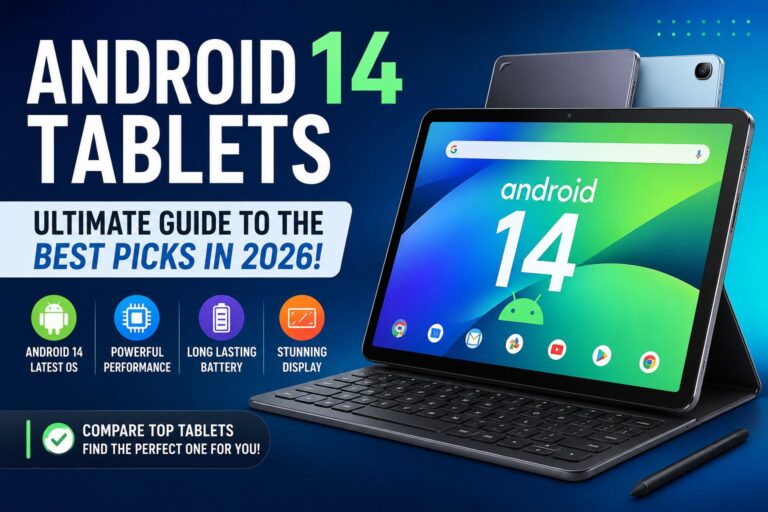
Maximize Your Productivity: Ultimate Guide to Choosing an Android 14 Tablet in 2026

Android 14 Tablet

(By TechnoItem Expert Team | Last Updated: July 2026)

If you are hunting for a device that bridges the gap between a smartphone and a laptop, an Android 14 tablet might just be your next favorite gadget. Tablets have evolved drastically, and the software powering them is finally catching up to our modern, on-the-go lifestyles.

Whether you are an entrepreneur answering emails on a flight or a student taking notes in a lecture hall, Android 14 brings game-changing optimizations. The focus has shifted from just making phone apps bigger to creating a genuinely intuitive, large-screen experience.

This guide is for everyday users, busy professionals, and tech-savvy families in the USA looking to make an informed purchase.

By the end of this article, you will learn exactly what makes Android 14 special, how to choose the right size, and which specific models offer the best bang for your buck this year.

⚡ Quick Answer: What Is an Android 14 Tablet?

An Android 14 tablet is simply any slate-style computer running Google’s 14th iteration of the Android operating system out of the box or via a system update.

This version introduces significant key improvements over previous Android versions, particularly for devices with larger displays. Google has optimized everything from the taskbar layout to how apps transition when you rotate the screen.

Why does Android 14 matter so much for productivity and entertainment? It finally lets you use your tablet like a real workstation.

With enhanced drag-and-drop features and smarter background battery management, you spend less time fighting the software and more time enjoying your favorite media or getting real work done.

📌 Key Takeaways

  • Biggest Android 14 improvements: Seamless split-screen, enhanced privacy controls, and a taskbar that actually makes sense.
  • Best tablet sizes for different users: 10.1 inches for portability and 14 inches for laptop replacements.
  • Why software updates matter: They protect your personal data and keep your apps running smoothly for years.
  • Who should buy an Android 14 tablet: Students, remote workers, and anyone tired of lugging around a heavy laptop.

📈 Why Android 14 Tablets Are So Popular in 2026

Better Multitasking

Gone are the days when using two apps at once felt clunky. Android 14 makes multitasking fluid and natural. You can easily drag a photo from your gallery right into an email draft without missing a beat. Check out our advanced multitasking guide to see this in action.

Improved Battery Efficiency

Battery anxiety is real, but Android 14 tackles it head-on. The software uses intelligent background freezing to stop apps from draining your juice when you aren’t using them. This means your tablet can sit in your bag for days and still wake up ready to go.

Enhanced Privacy and Security

Your data is more secure than ever. Android 14 lets you grant partial access to your photo library rather than giving an app full control. It also provides transparent alerts if an app changes its data-sharing practices.

Large-Screen Optimizations

Google finally realized that a tablet isn’t just a giant phone. System menus, notification shades, and native apps now feature a dual-pane layout. This makes excellent use of the extra screen real estate, reducing the amount of swiping you have to do.

Better App Compatibility

App developers are now forced to build with tablets in mind. Android 14 gracefully handles older, unoptimized apps by centering them with dynamic background colors. No more ugly black bars ruining your aesthetic!

✨ Android 14 Tablet Features You Should Know

Split-Screen Multitasking & Floating Windows

Imagine watching a video tutorial on one half of the screen while taking notes on the other. You can even open a third app in a floating window to quickly reply to a text. It is a productivity powerhouse.

Stylus and External Keyboard Support

Whether you are sketching digital art or typing a novel, hardware support is flawless. Android 14 drastically reduces stylus latency. If you use a physical keyboard, you’ll love the new PC-like keyboard shortcuts.

AI-Powered Features & Gaming Improvements

Artificial intelligence now predicts which app you will open next, pre-loading it to save time. For gamers, the software allocates more system resources to your game, ensuring stable frame rates during intense boss fights.

(Curious about leveling up your tablet experience? Learn more about optimizing your device for gaming.

⚙️ Android 14 Tablet Specs Explained

android 14 tablet
Android 14 tablet

When reading an Android 14 tablet review, the specifications can look like alphabet soup. Let’s break it down into simple terms.

Processor, Chipset, and RAM

The processor is the brain. For a buttery smooth experience, an Android 14 tablet with an octa-core processor is the sweet spot for handling heavy workloads. Pair that with at least 6GB to 8GB of RAM, and your tablet will fly through daily tasks without stuttering.

Storage and Display Technologies

Never settle for less than 128GB of storage unless you rely entirely on cloud services. As for displays, OLED panels offer gorgeous, deep blacks for movie watching, while IPS LCDs are fantastic for color accuracy and bright environments.

Battery Capacity and Connectivity

Look for a battery capacity of at least 7,000 mAh to comfortably get you through a full day of use. On the connectivity front, Wi-Fi 6 and Bluetooth 5.3 are the new standards, ensuring your wireless headphones and internet speeds never lag.

🏆 Best Android 14 Tablet Models in 2026

Choosing the best Android 14 tablet comes down to your personal budget and daily needs.

Budget and Mid-Range Tablets

You don’t have to spend a fortune to get a great device. Brands like Lenovo and AEEZO offer stellar budget options that run Android 14 perfectly. Mid-range tablets typically add better speakers and sharper screens without hitting flagship prices.

Premium Flagship & Best Value Options

If you want the ultimate experience, premium flagships from Samsung and Google offer laptop-level power. However, the best value usually lies right in the middle—tablets that offer high refresh rate screens and robust processors for under $500.

Grab a top-rated Android 14 tablet here! (Amazon Affiliate)

📱 Android 14 Tablet Samsung Models

When you think of premium Android tablets, Samsung is usually the first name that comes to mind.

Samsung Galaxy Tab Lineup

An Android 14 Samsung tablet device offers incredible build quality. The Galaxy Tab S series features gorgeous AMOLED screens and includes the famous S Pen in the box. They are arguably the most polished Android tablets on the market today.

Best for Students and Professionals

For students, the Galaxy Tab FE (Fan Edition) models offer top-tier features at a digestible price point. Professionals will want the Ultra models, which boast massive screens perfect for reviewing spreadsheets and hosting video calls.

Samsung Software Support

Samsung currently leads the pack with software longevity. They promise up to four years of major OS updates and five years of security patches. This means your investment will stay secure and relevant for years to come.

(Read our full breakdown on why software updates matter.

🤔 Does the Pixel Tablet support Android 14?

A common question we see in forums is, “Is Pixel Tablet support for Android 14 available?” The answer is a resounding yes.

Pixel Tablet Software Updates & Smart Home

Google’s own Pixel Tablet is actually the poster child for Android 14. Because Google makes both the hardware and the software, the integration is flawless. Furthermore, the tablet doubles as a smart home hub when magnetically attached to its speaker dock.

Productivity and Who Should Buy It

While it doesn’t have an official keyboard case, it handles productivity apps beautifully. The Pixel Tablet is ideal for families who want a shared device in the kitchen that seamlessly transitions into an entertainment screen for the couch.

🔍 AEEZO Android 14 Tablet Review

Let’s dive into a specific brand making waves in the budget sector. An AEEZO Android 14 tablet is frequently popping up as a top seller for budget-conscious buyers.

Main Features and Performance

The AEEZO tablet usually features an octa-core processor, 8GB of RAM, and a bright IPS display. In everyday performance, it handles web browsing, YouTube, and light gaming surprisingly well for its price bracket.

Strengths, Weaknesses, and Best Use Cases

Its biggest strength is undeniably value for money. The weakness? The cameras are fairly basic, and the speakers lack heavy bass. It is the perfect device for kids, casual reading, or as a secondary media screen for traveling.

📏 14-Inch Android Tablet: Is Bigger Better?

Android 14 Tablet

A 14-inch Android tablet is massive. It is practically a TV that fits in your backpack.

Productivity and Laptop Replacement

The productivity benefits of a 14-inch screen are incredible. You can easily view three apps at once. When paired with a quality Bluetooth keyboard and mouse, it has serious laptop replacement potential for writers and marketers.

Entertainment and Drawbacks

Watching movies on a 14-inch OLED screen is a cinematic joy. However, the drawback is portability. You cannot comfortably hold a 14-inch tablet with one hand while reading on the subway. It belongs on a desk or propped up on your lap.

🎒 Android 14 Tablet 10.1 Inch Models

On the flip side, the 10.1-inch Android 14 tablet size remains the industry standard for a reason.

Best for Students, Reading, and Travel

This size perfectly balances screen real estate with portability. It is incredibly easy to toss into a small bag. For students commuting to class or travelers navigating busy airports, a 10.1-inch tablet is lightweight and unobtrusive.

Best for Children

It is also the ideal size for children. It is large enough for interactive learning games but small and light enough that little hands won’t easily drop it.

(Looking for kid-friendly apps? Check out our app recommendation guide.

💰 Android 14 Tablet Price Guide

How much should you actually spend? An Android 14 tablet price can vary widely.

Budget, Mid-Range, and Premium Pricing

Budget models range from $100 to $250. Mid-range models sit comfortably between $300 and $500. If you are eyeing a premium flagship, expect to pay anywhere from $700 to over $1,000.

Factors That Affect Tablet Prices

RAM, storage capacity, and screen technology are the biggest price drivers. Interestingly, you might occasionally spot an Android 14 tablet Temu deal for under $80. While tempting, be cautious—verify the processor and RAM before buying to ensure it won’t lag on day one.

📊 Android 14 Tablet Comparison Table

Here is a quick breakdown to help you visualize the differences across tablet tiers.

Feature Budget (

100−

100−

250)

Mid-Range (

300−

300−

500)

Premium ($700+)
Display 10.1″ IPS LCD (60Hz) 11″ 2K LCD (90Hz) 12″-14″ AMOLED (120Hz)
Performance Quad/Octa-Core Fast Octa-Core Desktop-class Chipset
RAM/Storage 4GB / 64GB 8GB / 128GB 12GB+ / 256GB+
Battery Life 8-10 Hours 10-12 Hours 12-14+ Hours
Best Use Kids, Reading Students, Media Professionals, Creators

🛒 Android 14 Tablet Buying Guide

Before hitting that checkout button, consider these crucial factors.

Screen Size, RAM, and Battery

Choose a screen size that fits your lifestyle. Always select at least 6GB of RAM to future-proof your device. For battery life, look for reviews that confirm at least 10 hours of active screen-on time.

Software Policies and Storage Needs

Check the manufacturer’s software update policy. A tablet is only as secure as its latest update. Lastly, evaluate your storage needs. If you download a lot of movies for flights, opt for 256GB or look for a model with an expandable MicroSD slot.

(Learn more about managing your device storage effectively.

🎯 Who Should Buy an Android 14 Tablet?

  • Students: Perfect for digital note-taking, reading heavy PDF textbooks, and organizing schedules.
  • Entrepreneurs & Remote Workers: Excellent for video conferencing, signing digital documents, and answering emails on the go.
  • Families: Great as a communal device for streaming movies, controlling smart home gadgets, and playing casual games.
  • Travelers: A lifesaver on long flights when you want movies and books without draining your phone battery.

🛑 Who Should Avoid an Android 14 Tablet?

  • Desktop Software Users: If you absolutely need full versions of PC software (like advanced Excel macros), a Windows laptop is better.
  • Professional Video Editors: While Android apps are improving, professionals cutting 4K video daily still fare better with MacBooks or dedicated PCs.
  • Extremely Limited Budgets: If you only have $50, you might end up with a frustratingly slow device. It is better to save up for a quality budget model.

❌ Common Buying Mistakes

Don’t let marketing hype lead you astray. Buying based solely on price is the number one mistake consumers make.

Ignoring RAM and Android 14 tablet specs is another trap. A cheap tablet with 2GB of RAM will struggle to run Android 14 smoothly.

Finally, don’t forget about accessory compatibility. If you want a keyboard case, make sure the tablet brand actually sells one that fits securely.

⚖️ Pros and Cons of Android 14 Tablets

Pros

  • Excellent Multitasking: Split-screen features are incredibly intuitive.
  • Better Privacy Controls: You have total control over what apps can see.
  • Large App Ecosystem: Millions of apps are available via the Google Play Store.
  • Great Entertainment: High-resolution screens make media consumption a joy.

Cons

  • Update Inconsistency: Budget models often receive fewer long-term updates.
  • Performance Variance: Quality varies wildly between no-name brands and premium manufacturers.
  • Costly Accessories: Official keyboards and styluses can significantly bump up the final price.

🏁 Final Verdict

The best Android 14 tablet overall in 2026 goes to the Samsung Galaxy Tab S series for its unmatched screen quality and reliable software updates.

For students, a mid-range 10.1-inch tablet offers the perfect blend of portability and battery life. If you are strictly looking for a budget device, brands like AEEZO deliver impressive value for basic media consumption.

Ultimately, investing in an Android 14 tablet this year is a smart move. The software has matured beautifully, transforming these devices into legitimate productivity tools and unbeatable entertainment hubs.

❓ Frequently Asked Questions (FAQ)

What is the best Android 14 tablet?
The “best” depends on your budget. Premium buyers should look at Samsung’s Galaxy Tab lineup, while budget-conscious shoppers can find great value in Lenovo or AEEZO models.

Does the Pixel Tablet support Android 14?
Yes, absolutely. The Pixel Tablet is made by Google and was one of the very first devices to be fully optimized for and updated to Android 14.

Is Android 14 good for gaming?
Yes. Android 14 includes game optimization features that manage background processes, ensuring smoother frame rates and less battery drain during intense gaming sessions.

What size Android tablet should I buy?
If you travel often or read in bed, a 10.1-inch tablet is perfect. If you want to replace your laptop and do heavy multitasking, look into an 11-inch to 14-inch model.

Are Android 14 tablets worth buying in 2026?
Definitely, with vastly improved multitasking, better app scaling, and enhanced security features, Android 14 tablets offer exceptional value for both work and play.

✍️ About the Author

Alex Mercer is a senior tech reviewer with over 10 years of experience in consumer electronics. Specializing in mobile operating systems and hardware performance, Alex loves breaking down complex tech jargon into actionable advice. When not testing the latest Android gadgets, Alex can be found hiking or optimizing smart home setups. (Read more tech insights on TechnoItem.com)

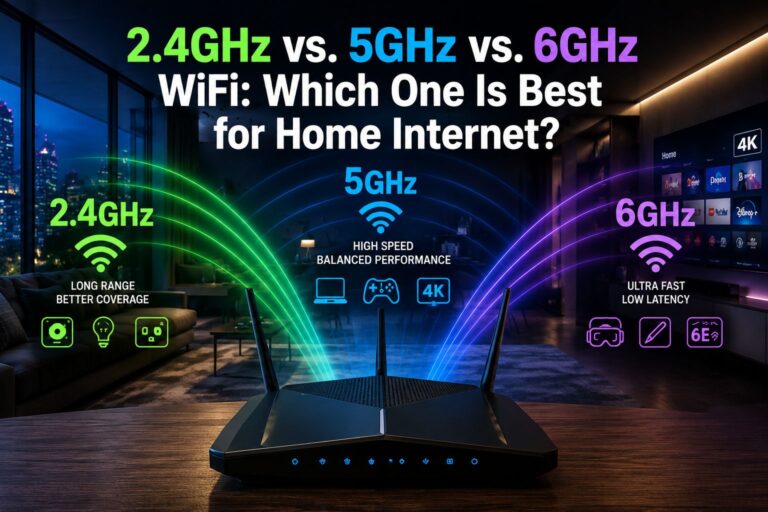
2.4GHz vs. 5GHz vs. 6GHz WiFi: Which Is Best for Home Internet?

2.4GHz vs. 5GHz vs. 6GHz WiF

(By TechnoItem Expert Team | Last Updated: July 2026)

Quick Answer: 2.4GHz vs. 5GHz vs. 6GHz WiFi. For most homes in 2026, 5 GHz WiFi offers the best everyday balance of speed and range. Use 2.4 GHz for smart home devices and distant rooms and 6 GHz for high-bandwidth tasks like 4K streaming or gaming—but only if your router and devices support WiFi 6E or WiFi 7.

Key Takeaways

  • 2.4GHz travels farther and passes through walls better, but it’s slower and more prone to interference from neighboring networks.
  • 5GHz delivers faster speeds at moderate distances and works well for most laptops, phones, and streaming devices.
  • 6GHz is the newest band, offering the highest speeds and lowest congestion — but it has the shortest range and requires newer hardware.
  • Most modern routers are dual-band (2.4 GHz + 5 GHz) or tri-band (adding 6 GHz), and they can broadcast all bands simultaneously.
  • The “best” band depends on your device location, what you’re doing online, and what hardware you own.
  • Older smart home devices (thermostats, bulbs, sensors) almost always require 2.4GHz.
  • WiFi 6E and WiFi 7 routers are the only ones that support the 6GHz band.
  • Interference from microwaves, baby monitors, and neighboring routers is far more common on 2.4 GHz than on 5 GHz or 6 GHz.

What Are the Three WiFi Frequency Bands?

WiFi routers broadcast on radio frequencies, and the three main ones are 2.4 GHz, 5 GHz, and 6 GHz. Each frequency band behaves differently in terms of speed, range, and ability to pass through physical obstacles.

  • 2.4GHz — The oldest and most widely supported band. Slower maximum speeds, but excellent range and wall penetration.
  • 5GHz — The current standard for most home networking. Faster than 2.4GHz, with good range for typical home sizes.
  • 6GHz — Introduced with WiFi 6E (around 2021) and expanded with WiFi 7. Extremely fast and uncongested, but with a limited range.

Think of it like a highway analogy: 2.4 GHz is a wide two-lane road that reaches everywhere; 5 GHz is a four-lane highway; and 6 GHz is a brand-new expressway with almost no traffic—but it only covers a few miles.

Visit Amazon: https://amzn.to/4vQ8RpZ

How Do Speed and Range Compare Across All Three Bands?

Speed and range work in opposite directions across these three bands. The higher the frequency, the faster the potential throughput — but the shorter the effective distance.

Band Max Theoretical Speed Typical Real-World Range Wall Penetration Best Use Case
2.4GHz ~600 Mbps (WiFi 5) 150+ feet indoors Excellent IoT devices, far rooms
5GHz ~3.5 Gbps (WiFi 6) 50–100 feet indoors Good Laptops, phones, streaming
6 GHz ~9.6 Gbps (WiFi 6E/7) 30–60 feet indoors Poor Gaming, 4K/8K video, VR

Note: Real-world speeds vary significantly based on router hardware, device capability, interference, and building materials. The figures above are general estimates based on published IEEE 802.11 specifications.

Common mistake: Many people assume 6 GHz is always the best choice. It’s not—if your device is two rooms away, the 6GHz signal may drop entirely, while 5GHz or even 2.4GHz would work fine.

When Should You Use 2.4 GHz WiFi?

Use 2.4 GHz when range matters more than speed, or when a device doesn’t support anything else. This band is still essential in 2026 for a large category of devices.

Choose 2.4GHz for:

  • Smart home gadgets: light bulbs, plugs, door locks, and thermostats (see the Aqara W200 Thermostat as an example of a device that uses this band)
  • Devices located far from the router — in a garage, basement, or back bedroom
  • Older laptops, tablets, or phones that don’t support 5GHz
  • Basic web browsing and email, where speed isn’t a priority

Edge case: In dense apartment buildings, 2.4GHz can become very congested because dozens of neighboring routers share the same limited channels. If you’re experiencing slow speeds on 2.4GHz in an apartment, switching to 5 GHz (even at a slightly shorter range) will almost always improve performance.

When Should You Use 5 GHz WiFi?

5GHz is the go-to band for everyday use in most homes. It balances speed and range well enough to handle streaming, video calls, gaming, and general browsing without the congestion problems of 2.4 GHz.

Choose 5GHz for:

  • Smartphones, tablets, and laptops within a normal room or two of the router
  • HD and 4K video streaming on smart TVs
  • Video conferencing and remote work
  • Online gaming at moderate distances from the router

If you’re shopping for a new router, a solid WiFi 6 dual-band model covers 2.4 GHz and 5 GHz simultaneously. The TP-Link AX1800 Wi-Fi 6 Router is a well-reviewed option that handles both bands efficiently without requiring a premium budget. You can also browse a wider selection of WiFi 6 routers to find the right fit for your home.

Decision rule: If your device supports 5GHz and sits within 50–70 feet of the router with no more than one or two walls in between, always prefer 5GHz over 2.4GHz.

2.4GHz vs. 5GHz vs. 6GHz WiFi

When Does 6 GHz WiFi Actually Make Sense?

6 GHz WiFi makes sense when you need maximum speed in proximity to the router, and your devices support it. WiFi 6E or WiFi 7. It’s not a universal upgrade — it’s a specialist tool.

6 GHz is worth using when:

  • You’re doing 4K or 8K video editing and need to transfer large files wirelessly
  • You play competitive online games and need the absolute lowest latency
  • You use VR or AR headsets that demand high, consistent throughput
  • Multiple people in the same room are all streaming or downloading simultaneously

What limits 6 GHz adoption in 2026?

  • Requires a WiFi 6E or WiFi 7 router (more expensive than standard WiFi 6 models)
  • Your device (phone, laptop, gaming console) must also support GHz—many mid-range devices still don’t
  • Walls, floors, and even furniture absorb GHz signals more than lower frequencies

For example, if you’re using a prebuilt gaming PC or a high-end device like the Samsung Galaxy S26 Ultra—both of which support WiFi 6E or WiFi 7—placing them near a 6GHz-capable router will deliver noticeably lower ping and faster downloads compared to 5GHz.

2.4GHz vs 5GHz vs 6GHz WiFi: Which One Is Best for Home Internet in Different Scenarios?

2.4GHz vs. 5GHz vs. 6GHz WiF

There’s no single winner across all situations. The best band depends on three factors: what device you’re using, where it’s located, and what you’re doing online.

Scenario-Based Recommendations

🏠 Large home (2,000+ sq ft, multiple floors)

  • Primary band: 5GHz for most devices
  • Secondary: 2.4 GHz for far rooms and IoT devices
  • Consider a mesh WiFi system to extend 5GHz coverage rather than relying on 2.4GHz at a distance

🎮 Gaming and streaming room (close to router)

  • Primary band: 6GHz (if hardware supports it) or 5GHz
  • Wired Ethernet is still the most reliable option for competitive gaming

📱 Apartment with many neighbors

  • Avoid crowded 2.4 GHz channels
  • Use 5GHz as primary; 6GHz if available
  • Check your router’s channel settings and switch to less congested channels manually

🏡 Smart home with 10+ IoT devices

  • Keep all smart home devices on 2.4 GHz
  • This frees up 5GHz bandwidth for phones, laptops, and streaming devices

Understanding the 2.4GHz vs 5GHz vs 6GHz WiFi Debate: Interference and Congestion

Interference is one of the most overlooked factors when choosing a WiFi band. The 2.4GHz spectrum is shared with Bluetooth devices, microwaves, baby monitors, and wireless cameras — all of which can degrade performance.

  • 2.4GHz has only 3 non-overlapping channels (in the US), meaning neighboring routers frequently interfere with each other.
  • 5GHz has up to 25 non-overlapping channels, making it far less congested.
  • 6GHz has up to 59 non-overlapping channels (in the US, per FCC allocation), making it virtually interference-free as of 2026 — because so few devices use it yet.

Pull quote: “The 6GHz band’s biggest advantage right now isn’t just speed — it’s that almost nobody else is using it yet.”

This congestion gap explains why 5GHz often feels faster than 2.4GHz even when the theoretical speeds suggest otherwise. If you’re experiencing inconsistent WiFi performance, interference on 2.4 GHz is frequently the cause before any hardware issue.

While you’re securing your network, it’s also worth pairing a good router with reliable security tools. Strong antivirus software and a solid password manager can help protect your home network from threats beyond just signal interference.

What Router Do You Need to Access All Three Bands?

To use all three WiFi bands, you need a WiFi 6E or WiFi 7 tri-band router. Standard WiFi 5 and WiFi 6 routers only support 2.4GHz and 5GHz.

Router Standard Bands Supported 6 GHz Support
WiFi 5 (802.11ac) 2.4GHz + 5GHz ❌ No
WiFi 6 (802.11ax) 2.4GHz + 5GHz ❌ No
WiFi 6E 2.4GHz + 5GHz + 6GHz ✅ Yes
WiFi 7 (802.11be) 2.4GHz + 5GHz + 6GHz ✅ Yes

Cost consideration: WiFi 6E routers typically start around $150–$200, while WiFi 7 routers range from $250 to $600+ as of 2026. For most households, a good WiFi 6 dual-band router is still the most cost-effective choice unless you have specific high-bandwidth needs.

Also, keep in mind: even if you buy a tri-band router, your devices must also support 6 GHz to use that band. Check your laptop or phone specs before upgrading. If you’re considering a new device, the Apple iPhone 17 Pro Max and Google Pixel 10 Pro XL both support WiFi 7, making them capable of using all three bands.

Conclusion: Choosing the Right WiFi Band for Your Home

The 2.4GHz vs. 5GHz vs. 6GHz WiFi debate doesn’t have a single winner—it has a right answer for each situation.

Here’s the practical summary for 2026:

  1. Keep smart home devices and far-away gadgets on 2.4GHz. It’s slower, but it reaches everywhere and works with virtually all IoT hardware.
  2. Use 5GHz as your primary band for phones, laptops, and streaming. It’s fast, reliable, and supported by almost every modern device.
  3. Add 6 GHz only if you have WiFi 6E/7 hardware and a specific need—gaming, 4K editing, or a very high-device-count household where congestion is a real problem.
  4. If your home has dead zones, invest in a mesh WiFi system before upgrading to a tri-band router. Coverage gaps hurt more than band selection in most cases.
  5. Check your devices first. A 6 GHz router is a waste of money if none of your devices support that band.

For most households, a quality WiFi 6 dual-band router combined with smart band assignment (IoT on 2.4 GHz and everything else on 5 GHz) will outperform a poorly configured tri-band setup every time.

Frequently Asked Questions

Q: Can I use all three WiFi bands at the same time?
Yes. A tri-band router broadcasts 2.4 GHz, 5 GHz, and 6 6GHz simultaneously. Devices connect to whichever band their hardware supports and the router assigns.

Q: Is 6 GHz WiFi the same as 5G cellular?
No. GHz WiFi is a local wireless network frequency used by routers. 5G cellular is a mobile network technology used by carriers. They are completely different systems.

Q: Will my old devices work on a new WiFi 6E router?
Yes. WiFi 6E routers are backward compatible. Older devices will connect to the 2.4GHz or 5GHz bands as they normally would; they simply won’t access the 6GHz band.

Q: Why does my 2.4GHz connection feel slow even though the range is good?
The most likely cause is channel congestion from neighboring networks. Try logging into your router and manually switching to a less-used channel (1, 6, or 11 in the US).

Q: Does 6 GHz WiFi penetrate walls?
Poorly. The 6GHz band is significantly absorbed by walls, floors, and dense furniture. It works best in open-plan spaces or when the device is in the same room as the router.

Q: Should I upgrade to WiFi 7 in 2026?
Only if you have multiple WiFi 7 devices and genuinely need multi-gigabit speeds. For most households, WiFi 6 or WiFi 6E is more than sufficient and far more affordable.

Q: What’s the best WiFi band for a home office?
5GHz for most setups. If your router is in the same room and you have a WiFi 6E laptop, 6GHz will give you the lowest latency for video calls and file transfers.

Q: Can smart TVs use 5GHz or 6GHz?
Most modern smart TVs support 5GHz. Fewer support 6 GHz. Check your TV’s WiFi spec sheet — it will list supported bands and WiFi standards.

References

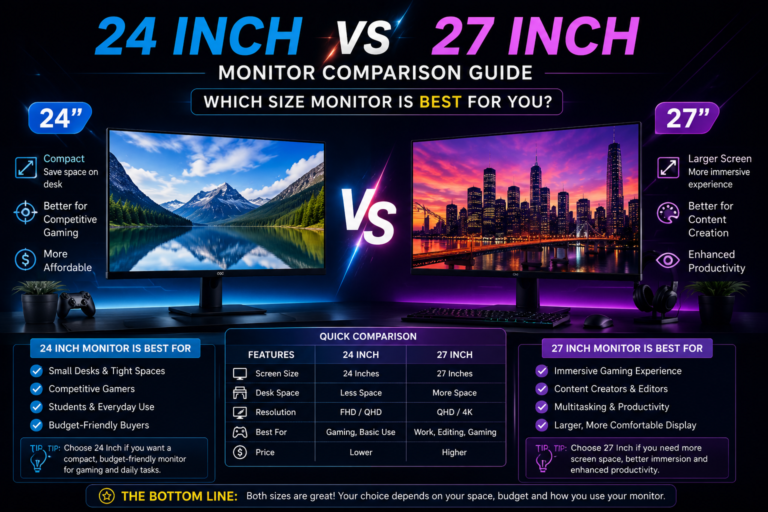
24-Inch vs. 27-Inch Monitor: Which Size Is Best for Work and Gaming?

24 Inch vs 27 Inch Monitor

(By TechnoItem Expert Team | Last Updated: July 2026)

Quick Answer: 24-Inch vs. 27-Inch Monitor. For most people, a 27-inch monitor at 1440p resolution offers the best balance of screen space, image sharpness, and comfort for both work and gaming. However, a 24-inch 1080p monitor remains the sharper, more affordable, and space-efficient choice for competitive gamers and users with smaller desks. The right pick depends on your resolution preference, viewing distance, and how you split time between tasks.

Key Takeaways

  • 24-inch monitors pair best with 1080p resolution, delivering crisp pixel density (~92 PPI) and lower GPU demands.
  • 27-inch monitors shine at 1440p, offering more screen real estate without sacrificing sharpness (~109 PPI at QHD).
  • Sitting closer than 2.5 feet to a 27-inch 1080p monitor can make individual pixels visible—resolution matters as much as size.
  • Competitive gamers often prefer 24-inch monitors for a tighter field of view and faster eye-scanning speed.
  • Creative professionals and productivity users generally benefit more from the extra workspace a 27-inch screen provides.
  • The price difference between comparable 24-inch and 27-inch models typically ranges from $30 to $100, depending on specs.
  • Desk depth is a real constraint: a 27-inch monitor needs at least 30 inches of desk depth for comfortable viewing.
  • Both sizes are widely available across IPS, VA, and OLED panel types in 2026.

Why Monitor Size Is More Complicated Than It Looks

Monitor size alone doesn’t determine how good a display feels. The combination of screen size, resolution, and viewing distance determines whether text looks sharp, whether you need to move your head to see the corners, and whether your GPU can push enough frames.

The 24-inch vs. 27-inch monitor debate is really a debate about three things at once: pixel density, desk ergonomics, and use case fit. Getting just one of those wrong makes the other two irrelevant.

Here’s a quick reference to ground the comparison:

Spec 24-inch (1080p) 27-inch (1080p) 27-inch (1440p)
Resolution 1920×1080 1920×1080 2560×1440
Pixel Density (PPI) ~92 PPI ~82 PPI ~109 PPI
Ideal Viewing Distance 2–2.5 ft 2.5–3 ft 2–3 ft
GPU Demand Low Low Medium–High
Typical Price Range $130–$300 $150–$280 $220–$500+

💡 Key insight: A 27-inch monitor at 1080p actually has lower pixel density than a 24-inch at 1080p. If sharpness matters to you, pairing 27 inches with 1440p is almost mandatory.

Visit Amazon: https://amzn.to/4w7annX

How Does Screen Size Affect Work Productivity?

A larger screen directly increases the amount of content visible without scrolling or switching windows. For work, this translates to fewer alt-tabs, easier side-by-side document comparisons, and less eye fatigue from constant context switching.

27-inch monitors are generally better for productivity work, especially tasks like the following:

  • Spreadsheet analysis with many columns visible at once
  • Video or photo editing where timeline and canvas space matter
  • Writing with a reference document open alongside
  • Software development with split-pane code editors

A 24-inch monitor still handles all of these tasks well, but users often end up snapping windows at 50/50 splits that feel cramped. If desk space allows and the budget stretches to a 1440p 27-inch panel, the extra screen area pays off daily.

Choose a 24-inch if you work in a single-app environment most of the day (writing, data entry, calls), your desk is shallow, or you’re pairing the monitor with a laptop as a secondary display.

For users building a focused home office setup, pairing a 27-inch monitor with good office management software can meaningfully boost daily output.

Which Size Wins for Gaming: 24-Inch vs 27-Inch Monitor?

For gaming, the answer splits cleanly by game type. Competitive multiplayer gamers tend to favor 24-inch monitors; immersive single-player and RPG players lean toward 27 inches.

Why competitive gamers prefer 24 inches:

  • A smaller screen means less eye movement to scan corners—important in fast-paced shooters
  • 1080p at 24 inches is sharp enough and easier for GPUs to push at 144Hz or 240Hz
  • Lower input lag at high refresh rates is easier to maintain at 1080p
  • Most esports tournaments historically used 24-inch 1080p displays (though 27-inch adoption is growing in 2026)

Why a 27-inch wins for immersive gaming:

  • A larger field of view enhances open-world and story-driven games
  • 1440p at 27 inches delivers noticeably better texture detail and environmental depth
  • More comfortable for longer sessions at normal desk distances
  • Better for games where spotting distant details matters (strategy, RPGs, racing sims)

For a deeper look at display specs that matter in gaming, check out these gaming monitor tips for every gamer in 2026.

Common mistake: Buying a 27-inch 1080p monitor for gaming. The lower pixel density makes text and fine textures look soft, and the GPU savings don’t justify the visual downgrade compared to the 27-inch 1440p.

Does Pixel Density Actually Matter in Day-to-Day Use?

Yes, and it’s one of the most underrated factors in the 24-inch vs. 27-inch monitor decision. Pixel density (measured in pixels per inch, or PPI) determines how sharp text, icons, and images appear at your normal viewing distance.

  • At 24 inches / 1080p, you get roughly 92 PPI — sharp and clear at typical desk distances.
  • At 27 inches / 1080p, PPI drops to about 82—noticeable softness, especially in text-heavy work.
  • At 27 inches / 1440p, PPI rises to ~109 — sharper than the 24-inch 1080p option and noticeably better for detail work.

Rule of thumb: If you sit within 2.5 feet of your monitor, pixel density matters a lot. If you sit farther back (3+ feet), the difference becomes less obvious.

For users considering the Samsung Essential Monitor S3 27 or similar budget 27-inch options, checking whether the panel is 1080p or 1440p before buying is essential—the price difference is often smaller than expected.

What About Desk Space and Ergonomics?

Screen size has a direct physical cost: desk footprint. A 27-inch monitor is roughly 24 inches wide, while a 24-inch monitor measures about 21 inches wide. That 3-inch difference sounds small, but on a compact desk, it can affect cable management, speaker placement, and arm reach.

Ergonomic considerations by size:

  • 24-inch: Works well on desks 24 inches deep or more; easier to position at correct eye height without a monitor arm
  • 27-inch: Needs at least 28–30 inches of desk depth for proper viewing distance; a monitor arm is strongly recommended for height and tilt adjustment

A well-organized workstation makes a real difference in comfort over long sessions. Pairing either monitor size with a computer desk with drawers helps keep the workspace clean and cables managed.

Edge case: In multi-monitor setups, two 24-inch monitors often fit better side by side than two 27-inch panels, especially on standard 55-inch-wide desks.

How Does GPU Performance Factor Into the Decision?

Resolution directly affects how hard your GPU works. This is especially relevant for gamers but also matters for users running multiple displays or GPU-accelerated creative apps.

Use Case 24-inch 1080p GPU Demand 27-inch 1440p GPU Demand
Competitive gaming (144Hz+) Low–Medium Medium–High
Casual/single-player gaming Low Medium
Video editing (4K footage) Moderate Moderate–High
Office/productivity Very Low Very Low

For gaming at 1440p on a 27-inch monitor, a mid-to-high-tier GPU is recommended to maintain smooth frame rates. Users building or upgrading a gaming rig can explore prebuilt gaming PC options that are already optimized for 1440p performance.

Choose a 24-inch 1080p if your GPU is mid-range or older, you prioritize high refresh rates (165Hz+), or you play competitive titles where frame rate matters more than resolution.

Which Size Is Better for Creative and Professional Work?

For creative professionals — video editors, graphic designers, photographers, and 3D artists — screen real estate and color accuracy matter more than raw size. A 27-inch monitor at 1440p or higher gives more timeline space in video editors, more canvas room in design tools, and better detail visibility when retouching photos.

Best fit by profession:

  • Graphic designers: 27-inch 1440p (more artboard visibility, better color gradation)
  • Video editors: 27-inch 1440p or larger (timeline depth, preview window size)
  • Photographers: Either size works, but the 27-inch shows more detail in full-res previews
  • Programmers/developers: 27-inch for multi-pane layouts; 24-inch works fine for single-file focus
  • Writers/content creators: 24-inch is sufficient; 27-inch helps when referencing sources alongside drafts

Creative users who also need to record their screen for tutorials or walkthroughs should consider how monitor resolution affects output quality—see our guide to the best screen recording software for Mac for resolution-specific tips.

What Is the real price difference between 24-inch and 27 Inch Monitors?

24-Inch vs. 27-Inch Monitor

The cost gap between 24-inch and 27-inch monitors has narrowed significantly in 2026. At the budget end, a quality 24-inch 1080p IPS monitor starts around $130–$160, while a comparable 27-inch 1080p model runs $150–$200. The real price jump comes when moving to a 27-inch 1440p, which typically starts around $220 and climbs to $500+ for high-refresh-rate or OLED panels.

Price tiers to know:

  • Under $200: 24-inch 1080p IPS (best value for this budget)
  • $200–$350: 27-inch 1440p IPS or VA (sweet spot for most users)
  • $350–$600: 27-inch 1440p 165Hz+ or 4K 27-inch options
  • $600+: OLED 27-inch, ultra-high-refresh 1440p, or 4K 144Hz panels

For users browsing the full monitor category to compare current models and prices, filtering by resolution first (not just size) saves time and avoids the 27-inch 1080p trap.

FAQ: 24-Inch vs 27-Inch Monitor

Q: Is a 27-inch monitor too big for a small desk?
A 27-inch monitor needs at least 28–30 inches of desk depth for comfortable viewing. On desks shallower than that, sitting too close can cause eye strain and make the screen feel overwhelming.

Q: Can you use a 27-inch monitor at 1080p for gaming?
Yes, but it’s not ideal. The lower pixel density (~82 PPI) makes text and fine details look softer than a 24-inch 1080p or 27-inch 1440p panel. It’s acceptable for casual gaming but noticeable in text-heavy games or UI.

Q: Which size is better for competitive FPS gaming?
Most competitive FPS players prefer 24-inch monitors because the smaller screen reduces the eye movement needed to scan corners, and 1080p is easier to push at 240Hz+ refresh rates.

Q: Is 1440p worth it on a 27-inch monitor?
Yes. At 27 inches, 1440p hits a sweet spot of ~109 PPI—noticeably sharper than 1080p at the same size and a meaningful upgrade for both work and gaming without the GPU cost of 4K.

Q: What’s the best viewing distance for a 27-inch monitor?
Between 2.5 and 3.5 feet (roughly 75–105 cm) is comfortable for most users at 1440p. Sitting closer than 2.5 feet can make the screen feel too large and increase eye strain.

Q: Do professional esports players use 24- or 27-inch monitors?
As of 2026, many professional esports setups still use 24-inch 1080p monitors at 240Hz or higher, though 27-inch 1440p adoption is increasing in strategy games and less twitch-dependent titles.

Q: Is a 24-inch monitor good enough for photo editing?
It works, but a 27-inch at 1440p or higher gives more detail visibility and better color gradation for retouching and color-grading work.

Q: Which size is easier on the eyes during long work sessions?
A 27-inch monitor at 1440p tends to reduce eye strain for text-heavy work because text can be displayed at a larger physical size without losing sharpness, reducing the need to squint or lean in.

Q: Should I get a 24- or 27-inch monitor for a dual-monitor setup?
Two 24-inch monitors fit more comfortably on standard desks and are easier to position symmetrically. Two 27-inch panels work well but require a wider desk (55+ inches) and, ideally, dual monitor arms.

Q: Does monitor size affect frame rate?
Monitor size itself doesn’t affect frame rate. Resolution does. A 27-inch 1440p monitor requires more GPU power to hit the same frame rate as a 24-inch 1080p monitor

Conclusion: Making the Right Choice in 2026

The 24-inch vs. 27-inch monitor question doesn’t have a universal answer—but it does have a clear framework.

Go with a 24-inch monitor if:

  • You play competitive multiplayer games and prioritize high refresh rates
  • Your desk is compact, or you sit closer than 2.5 feet to your screen
  • Your GPU is mid-range, and you want to maximize frame rates at 1080p
  • The budget is tight, and you want the sharpest image per dollar

Go with a 27-inch monitor if:

  • You split time between productivity work and immersive gaming
  • You want 1440p resolution for noticeably sharper visuals
  • You do creative work (editing, design, development) that benefits from screen space
  • You’re willing to spend $220+ for a panel that handles both work and play well

Actionable next steps:

  1. Measure your desk depth before ordering — 27-inch monitors need room.
  2. Check your GPU specs against 1440p benchmarks if gaming is a priority.
  3. If the budget allows only one upgrade, choose resolution (1440p) over size.
  4. Consider a monitor arm for any 27-inch purchase — proper positioning makes a bigger difference than most people expect.
  5. Browse current 27-inch options like the Samsung Essential Monitor S3 27 to see what’s available at different price points before deciding.

The best monitor is the one that fits your actual desk, your actual GPU, and how you actually spend your screen time — not the one with the biggest number on the box.

References

8GB RAM vs 16GB RAM Laptop Comparison: Best Choice for 2026

8GB RAM vs 16GB RAM Laptop

(By TechnoItem Expert Team | Last Updated: July 2026)

Quick Answer

8GB RAM vs. 16GB RAM Laptops. For most users in 2026, 16GB RAM is the better choice. Software has grown heavier, browsers consume more memory than ever, and even basic productivity tasks benefit from the extra headroom. That said, 8GB still works fine for light, focused use cases like simple web browsing, note-taking, or Chromebook-style tasks.

Key Takeaways

  • 16GB RAM is the new baseline for a well-rounded laptop in 2026, handling multitasking, video calls, and modern apps without slowdowns.
  • 8GB RAM remains viable for students, light office users, and anyone on a tight budget who sticks to one or two apps at a time.
  • RAM-intensive tasks like video editing, running virtual machines, or gaming strongly favor 16GB or more.
  • Modern operating systems (Windows 11, macOS Sequoia) consume 3–5 GB of RAM at idle, leaving less usable memory than the raw number suggests.
  • If the RAM is soldered (non-upgradeable), choosing 8GB now means living with that limit for the laptop’s entire lifespan.
  • The price difference between the 8GB and 16GB configurations has narrowed significantly in 2026, often just $50–$100.
  • Choose 8GB if budget is the top priority and tasks are genuinely light and limited.
  • Choose 16GB if multitasking, creative work, gaming, or future-proofing matters to you.

What Does RAM Actually Do in a Laptop?

RAM (Random Access Memory) is the short-term workspace your laptop uses to hold active data. The more RAM available, the more apps, browser tabs, and processes can run simultaneously without the system leaning on slower storage.

When RAM fills up, the operating system starts using the hard drive or SSD as overflow memory (called “paging” or “swap”). This is noticeably slower and causes the sluggishness many users blame on an “old” laptop.

Key point: RAM doesn’t make a single app run faster in isolation. It determines how many things can run smoothly at the same time.

Visit Amazon: https://amzn.to/4v2narz

How Much RAM Do Operating Systems Use in 2026?

Before comparing 8GB vs. 16GB, it helps to know how much memory the OS itself consumes.

Operating System Idle RAM Usage (approx.)
Windows 11 (2026 builds) 3.5 – 5 GB
macOS Sequoia 4 – 6 GB
ChromeOS 1.5 – 2.5 GB
Ubuntu Linux 1.5 – 3 GB

Note: These are general estimates based on typical system configurations. Actual usage varies by background processes and installed software.

On a Windows 11 laptop with 8GB RAM, the OS alone can consume more than half the available memory before a single app opens. That leaves roughly 3–4 GB for everything else, which fills up quickly with a browser, a video call, and a document open simultaneously.

8GB RAM vs 16GB RAM Laptop: Which One Is Better in 2026? (Performance Breakdown)

8GB RAM vs 16GB RAM Laptop

16GB RAM outperforms 8GB in nearly every real-world multitasking scenario in 2026. The gap has grown wider as apps, browsers, and operating systems have become more resource-hungry over time.

Where 8GB Holds Up

  • Basic web browsing (5–8 tabs in Chrome or Edge)
  • Word processing and spreadsheets (Google Docs, Microsoft Word)
  • Video streaming (Netflix, YouTube)
  • Light email and calendar use
  • ChromeOS devices, which manage memory more efficiently

Where 8GB Struggles

  • 20+ browser tabs open simultaneously
  • Video calls with screen sharing (Zoom, Teams, Google Meet)
  • Photo editing in Lightroom or Photoshop
  • Running two or more heavy apps at the same time
  • Any modern AAA game or graphically demanding software

Where 16GB Shines

  • Smooth multitasking across many open apps
  • Video editing in DaVinci Resolve or Premiere Pro (at 1080p)
  • Software development with IDEs, local servers, and browser previews open
  • Gaming at medium-to-high settings
  • AI-assisted tools built into modern productivity apps (which increasingly cache models locally)

💡 Pull quote: “In 2026, 8GB RAM is like a two-lane road. It works fine until traffic picks up—then everything slows down.”

Who Should Choose 8GB RAM?

8GB RAM is still a reasonable choice for a specific type of user. Choose 8GB if all of the following apply:

  • Budget is the primary concern, and the price difference matters
  • Daily tasks are limited to browsing, email, documents, and media playback
  • The laptop runs ChromeOS (which manages memory far more efficiently than Windows or macOS)
  • The device will be used for a short period (1–2 years) before upgrading
  • The RAM is upgradeable, so more can be added later if needed

A good example is a student using a Lenovo IdeaPad Chromebook with 8GB RAM for class notes, Google Docs, and video lectures. That’s a genuinely appropriate use case for 8GB in 2026.

Common mistake: Buying an 8GB Windows laptop expecting it to handle multitasking “just fine.” Windows 11’s memory overhead makes this a frustrating experience within months of purchase.

Who Should Choose 16GB RAM?

16GB RAM is the right choice for most laptop buyers in 2026. Choose 16GB if any of the following apply:

  • Multitasking is part of a typical workday (many tabs, multiple apps, video calls)
  • The laptop will be used for 3+ years
  • Work involves creative tasks: photo editing, video editing, design, or music production
  • Gaming is part of the plan, even casually
  • The RAM is soldered and cannot be upgraded later
  • Running Windows 11 or macOS as the primary OS

For those browsing the full laptop category for options, nearly every mid-range and above configuration in 2026 ships with 16GB as the standard spec.

Is 8GB RAM Ever Enough for Gaming in 2026?

8GB RAM vs 16GB RAM Laptop

No, 8GB RAM is not enough for a satisfying gaming experience on a Windows laptop in 2026. Most modern games recommend 16GB as a minimum, and with the OS running in the background, 8GB leaves almost no room.

Minimum RAM recommendations for gaming (2026 estimates):

  • Casual/indie games: 8GB (barely workable)
  • Mid-tier titles (e.g., open-world, shooters): 16GB recommended
  • AAA titles and competitive games: 16GB minimum, 32GB preferred

For those also considering a desktop setup, check out prebuilt gaming PC options where 16GB or 32GB is standard, and upgrading RAM is far easier.

Does RAM Speed and Type Matter as Much as Capacity?

Capacity matters more than speed for most users, but type matters for efficiency. In 2026, most laptops ship with either LPDDR5 or DDR5 memory. These are faster and more power-efficient than older DDR4 modules.

  • LPDDR5 (found in thin-and-light laptops): Lower power draw, often soldered
  • DDR5 (found in performance laptops): Faster, sometimes upgradeable

Edge case: On laptops with integrated graphics (like AMD Ryzen with Radeon or Intel Arc), RAM is shared between the CPU and GPU. Having 16GB here is even more important because the GPU carves out a portion of system RAM for itself.

8GB RAM vs 16GB RAM Laptop: Which One Is Better in 2026? (Price vs. Value)

The price gap between 8GB and 16GB laptop configurations has shrunk considerably. In 2026, the difference between an 8GB and a 16GB version of the same laptop model typically runs $50–$100.

Configuration Typical Price Range (2026) Best For
8GB RAM laptop $300 – $600 Light use, ChromeOS, students
16GB RAM laptop $500 – $900 Most users, professionals, and gamers
32GB RAM laptop $900 – $1,500+ Power users, video editors, developers

For a $75 price difference, upgrading from 8GB to 16GB is almost always worth it. The performance and longevity gains outweigh the upfront cost for most buyers.

Decision rule: If the 16GB model costs less than 20% more than the 8GB model, choose 16GB. The added lifespan alone justifies the cost.

If you’re also comparing laptops from specific brands, the Lenovo IdeaPad reviews and the Best Buy Lenovo laptop guide offer solid real-world comparisons across RAM tiers.

Can You Upgrade RAM Later?

It depends entirely on the laptop. Many modern thin-and-light laptops solder RAM directly to the motherboard, making upgrades impossible after purchase.

Before buying, check:

  1. Whether RAM is soldered or uses SO-DIMM slots
  2. The maximum supported RAM (some boards cap at 16GB, even with upgradeable slots)
  3. Whether the warranty covers RAM upgrades

If RAM is soldered: Always buy the highest RAM tier you can afford. There is no second chance.

If RAM uses SO-DIMM slots, starting with 8GB and upgrading later is a viable strategy, though it requires buying compatible modules and some technical comfort.

Conclusion: Which Should You Buy in 2026?

The answer is clear for most people: choose 16GB RAM. The cost difference is small, the performance difference is real, and the longevity advantage is significant. With operating systems and apps consuming more memory every year, 8GB is already showing its limits on Windows and macOS devices.

Actionable next steps:

  • If the budget is tight, look for 16GB configurations in the $500–$700 range before settling for 8GB. Sales and refurbished options often bring 16GB models into budget territory.
  • If buying a Chromebook, 8GB is genuinely fine, and the extra cost for 16GB may not be worth it on ChromeOS.
  • If the RAM is soldered: Never compromise. Buy 16GB minimum.
  • If gaming or creative work is planned: Start at 16GB and consider 32GB if the budget allows.
  • Before finalizing any purchase, confirm whether the RAM is upgradeable. That single fact changes the entire calculus.

For more buying guidance across different laptop brands and configurations, explore the full laptop buying resources or check out the HP Chromebook 14 review for a practical look at how 8GB performs in a real ChromeOS environment.

FAQ

Q: Is 8GB RAM enough for college in 2026?
A: For most college students using Google Docs, Zoom, and a browser, 8GB works but feels tight. 16GB is a better investment for a laptop that’ll last 4 years.

Q: Will 8GB RAM slow down a new laptop?
A: Not immediately, but on Windows 11 or macOS, 8GB fills up quickly during multitasking. Users often notice slowdowns within the first year of regular use.

Q: Is 16GB RAM overkill for everyday use?
A: No. In 2026, 16GB is the practical baseline for Windows and macOS laptops. It handles everyday tasks comfortably and leaves room for growth.

Q: How long will a 16GB RAM laptop last?
A: A 16GB laptop bought in 2026 should remain capable for 5–7 years for most productivity and creative tasks, assuming the processor and storage are also adequate.

Q: Does more RAM improve battery life?
A: Not directly. However, when RAM is insufficient and the system relies on swap memory (using the SSD), it can increase CPU and storage activity, which drains the battery faster.

Q: Is 32GB RAM worth it in 2026?
A: For video editors, software developers, and power users running virtual machines, yes. For general use, 16GB is sufficient, and 32GB is unnecessary.

Q: What’s better: upgrading RAM or buying a new laptop?
A: If the current laptop has upgradeable RAM slots and a capable processor, adding RAM is cost-effective. If RAM is soldered, a new laptop is the only option.

Q: Does RAM matter more than the processor?
A: Both matter, but they affect different things. The processor determines raw speed; RAM determines how many tasks run smoothly at once. For multitasking, RAM often has a bigger visible impact.

Q: Is 8GB RAM good for working from home in 2026?
A: Marginally. Video calls, shared screens, and collaboration tools like Slack or Teams consume significant RAM. 16GB handles a remote work setup far more comfortably.

Q: Can a laptop with 8GB RAM run Windows 11 well?
A: It runs, but not well under load. Windows 11 uses 3.5–5 GB at idle, leaving little room for apps. Performance degrades noticeably when multitasking.

Windows 10 Support Ended: What to Do Next & How to Upgrade to Windows 11

windows 10 support ended

If you saw the headlines that said Windows 10 support ended recently, you’re not imagining it. Millions of people across the US are wondering if they will still safely be able to use Windows 10 or whether it is finally time for them to upgrade.

The positive part is that your computer won’t die on the spot. But the end of support indicates that Microsoft will stop its vital security updates, bug fixes, and technical support. That presents potential dangers as time goes on, particularly when you use your PC for banking, work, e-commerce, or saving personal data.

Having worked for years with users moving up from earlier versions of Windows, I am familiar with one ubiquitous error: because your computer turns on, all is well. In reality, it is actually security updates that are generally the most vital reason to keep your OS updated.

Short Answer: What is the end of Windows 10 support

End of support for Windows 10 means that Microsoft no longer provides regular security updates, bug fixes, and technical support. Your computer can continue to work, but it does become progressively insecure and increasingly incompatible with the latest software being developed for future generations. For eligible devices, Windows 11 is the more permanent long-term fix that we recommend upgrading to.

Key Takeaways

  • ✅ Windows 10 reached end of life on October 14, 2025 — security patches stopped on that date.
  • ⚠️ Continuing to use Windows 10 without updates puts personal data, business files, and networks at real risk.
  • 💻 Many PCs can upgrade to Windows 11 for free — but hardware requirements (especially TPM 2.0) block some older machines.
  • 💰 Microsoft offers Extended Security Updates (ESU) for Windows 10 at a cost—up to $61 per device for year 1 (as of Microsoft’s published pricing).
  • 🔄 Linux distributions like Ubuntu or Linux Mint are free, capable alternatives for older hardware.
  • 🖥️ Buying a new PC with Windows 11 pre-installed is often the most practical long-term solution.
  • 🔒 No antivirus software fully compensates for a missing OS security patch — the risk is structural, not cosmetic.
  • 📋 Businesses face compliance and liability exposure if regulated data sits on unsupported systems.

What Does “Windows 10 Support Ended” Mean? ⚙️

When you hear the phrase “Windows 10 end of support,” it sounds like your computer is just going to stop turning on. Thankfully, I can promise you that your screen will not randomly go black on October 15, 2025.

What it actually means is that Microsoft is completely abandoning the operating system. They are pulling all of their software engineers away from Windows 10 and moving them over to newer projects.

You will no longer receive those annoying but necessary “feature updates” that add new tools to your computer. More importantly, Microsoft will stop fixing bugs, glitches, and compatibility issues.

If a new piece of software or a new printer comes out in 2026, it might not work on your older PC. If you want to keep your hardware running smoothly, you should check out our guide on basic PC maintenance routines.

What Happens If You Continue Using Windows 10? ⚠️

windows 10 support ended
Windows 10 support ended

Technically, you can absolutely keep turning on your PC and browsing the internet after the deadline. However, as a tech expert, I strongly advise against doing this for long periods.

The biggest risk you face involves the complete stop of Windows 10 security updates. Hackers actively wait for operating systems to reach their end of life to exploit newly discovered vulnerabilities.

Without Microsoft patching these security holes, your personal data, banking info, and family photos are at serious risk. Ransomware attacks in the USA cost people billions of dollars every single year.

Right now, statistics show that nearly 60% of all desktop computers globally are still running Windows 10. That is millions of American users who are about to become massive targets for cybercriminals.

If you plan to stubbornly stick with the old OS, you must have an elite antivirus program. For extra protection tips, I highly recommend reading our thoughts on safeguarding your digital privacy.

Should You Upgrade to Windows 11? 💻

upgrade to windows 11
upgrade to Windows 11

The short answer is a massive, echoing yes. If your computer hardware can handle it, you absolutely need to upgrade to Windows 11 as soon as possible.

I was skeptical when it first came out, but after using it daily for over two years, I genuinely love it. The interface is significantly cleaner, faster, and much more intuitive than its predecessor.

Windows 11 handles multiple monitors and background apps way better than older versions of Windows ever did. Plus, PC gamers get massive performance boosts thanks to features like Auto HDR and DirectStorage.

Don’t wait until the absolute last minute when everyone else is scrambling to update their machines. If you want to optimize your new setup, you can learn more about improving PC performance here.

How to Upgrade to Windows 11 (Step-by-Step Guide) 🚀

If you are feeling overwhelmed, take a deep breath. Learning how to upgrade Windows 10 to Windows 11 is actually much easier than it used to be in the old days.

I have put together this simple Windows 11 upgrade guide to get you up and running safely.

Step 1: Check Your PC Compatibility
Before doing anything, you need to know if your computer meets Microsoft’s strict hardware requirements. Go to the official Microsoft website and download the free “PC Health Check” app.

Step 2: Back Up Your Files
While this process usually keeps your files safe, I never take risks with my family photos or tax documents. Grab an external hard drive and back up your most important folders right now.

Step 3: Check Windows Update
Go to your Start Menu, click Settings, and open “Update & Security.” If your PC is ready, you will see a big, friendly banner inviting you to download Windows 11 for free.

Step 4: Purchase a License (If Needed)
If you are building a new PC or your current version isn’t genuine, you will need a real license key. Buying a physical USB drive makes doing a clean installation incredibly easy.

Check Windows 11 Pricing on Amazon

Step 5: Follow the Prompts
Click “Download and Install” and let your computer do all the heavy lifting. Your PC will restart several times during this process, so just grab a cup of coffee and wait.

Windows 10 vs Windows 11 Comparison Table 📊

To help you understand exactly what is changing, I built this quick Windows 10 vs Windows 11 comparison table. Here is a breakdown of the biggest differences you will notice right away.

Feature / Category Windows 10 Windows 11
Start Menu Location Bottom Left (Classic) Centered (Mac-style)
Android App Support Third-party emulators only Native support via Amazon Appstore
Gaming Performance Standard DirectX 12 Enhanced with Auto HDR & DirectStorage
Security Requirements Standard BIOS Strict TPM 2.0 & secure boot are required
Multitasking UI Basic window snapping Advanced “Snap Layouts” for multiple apps


Common Upgrade Problems and Solutions 🔧

During my time working in IT support, I have seen almost every installation error imaginable. The most common headache people face is the dreaded “This PC can’t run Windows 11” message.

Usually, this happens because of a setting called TPM 2.0 (Trusted Platform Module) being disabled in your computer’s BIOS. Almost all PCs built after 2018 have this chip, but motherboard manufacturers often ship them turned off by default.

To fix this, you have to restart your PC and repeatedly tap your BIOS key (usually F2 or Delete). From there, you simply find the security tab and enable “Intel PTT” or “AMD fTPM.”

Another common issue is that Secure Boot is not enabled on your motherboard. If you are struggling with motherboard settings, you can check out our hardware troubleshooting manual.

If your PC is older than 2017, it might not have the required hardware to run the new OS. In that case, you might need to read our guide on choosing budget-friendly tech upgrades to replace your rig.

Key Takeaways

  • ✅ Windows 10 reached end of life on October 14, 2025 — security patches stopped on that date.
  • ⚠️ Continuing to use Windows 10 without updates puts personal data, business files, and networks at real risk.
  • 💻 Many PCs can upgrade to Windows 11 for free — but hardware requirements (especially TPM 2.0) block some older machines.
  • 💰 Microsoft offers Extended Security Updates (ESU) for Windows 10 at a cost—up to $61 per device for year 1 (as of Microsoft’s published pricing).
  • 🔄 Linux distributions like Ubuntu or Linux Mint are free, capable alternatives for older hardware.
  • 🖥️ Buying a new PC with Windows 11 pre-installed is often the most practical long-term solution.
  • 🔒 No antivirus software fully compensates for a missing OS security patch — the risk is structural, not cosmetic.
  • 📋 Businesses face compliance and liability exposure if regulated data sits on unsupported systems.

Frequently Asked Questions

Will my computer stop working after Windows 10 support ends?
No, your computer will still turn on, and all your current software will still work just fine. However, you will no longer receive security updates, making your PC highly vulnerable to new viruses and malware.

Is the upgrade from Windows 10 to 11 totally free?
Yes! If you already have a genuine, activated copy of Windows 10, the upgrade is 100% free. You can simply download it through your standard Windows Update menu in your settings.

Will I lose all my files if I upgrade to the new OS?
If you choose the standard upgrade path through Windows Update, your files, photos, and apps will remain exactly where you left them. However, as an IT professional, I still strongly suggest backing up your data first, just in case.

Why does my computer say it is not compatible with Windows 11?
Microsoft implemented very strict hardware security requirements to combat modern cyber threats. Your PC likely lacks a TPM 2.0 chip, or your processor is older than Intel’s 8th generation or AMD’s Ryzen 2000 series.

Can I go back to Windows 10 if I hate the new update?
Yes, but you have to act fast! Microsoft gives you a strict 10-day window to easily “roll back” to Windows 10 through your system recovery settings without losing your data.

References

Best Gaming PC Build Under $700: Amazing Performance for Gaming in 2026

Best Gaming PC Build Under $700

Quick Answer

The best gaming PC build under $700 in 2026 centers on an AMD Ryzen 5 7600 paired with an RX 7600 XT GPU, 16GB of DDR5 RAM, and a 1TB NVMe SSD — a combination that delivers solid 1080p and capable 1440p gaming without breaking the bank. Component prices have dropped significantly since late 2023, making this budget tier more powerful than ever. With careful part selection, this build handles most modern titles at high settings with smooth frame rates.

Key Takeaways

  • 💡 $700 is a genuine sweet spot in 2026—enough for a discrete GPU, fast storage, and a capable CPU without overpaying for diminishing returns.
  • 🎮 The AMD Ryzen 5 7600 + RX 7600 XT combo is the strongest value pairing at this price point for 1080p and entry-level 1440p gaming.
  • 🧠 16GB DDR5 RAM is the minimum for modern gaming; 32GB is worth it only if the budget allows after other components are covered.
  • 💾 A 1TB NVMe SSD is non-negotiable — mechanical hard drives create bottlenecks that ruin the experience.
  • 🔌 Don’t cheap out on the PSU — a reliable 650W 80+ Bronze unit protects every other component.
  • 🖥️ This build does not include a monitor, keyboard, or mouse—budget separately for peripherals.
  • 🔄 AMD’s AM5 platform offers upgrade headroom, so the motherboard won’t need replacing when moving to a faster CPU later.
  • ⚠️ Prebuilt alternatives exist but typically offer worse component quality per dollar at this budget — see our best prebuilt gaming PC deals if you’d prefer to skip assembly.

What Makes a $700 Gaming PC Build Worth It in 2026?

A $700 custom build in 2026 outperforms same-priced pre-built ones by a meaningful margin. Prebuilt systems at this price often cut corners on the PSU, use slower storage, or pair a decent GPU with a weak CPU. Building your own means every dollar goes toward performance.

The GPU takes the largest share of any gaming budget — roughly 35–40% — because it does most of the heavy lifting in games. The CPU, RAM, and storage split the rest. At $700, the goal is balance: no single component should be dramatically overpowered or underpowered relative to the others.

Visit Amazon: https://amzn.to/43ixMGI

Who this build is for:

  • First-time builders who want a capable gaming rig without going into debt
  • Upgraders moving from a console or an aging PC
  • Anyone targeting 1080p high settings or 1440p medium settings in 2026 titles

Who should consider spending more:

  • Competitive players who need 165Hz+ at 1440p consistently
  • Creators who also do video editing or 3D rendering alongside gaming

The Full Parts List: Best Gaming PC Build Under $700 in 2026

Best Gaming PC Build Under $700

Here is a complete parts list optimized for gaming performance within the $700 ceiling. Prices are estimates based on major US retailers as of May 2026 and will vary slightly by region and availability.

Component Recommended Pick Est. Price
CPU AMD Ryzen 5 7600 ~$155
GPU AMD RX 7600 XT 16GB ~$229
Motherboard MSI PRO B650M-A WiFi ~$100
RAM 16GB DDR5-5200 (2x8GB) ~$45
Storage 1TB WD Black SN770 NVMe ~$55
Case Fractal Design Focus 2 ~$60
PSU Corsair CV650 650W 80+ Bronze ~$55
CPU Cooler Cooler Master Hyper 212 ~$30
Total ~$729

💬 Note: Prices fluctuate. Watch for sales on Newegg, Amazon, and Micro Center. The Ryzen 5 7600 frequently drops to $130–$140 during promotional periods, which brings the total comfortably under $700.

Where to trim if over budget:

  • Drop to a 500GB SSD and add a second drive later
  • Choose a B650 board without built-in WiFi if using Ethernet
  • Skip the aftermarket cooler—the Ryzen 5 7600 includes a decent stock cooler (Wraith Stealth)

Where to stretch if under budget:

  • Upgrade RAM to 32GB DDR5 for future-proofing (~$40 more)
  • Choose the RX 7700 XT for a meaningful 1440p boost (~$30–$50 more)                                    

Why These Specific Components? The Reasoning Behind Each Choice

Every part in this build was chosen for a reason. Here’s the logic:

AMD Ryzen 5 7600 (CPU)
The Ryzen 5 7600 delivers six cores and twelve threads on AMD’s AM5 platform. It handles gaming workloads without bottlenecking mid-range GPUs, and the AM5 socket supports future Ryzen 7000 and 8000 series CPUs—so the motherboard investment isn’t wasted.

AMD RX 7600 XT 16GB (GPU)
The RX 7600 XT is the standout value GPU of 2025–2026 in this price bracket. Its 16GB VRAM buffer is unusually large for a sub-$250 card, which matters for texture-heavy games and future titles. It competes closely with NVIDIA’s RTX 4060 but typically costs less. For 1080p gaming, it runs most titles at high-to-ultra settings above 60 fps.

MSI PRO B650M-A WiFi (Motherboard)
B650 boards support PCIe 5.0 for storage and offer solid VRM quality for the Ryzen 5 7600’s power requirements. Built-in WiFi 6 removes the need for a separate adapter.

16GB DDR5-5200 (RAM)
DDR5 is the standard on AM5. 16GB is sufficient for gaming in 2026, though 32GB is worth considering if the budget allows. A dual-channel configuration (2x8GB) is essential—a single-channel DDR5 noticeably hurts performance.

1TB WD Black SN770 (Storage)
Fast NVMe storage reduces load times and prevents stuttering in open-world games. A 1TB drive comfortably holds roughly 15–20 modern titles.

How Does This Build Perform? Real-World Gaming Expectations

At 1080p, this build handles virtually every current title at high or ultra settings. At 1440p, performance depends on the game — older or well-optimized titles run smoothly, while demanding new releases may require medium settings to maintain 60+ fps.

Estimated performance benchmarks (1080p, high settings):

Game Estimated Avg FPS
Cyberpunk 2077 (no RT) ~75–85 fps
Call of Duty: Warzone ~120–140 fps
Elden Ring ~90–100 fps
Fortnite ~130–160 fps
Hogwarts Legacy ~65–75 fps

⚠️ These are estimates based on published GPU benchmarks and community testing data. Actual results vary based on driver versions, in-game settings, and system configuration.

Common mistake: Pairing this GPU with a 60Hz monitor wastes its capability. A 144Hz, 1080p monitor is the right match—check out our gaming monitor buying guide for options that fit the build.

AMD vs. Intel: Which Platform Is Better for This Budget?

For the best gaming PC build under $700 in 2026, AMD’s AM5 platform edges out Intel’s current mid-range options for two reasons: upgrade path and memory support.

AMD AM5 advantages:

  • Supports Ryzen 7000 and 8000 series CPUs — the same motherboard works with future upgrades
  • DDR5-only platform, which is now cost-competitive with DDR4
  • Strong single-core performance for gaming

Intel LGA1851 considerations:

  • Intel Core i5-13400F / 14400F are still competitive in raw gaming performance
  • LGA1851 platform longevity is less certain heading into 2027
  • DDR4 support on some boards can reduce RAM costs slightly

Choose AMD if long-term upgradability matters and you want to keep the motherboard for 3–4 years.
Choose Intel if you find a Core i5-14400F bundle deal that brings the total well under $700 with comparable GPU spend.

For most builders in 2026, AMD AM5 is the safer long-term investment at this price point. You can browse more gaming PC options and builds to compare configurations.

Should You Build or Buy a Prebuilt at This Budget?

Building your own PC saves money and teaches you how the system works, but it requires 2–4 hours of assembly time and some comfort with troubleshooting.

Build your own if

  • You want maximum performance per dollar
  • You’re comfortable watching a build guide on YouTube
  • You want to choose every component yourself

Buy prebuilt if:

  • Time is more valuable than the cost savings
  • You want a warranty that covers the whole system
  • You’re not comfortable troubleshooting hardware issues

At $700, custom builds typically outperform prebuilts by roughly one GPU tier — that’s a meaningful difference. However, if the assembly process feels daunting, our guide to powerful prebuilt gaming desktops covers the best ready-to-ship options available in 2026.

What Peripherals Do You Need After the Build?

The $700 budget covers the tower only. A complete gaming setup requires a monitor, keyboard, mouse, and headset. Budget an additional $150–$300 for a solid peripheral setup.

Minimum peripheral budget:

  • Monitor: 24″ 144Hz 1080p — $90–$130 (see our monitor category for picks)
  • Keyboard + Mouse combo: $30–$60
  • Headset or headphones: $30–$80

Optional but useful:

  • A proper computer desk with storage makes a real difference in long gaming sessions
  • A WiFi 6 router improves online gaming stability if using wireless

Edge case: If upgrading from an existing PC, peripherals may already be on hand — which means the full $700 goes toward the build itself.

Top Mistakes to Avoid When Building a Gaming PC Under $700

Even experienced builders make these errors at the budget tier:

  1. Buying a case that’s too small. Mid-tower ATX cases offer better airflow and easier cable management than micro-ATX at similar prices.
  2. Skipping thermal paste. Most coolers include paste, but verify before assembly.
  3. Mismatched RAM. On AM5, always run dual-channel (two sticks, not one). Single-channel DDR5 cuts memory bandwidth significantly.
  4. Ignoring PSU quality. A cheap, unbranded PSU can damage other components. Stick to Corsair, EVGA (where available), Seasonic, or the BE500/BE600 from Be Quiet.
  5. Forgetting Windows. Windows 11 Home costs around $100–$140 at retail. Use a legitimate key from a trusted reseller or check if an existing license transfers. Budget for this separately.
  6. Not checking clearance. Verify the CPU cooler height fits the case, and the GPU length clears the front panel.

Frequently Asked Questions

Can this build run games at 1440p?
Yes, at medium-to-high settings in most titles. Demanding games like Cyberpunk 2077 with ray tracing will need settings adjustments, but 1440p is achievable for the majority of games in 2026.

Does this build include Windows?
No. The parts list covers hardware only. Windows 11 Home adds roughly $100–$140 to the total cost unless a license is already available.

Is 16GB of RAM enough for gaming in 2026?
For gaming alone, yes. 16GB handles all current titles. If streaming or running multiple applications simultaneously, 32GB is a worthwhile upgrade for around $40 more.

Can the RX 7600 XT handle ray tracing?
It supports ray tracing, but performance drops significantly when it’s enabled. For smooth ray tracing, a higher-tier GPU is needed. At this budget, ray tracing is best left off.

How long will this build stay relevant?
Realistically, 3–4 years at 1080p high settings. The AM5 platform allows a CPU upgrade without replacing the motherboard, extending the build’s lifespan further.

Do I need an aftermarket CPU cooler for the Ryzen 5 7600?
No. The Ryzen 5 7600 includes AMD’s Wraith Stealth cooler, which handles the chip adequately. An aftermarket cooler like the Hyper 212 reduces temperatures and noise but isn’t required.

Is this build WiFi-capable?
Yes, if using the MSI PRO B650M-A WiFi board listed above. Confirm the specific motherboard SKU includes WiFi before purchasing.

What’s the best place to buy these parts?
In the US, Newegg, Amazon, and Micro Center (in-store) offer competitive pricing. Micro Center frequently has CPU bundle discounts that can save $20–$40.

Can this PC be used for streaming while gaming?
Yes, with limitations. The Ryzen 5 7600’s six cores handle light streaming reasonably well. For dedicated streaming at high quality, a Ryzen 7 or Core i7 is a better fit.

Is this build future-proof?
No PC build is truly future-proof, but AM5 platform support through at least 2027 and 16GB of DDR5 RAM give this build reasonable longevity for the price.

Conclusion: Build Smart, Game Better

The best gaming PC build under $700 in 2026 isn’t about finding the cheapest parts — it’s about finding the right balance. The Ryzen 5 7600 and RX 7600 XT combination delivers genuine 1080p gaming performance that rivals systems costing $200–$300 more just two years ago.

Actionable next steps:

  1. Set a firm budget, including Windows and peripherals, before buying any parts.
  2. Check current prices on Newegg and Amazon — component costs shift weekly.
  3. Watch a build guide specific to your chosen case before assembly day.
  4. Buy parts over 2–3 weeks to catch sales on individual components.
  5. Test the system before closing the case — boot to BIOS first to confirm all parts are recognized.

If building feels like too much effort, compare the best prebuilt gaming desktops to see whether a ready-made system fits your needs. Either way, $700 in 2026 buys a genuinely capable gaming machine — the gap between budget and mid-range gaming has never been smaller.

References

Best 10000mAh vs 20000mAh Power Bank Comparison for Smart Charging

10000mAh vs 20000mAh Power Bank

Key Takeaways

  • A 10000mAh power bank typically weighs 180–220g and fits in a jacket pocket; a 20000mAh unit usually weighs 350–450g and needs a bag.
  • A 10000mAh bank can fully charge most modern smartphones (4000–5000mAh batteries) roughly 1.5–2 times; a 20000mAh bank can do it 3–4 times.
  • Real-world usable capacity is about 70–80% of the rated mAh due to conversion losses.
  • Most airlines allow power banks up to 100Wh (roughly 27000mAh at 3.7V) in carry-on luggage — both sizes are generally permitted.
  • 20000mAh banks cost more and charge more slowly (longer recharge time for the bank itself).
  • For single-device, daily commuters: choose 10000mAh.
  • For multi-day trips, multiple devices, or tablet/laptop charging: choose 20000 mAh.
  • Fast-charging support (PD 45W, 65W) matters more than raw capacity for many users in 2026.
  • Visit Amazon: https://amzn.to/3RKV9Gn

What Do 10000mAh and 20000mAh Actually Mean?

Best 10000mAh vs 20000mAh Power Bank

“mAh” stands for “milliampere-hour”; it measures how much electrical charge a battery can store. A higher number means more stored energy, which translates to more charges for your devices.

Here’s the practical breakdown:

Spec 10000mAh Power Bank 20000mAh Power Bank
Typical weight 180–220g 350–450g
Typical size Pocket-sized Palm-to-fist-sized
Smartphone charges (5000mAh phone) ~1.5–2x ~3–4x
Tablet charges (8000mAh tablet) ~0.8–1x ~1.5–2x
Recharge time (via 18W) ~3–4 hours ~6–8 hours
Average price range (2026) $20–$45 $35–$70

Important caveat: No power bank delivers 100% of its rated capacity. Energy is lost during the conversion from battery voltage (3.7V) to output voltage (5V or higher). Expect roughly 70–80% usable efficiency. So a 10000mAh bank delivers about 7000–8000mAh of actual charging power to your device.

How Many Charges Does Each Size Actually Provide?

The number of charges you get depends on your device’s battery size, not just the power bank’s capacity. Use the 70–80% efficiency rule as your baseline.

Here are realistic estimates for popular devices in 2026:

10000mAh Power Bank (usable ~7500mAh):

  • iPhone 18 Pro Max (~4685mAh battery): ~1.5 full charges
  • Samsung Galaxy S26 Ultra (~5000mAh battery): ~1.5 full charges — see our Samsung Galaxy S26 Ultra review for battery details
  • Google Pixel 10 Pro XL (~5000mAh battery): ~1.5 full charges — check the Google Pixel 10 Pro XL review for real-world battery performance
  • iPad Pro (~10758mAh): ~0.7 partial charge

20000mAh Power Bank (usable ~15000mAh):

  • iPhone 18 Pro Max: ~3 full charges
  • Samsung Galaxy S26 Ultra: ~3 full charges
  • iPad Pro: ~1.4 full charges
  • Small laptop (45Wh battery): ~1 full charge (with 65W PD output)

Decision rule: If you charge one phone per day and return home each evening, 10000mAh is more than enough. If you’re away for 2+ days or carry multiple devices, the 20000mAh bank pays for the extra weight.

10000 mAh vs. 20000 mAh Power Bank: Which One Should You Buy for Travel?

Best 10000mAh vs 20000mAh Power Bank

For air travel, both sizes are allowed on most airlines as carry-on items. The key limit is 100Wh (watt-hours), which equals roughly 27,000mAh at 3.7V—so both 10,000mAh and 20,000mAh banks fall well within limits. Always check your specific airline’s policy before flying.

For daily commuting or short trips:

  • A 10000 mAh bank slips into a jacket pocket or small bag
  • It adds minimal weight to your daily carry
  • It handles one full emergency charge with capacity to spare

For international travel or multi-day trips:

  • A 20000 mAh bank covers 3–4 days of moderate phone use without finding an outlet
  • It can charge a phone and wireless earbuds simultaneously
  • The extra 200–250g weight is a fair trade for peace of mind

“The best power bank is the one you actually bring with you. A 20000 mAh bank left at home because it’s too heavy helps nobody.”

Common mistake: Buying the largest capacity available “just in case.” Most users overestimate how much backup power they need. A 20000mAh bank that takes 8 hours to recharge itself becomes inconvenient on a fast-paced trip.

For users who travel with flagship phones like the Apple iPhone 16 Pro Max or the Xiaomi 13T Pro 5G, a 10000mAh bank covers most day-trip scenarios comfortably.

Does the Size Affect Charging Speed?

Capacity and charging speed are separate specs — a larger bank doesn’t automatically charge your device faster. What matters is the output wattage (measured in watts, W) and whether the bank supports fast-charging protocols like USB Power Delivery (PD) or Qualcomm Quick Charge (QC).

Key charging speed facts:

  • Standard output: 5W–10W (slow, works on any device)
  • Quick Charge 3.0/4.0: 18W–27W (fast for Android phones)
  • USB-C PD 45W/65W: Fast for phones and tablets; required for most laptops
  • Both 10000mAh and 20000mAh banks are available with 65W PD output in 2026

Using a quality USB-C to USB-C cable rated for the correct wattage is just as important as the power bank’s output spec. A 65W bank paired with a 5W cable will only charge at 5W.

Edge case: Some ultra-compact 10000mAh banks cap output at 12W–18W to keep the form factor small. If fast charging is a priority, check the spec sheet before buying — don’t assume a higher price means faster output.

10000 mAh vs. 20000 mAh Power Bank: Which One Should You Buy for Specific Use Cases?

The answer changes depending on who you are and how you use your devices. Here’s a direct breakdown:

Choose 10000mAh if you:

  • Charge one smartphone per day
  • Commute to work or school and return home daily
  • Prioritize a lightweight bag or minimalist carry
  • Travel on short weekend trips (1–2 nights)
  • Use your power bank as an emergency backup, not a primary source

Choose 20000mAh if you:

  • Carry two or more devices (phone + tablet, phone + earbuds + smartwatch)
  • Travel for 3+ days without reliable outlet access
  • Use a power-hungry device like a foldable phone (see the Samsung Galaxy Z Fold7 for battery demands)
  • Work remotely and need to charge a small laptop in a pinch
  • Camp, hike, or work in locations with no power access

For budget-conscious buyers: The price difference between a good 10000mAh and a good 20000mAh bank is typically $15–$25. That’s a small premium for double the capacity—but only worth it if you’ll actually use the extra power.

What Are the Pros and Cons of Each Size?

10000mAh Power Bank

Pros:

  • Lightweight and pocket-friendly
  • Faster to recharge itself (3–4 hours)
  • Lower price point
  • Easier to carry every day, so you’re more likely to have it when needed
  • Passes through security and airline checks without any concern

Cons:

  • Limited to 1.5–2 smartphone charges
  • Not practical for tablets or laptops
  • May not last a full multi-day trip

20000mAh Power Bank

Pros:

  • 3–4 smartphone charges per cycle
  • Can handle tablets, earbuds, and small laptops
  • Ideal for long trips and remote work
  • Better value per mAh at most price points

Cons:

  • Heavier (350–450g) — noticeable in a bag
  • Takes 6–8 hours to fully recharge
  • Bulkier form factor; won’t fit in a pocket
  • Slight overkill for everyday single-device users

Are there better alternatives to consider?

In some cases, neither size is the best answer. Here are three scenarios where an alternative makes more sense:

  1. You only need a top-up, not a full charge: A 5000mAh “slim” power bank (credit card size, ~100g) is enough for a 30–50% emergency charge and fits in a wallet case.
  2. You need laptop-level power regularly: Look at 25000–30000mAh banks with 100W PD output. These are heavier but purpose-built for laptops.
  3. You’re at a desk all day: A compact GaN charger with a short cable at your desk is lighter, cheaper, and more practical than carrying a power bank daily.

For users pairing a power bank with a rugged phone like the Samsung Galaxy XCover7 Pro, the phone’s own large battery may reduce how often you need the power bank at all.

What Should You Look for Beyond Capacity?

Capacity is just one spec. These features often matter more in daily use:

  • Number of ports: At least one USB-C and one USB-A covers most devices
  • Simultaneous charging: Can it charge two devices at full speed at the same time?
  • Pass-through charging: Can it charge your devices while itself being recharged?
  • LED indicator: Shows the remaining battery level clearly
  • Brand reliability: Established brands (Anker, Baseus, Belkin, RAVPower) publish verified capacity specs; off-brand banks often overstate capacity
  • Warranty: Look for at least an 18-month warranty

Quick checklist before buying:

  •  Check the output wattage matches your device’s fast-charge spec
  •  Confirm airline compliance (under 100Wh) if you fly
  •  Verify the number of output ports
  •  Read verified reviews for real-world capacity tests
  •  Check the recharge input wattage (higher = faster to top up the bank itself)

FAQ: 10000 mAh vs. 20000 mAh Power Bank

Q: Is a 20000mAh power bank allowed on planes?
A: Yes, in most cases. Most 20000mAh banks at 3.7V equal about 74Wh, which is under the standard 100Wh airline carry-on limit. Always verify with your specific airline before travel.

Q: How long does it take to charge a 20000mAh power bank?
A: Using an 18W charger, expect 6–8 hours. With a 65W PD charger and a compatible input port, some banks can recharge in 3–4 hours. Check the bank’s maximum input wattage.

Q: Can a 10000mAh power bank charge a laptop?
A: Only if the bank has a USB-C PD output of at least 45W and the laptop accepts USB-C charging. Most 10000 mAh banks with PD can provide a partial charge to thin laptops, but it’s not ideal for sustained use.

Q: Why does my power bank show less charge than the rated capacity?
A: Conversion losses during the step-up from 3.7V (battery) to 5V+ (output) consume 20–30% of stored energy. This is normal and applies to all power banks regardless of brand.

Q: Which is better for camping — 10000mAh or 20000mAh?
A: For camping trips of 2+ days without power access, a 20000mAh bank is strongly recommended. It can keep a phone charged for 3–4 days with moderate use.

Q: Does a higher mAh rating mean the power bank charges devices faster?
A: No. Charging speed depends on output wattage, not capacity. A 10000mAh bank with 45W PD charges a phone faster than a 20000mAh bank with only 10W output.

Q: What’s the best brand for power banks in 2026?
A: Anker, Baseus, Belkin, and RAVPower consistently receive high marks for accuracy of rated capacity and build quality. Always buy from brands that publish third-party test results.

Q: Can I bring two power banks on a plane?
A: Most airlines allow multiple power banks as long as each is under 100Wh and the total doesn’t exceed two units. Some airlines cap at two bags per passenger. Check your carrier’s policy.

Conclusion: Making the Right Choice in 2026

The 10000 mAh vs 20000 mAh power bank debate comes down to one honest question: how long are you away from an outlet, and how many devices do you carry?

For most people—daily commuters, students, and casual travelers—a 10000 mAh power bank is the smarter buy. It’s lighter, cheaper, faster to recharge, and provides enough backup for a full day with one smartphone.

For road warriors, remote workers, multi-device users, and anyone on trips of 3+ days, the 20000mAh bank is worth every extra gram. The capacity advantage is real, and the price difference is modest.

Actionable next steps:

  1. Count the devices you charge on a typical day away from home.
  2. Add up their battery capacities and multiply by 1.3 (to account for efficiency losses).
  3. If that number is under 8000mAh, buy a 10000mAh bank. If it’s over, go with 20000mAh.
  4. Prioritize fast-charging output (45W PD minimum) over raw capacity if you need quick top-ups.
  5. Stick to reputable brands and verify the spec sheet before purchasing.

The right power bank is the one that matches your actual routine — not the one with the biggest number on the box.

References