(By TechnoItem Expert Team | Last Updated: July 2026)
Now, say you have spent months on a research college thesis or even just on putting together a huge financial report for your startup, & boom, your laptop crashed. This is a nightmarish situation that millions of Americans must deal with every year.
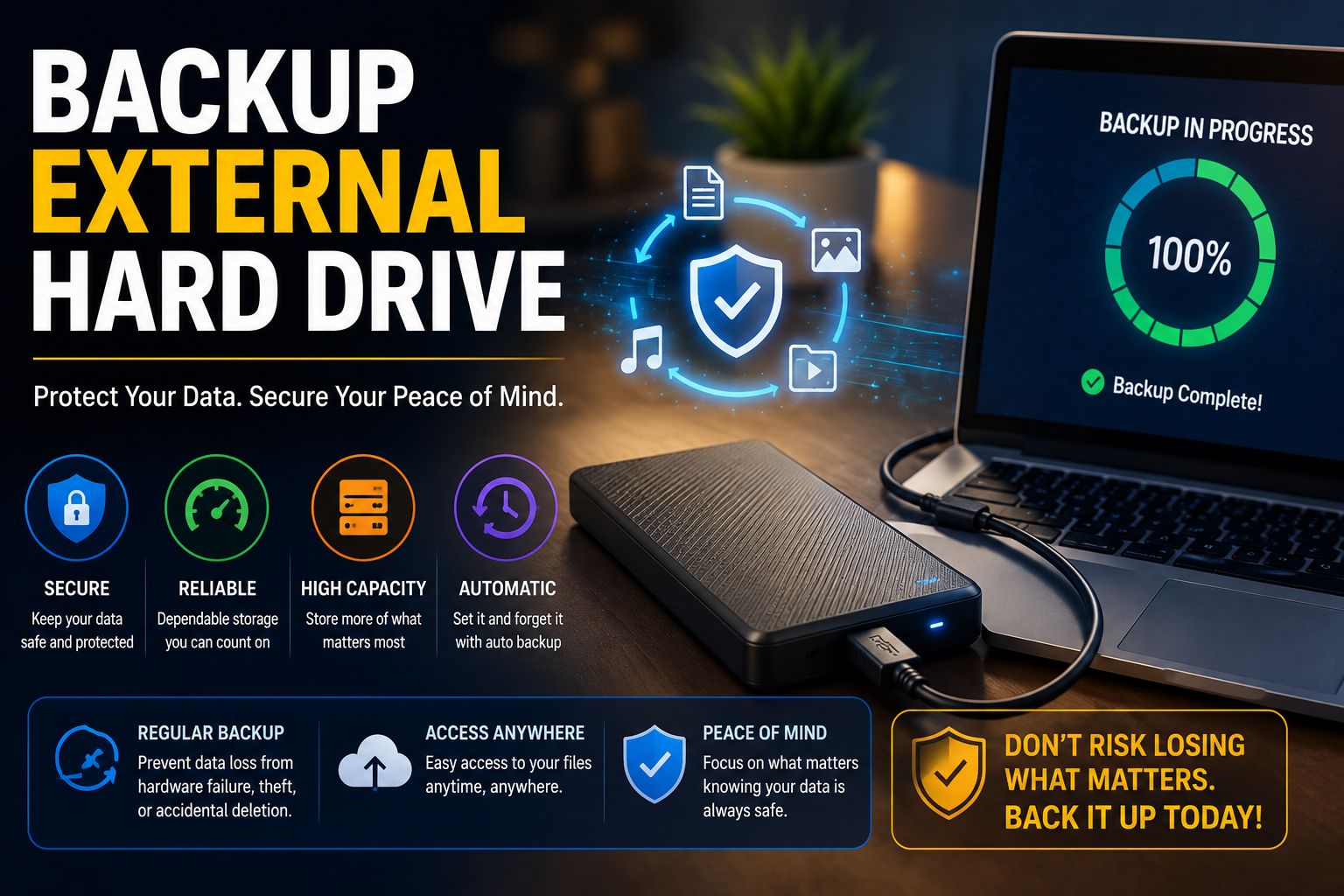
This is precisely why a reliable external hard drive for backup is no longer a mere luxury and has turned into an essential. Whether you’re a student, a busy entrepreneur, or a parent preserving family snapshots, your digital life needs physical protection.
In my decade of experience as a tech hardware expert, I have seen too many people lose everything simply because they trusted their primary device too much. Getting your data back after a crash can cost thousands, and success is never guaranteed.
Today, we are going to dive deep into exactly how you can protect your most valuable files. This ultimate guide will walk you through choosing, using, and maintaining the perfect storage solution for your specific needs. Backup External Hard Drive
📌 Quick Answer
How do you back up an external hard drive?
The safest way to back up an external hard drive is to create at least one additional copy of your files on another storage device or a trusted cloud service. For maximum protection, follow the 3-2-1 backup strategy: keep three copies of your data, store them on two different media types, and keep one copy in a separate location.
Why Every American Needs a Data Protection Plan 🇺🇸
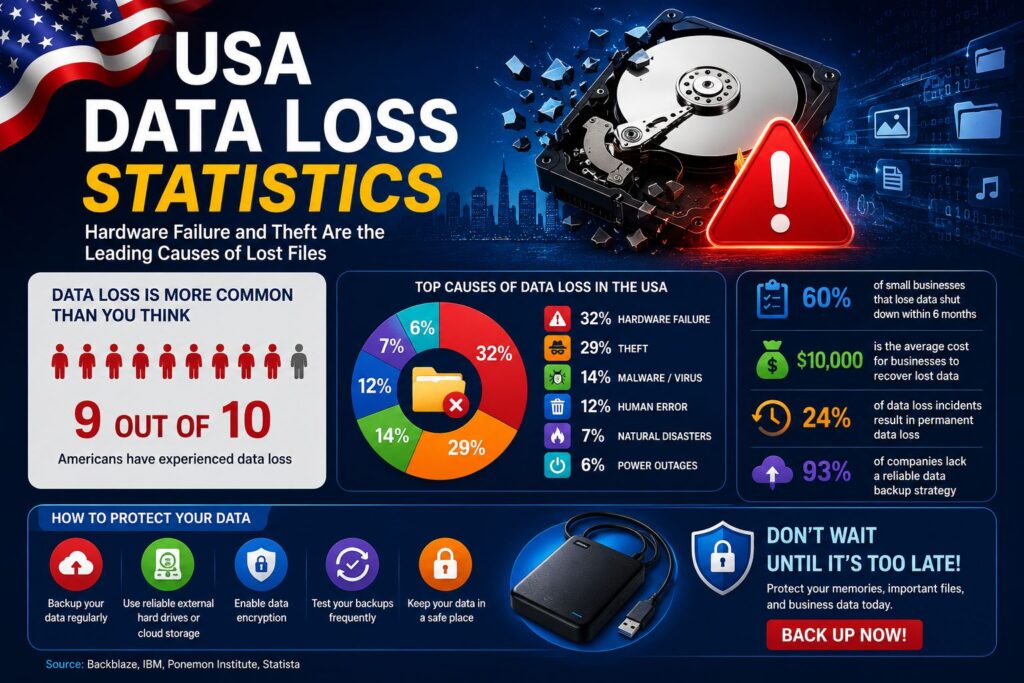
We live in a fast-paced, digital-first world where almost everything we do is stored on fragile electronic components. From tax returns to irreplaceable wedding videos, our lives live on our screens.
Yet, recent industry statistics reveal a harsh reality: nearly 30% of computer users in the USA have never backed up their devices. Furthermore, experts estimate that a laptop is stolen every 53 seconds across the country.
When your computer goes missing, or the motherboard suddenly fails, a physical copy of your files is your only safety net. Relying exclusively on an internet connection for cloud storage can be risky, especially during outages or cyberattacks.
Having a physical device sitting on your desk gives you complete control, enhanced privacy, and absolute peace of mind. It is a one-time purchase that pays for itself the second your main computer decides to give up.
SSD vs. HDD: Choosing the Right Portable Storage Tech 💾
When you start shopping for a new drive, you will immediately notice two distinct types of technology: HDDs (Hard Disk Drives) and SSDs (Solid State Drives). Knowing the difference is critical to making the right choice.
Visit Amazon: https://amzn.to/4vQbKaG
Solid State Drives (SSDs): Speed and Durability
SSDs represent the cutting edge of portable storage. Because they contain absolutely no moving parts, they are highly durable and can easily survive the bumps and drops of daily travel.
They are also incredibly fast, making them the top choice for videographers or entrepreneurs who need to transfer massive files in seconds. If you are always on the go, a rugged SSD is your best friend.
Upgrading to solid-state technology is one of the easiest ways to modernize your workflow. For more tips on optimizing your daily tech, check out our guide on improving your laptop’s performance.
Hard Disk Drives (HDDs): High Storage Capacity on a Budget
If you need to store terabytes upon terabytes of data but are working with a strict budget, traditional HDDs are still a fantastic option. They use spinning magnetic platters to read and write your files.
While they are physically larger and a bit more fragile than SSDs, they offer unbeatable value for raw storage capacity. An HDD is perfect if you plan to leave the drive sitting safely on your home office desk.
Top Features of the Best Backup External Hard Drive 🌟
Finding the Best backup external hard drive requires looking past the flashy marketing and focusing on the hardware features that actually matter. Not all drives are built the same.
First, look at the connection type. You want a drive that supports USB-C or Thunderbolt connections, as these modern ports drastically reduce the time you spend waiting for file transfers to complete.
Second, if you are a businessman or businesswoman handling sensitive client data, hardware encryption is a must. A drive with 256-bit AES encryption ensures that if you lose the device, hackers cannot access your files.
Finally, consider the build quality. Many premium drives now feature rubberized bumpers and IP68 ratings for water and dust resistance, making them virtually indestructible during your daily commute.
The Real Cost of Data Loss: Case Studies from the Field 📉
Theory is great, but real-world examples truly highlight the devastating psychological and financial impact of data loss. Let’s look at two scenarios I have witnessed firsthand.
Case Study 1: Sarah, the Graduate Student
Sarah, a graduate student in New York, spent a year writing her final dissertation. She saved all her progress locally on her aging laptop, assuming it would survive until graduation.
One evening, a simple software glitch corrupted her operating system. Because she lacked a secondary storage plan, she had to pay a specialist over $1,000, and they could only recover half of her research.
Case Study 2: Mark, the Agency Entrepreneur
Mark runs a thriving digital marketing agency in Texas. His team was recently hit by a vicious ransomware attack that instantly encrypted all their active client video files.
Fortunately, Mark was prepared. He had synced everything to an offline drive the night before. He wiped his infected computers and restored his entire business in hours, saving his company’s reputation.
For more insights on keeping your business safe from digital threats, read our comprehensive breakdown on protecting yourself from ransomware.
The 3-2-1 Data Recovery and Backup Strategy 🛡️
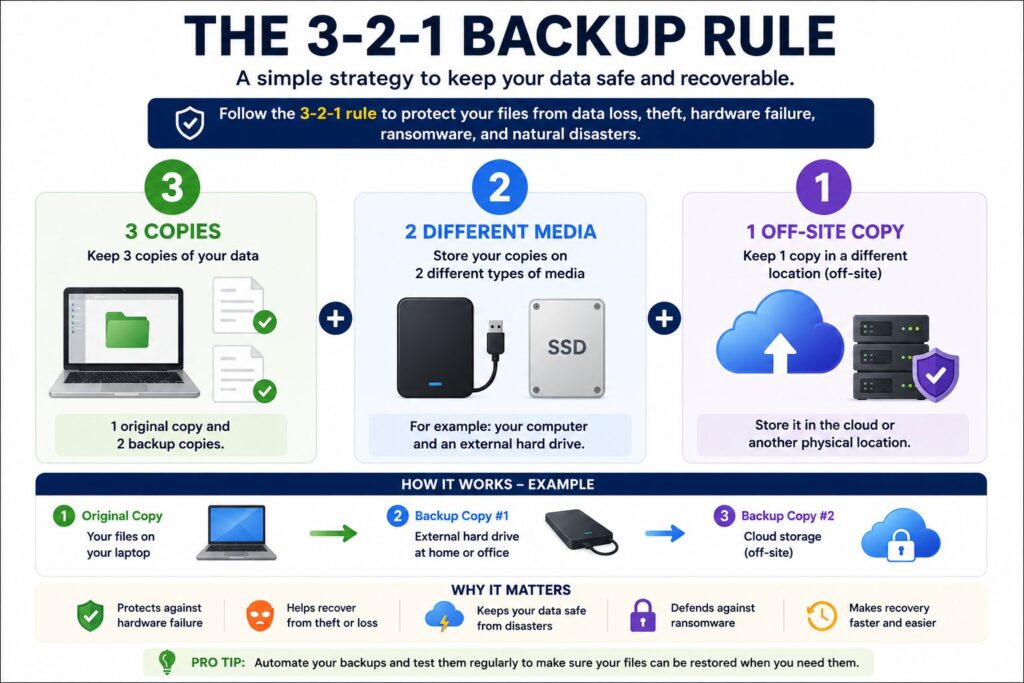
If you want to protect your digital life like a Fortune 500 company, you need to follow the famous 3-2-1 backup rule. It is the gold standard for IT professionals across the globe.
The rule dictates that you should keep three total copies of your important data. Two of these copies should be kept locally on different devices—like your internal computer drive and your physical external drive.
The final one copy should be stored entirely off-site. This could be a secure cloud server or a secondary physical drive that you keep locked away in a bank safety deposit box.
By diversifying the locations of your files, you become completely immune to localized disasters like office fires, house floods, or targeted burglaries.
How to Automate Your File Backup Routine 🚀
The single biggest mistake people make is buying a beautiful storage device and then forgetting to plug it in. Human memory is flawed, which is why automation is your ultimate safety net.
Time Machine for Apple Mac Users
For Apple users, the built-in Time Machine software is an absolute lifesaver. When you plug in a new drive, your Mac will automatically ask if you want to use it for Time Machine.
Once you say yes, it silently saves hourly, daily, and weekly backups in the background. You can literally “travel back in time” to retrieve a single document you accidentally deleted three weeks ago.
Windows File History for PC Users
If you are using a PC, the Windows File History feature operates in a very similar, user-friendly way. You simply select which folders you want the system to monitor.
Taking five minutes to configure this setup today guarantees that your future self will never have to panic over a crashed hard drive or a missing folder.
To explore more software that automates your daily workflow, check out our list of the top tech gadgets and tools for entrepreneurs.
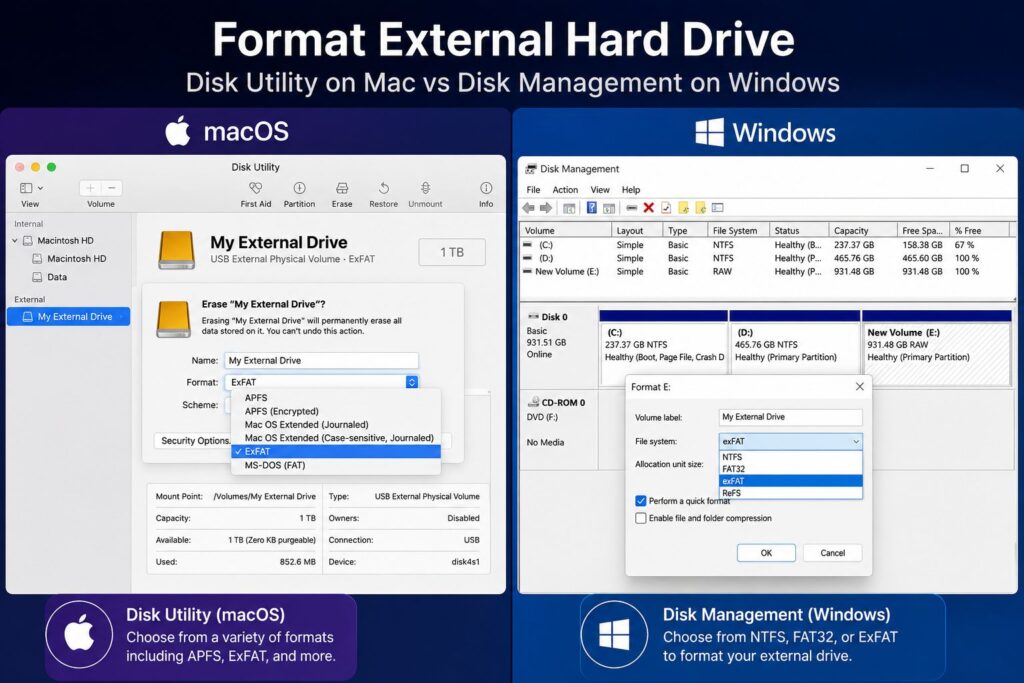
Formatting Your Drive: exFAT, APFS, or NTFS? ⚙️
When you unbox your new drive, it might not work perfectly with your specific computer right out of the box. This comes down to file system formatting.
If you are strictly an Apple user, formatting your drive to APFS (Apple File System) will give you the fastest and most secure performance on a Mac.
If you use Windows exclusively, NTFS is the standard format you should choose. However, many households today have a mix of both Mac and Windows computers.
If you need your drive to work seamlessly across both Apple and PC platforms, format it to “exFAT.” This universal format allows you to plug the drive into any modern machine without errors.
Best Practices for Extending Hardware Lifespan 🔋
Just like a well-maintained car, your storage devices require a bit of care to ensure they last for years. Heat and sudden physical shocks are the two biggest enemies of consumer electronics.
Always make sure your drive rests on a flat, stable desk where it cannot be easily knocked over by a pet or a clumsy elbow. If you use a mechanical HDD, never move it while it is actively transferring files.
Keep your devices away from direct sunlight and extreme temperatures. Leaving a car in a freezing car during a Chicago winter or a baking car in a Phoenix summer can cause permanent internal damage.
Finally, always use the “Safely Remove Hardware” or “Eject” command on your computer before unplugging the USB cable. Yanking the cord out mid-transfer is the fastest way to corrupt your files.
Curious about how modern storage components are evolving to become tougher? Read our deep dive into the latest solid-state drive innovations.
Physical Portable Storage vs. Automated Cloud Backup ☁️
A very common question I hear from tech beginners is whether they still need physical storage if they already pay for Google Drive, Dropbox, or iCloud. The answer is a resounding yes.
Automated cloud backup services are fantastic for sharing files with remote coworkers or syncing your calendar across your smartphone and tablet. However, they have major limitations when disaster strikes.
Restoring a massive 1-terabyte computer solely from the cloud can take days or even weeks, depending heavily on your internet service provider’s speed limits.
A physical drive allows for rapid, full-system restorations in just a few hours. It also requires zero internet connection, meaning you can access your business documents during a severe power outage or while traveling off the grid.
What to Do When Disaster Strikes Your Drive 🚨
No piece of technology is completely invincible. Eventually, even the most expensive drive will reach the end of its natural lifespan. Knowing how to react can save your data.
If your computer suddenly stops recognizing your drive, or if you hear a terrifying clicking noise coming from an HDD, unplug it immediately. Continued use can make the internal damage permanent.
At this stage, you may need to rely on specialized recovery software to salvage the hidden files. You can learn exactly how to do this in our step-by-step guide to data recovery software tools.
If software fails, your last resort is mailing the drive to a professional cleanroom facility. These services are incredibly expensive, which proves exactly why keeping multiple backups is so vital to your digital security.
Conclusion: Secure Your Digital Life Today ✅
Data loss is rarely something you can predict; it almost always strikes when you are least prepared for it. Waiting until your computer starts making strange noises is usually too late.
By investing in a high-quality backup external hard drive today, you are essentially buying a digital insurance policy. It protects your hard work, your cherished family memories, and your financial livelihood.
Whether you opt for a massive, budget-friendly desktop HDD for your home office or a lightning-fast, ultra-portable SSD for your backpack, the most important step is simply getting started.
Set up your automated backups this weekend, follow the 3-2-1 strategy, and enjoy the profound peace of mind that comes with knowing your digital world is entirely secure.
People Also Ask (FAQs)
1. How long does a backup external hard drive usually last?
On average, a traditional mechanical hard drive (HDD) lasts between 3 and 5 years under normal daily use. Solid State Drives (SSDs) can last significantly longer—often up to 10 years or more—because they lack the fragile moving parts that naturally wear out over time.
2. Is 1TB enough for an external hard drive?
For most college students and average office professionals, 1TB is more than enough space to store thousands of Word documents, massive spreadsheets, and high-resolution family photos. However, if you edit 4K video or want to back up multiple household computers, you should upgrade to a 2TB or 4TB drive.
3. Do I need to keep my external hard drive plugged in all the time?
No, you do not need to keep it constantly connected. In fact, unplugging the drive and storing it safely in a desk drawer when not in use can protect it from sudden electrical power surges and accidental ransomware infections. Just remember to plug it in weekly to run your scheduled backups.
4. Can I use the same external hard drive for both Mac and Windows?
Yes, absolutely, but you will likely need to reformat the drive first. By default, most drives are formatted for one specific operating system. Formatting the drive to “exFAT” will allow it to be seamlessly read and written by both Windows PCs and Apple MacBooks without any third-party software.
5. What is the safest way to store sensitive files on an external drive?
The absolute safest method is to purchase a premium drive that features built-in AES 256-bit hardware encryption. This requires a custom password to unlock the drive before any files can be viewed, ensuring your sensitive data remains completely private even if the physical device is lost or stolen during your commute.